
Your own BreynFlow pieces (on your phone)
Chapter 1Your AI Can Help You
Before you start, something important: you don't have to do this alone. BreynGINE can make a file that teaches your AI assistant (ChatGPT, Claude, Gemini, Grok...) how BreynFlow works: every piece with its fields, the ready-made objects and how pieces of your own are made. With it, the AI can write you a whole piece, explain each line or fix the one that doesn't work.
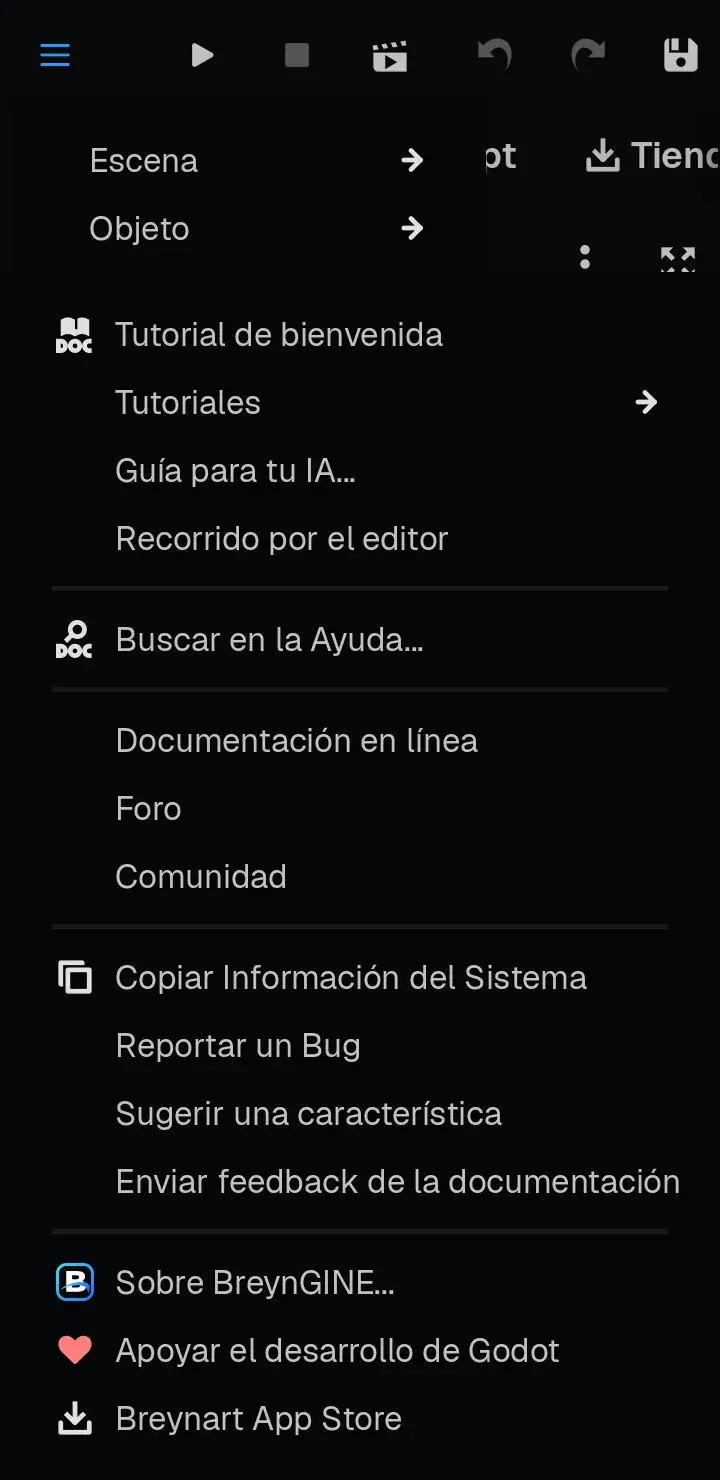
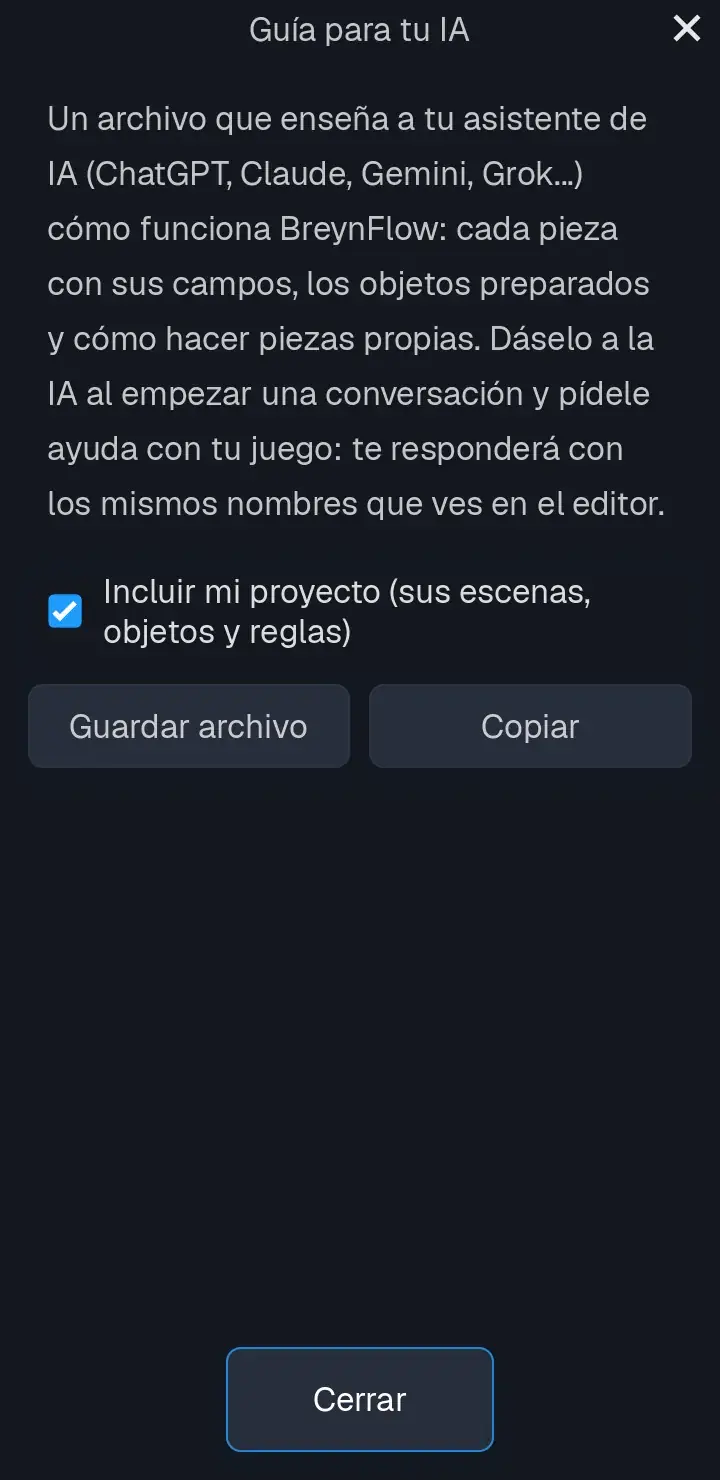
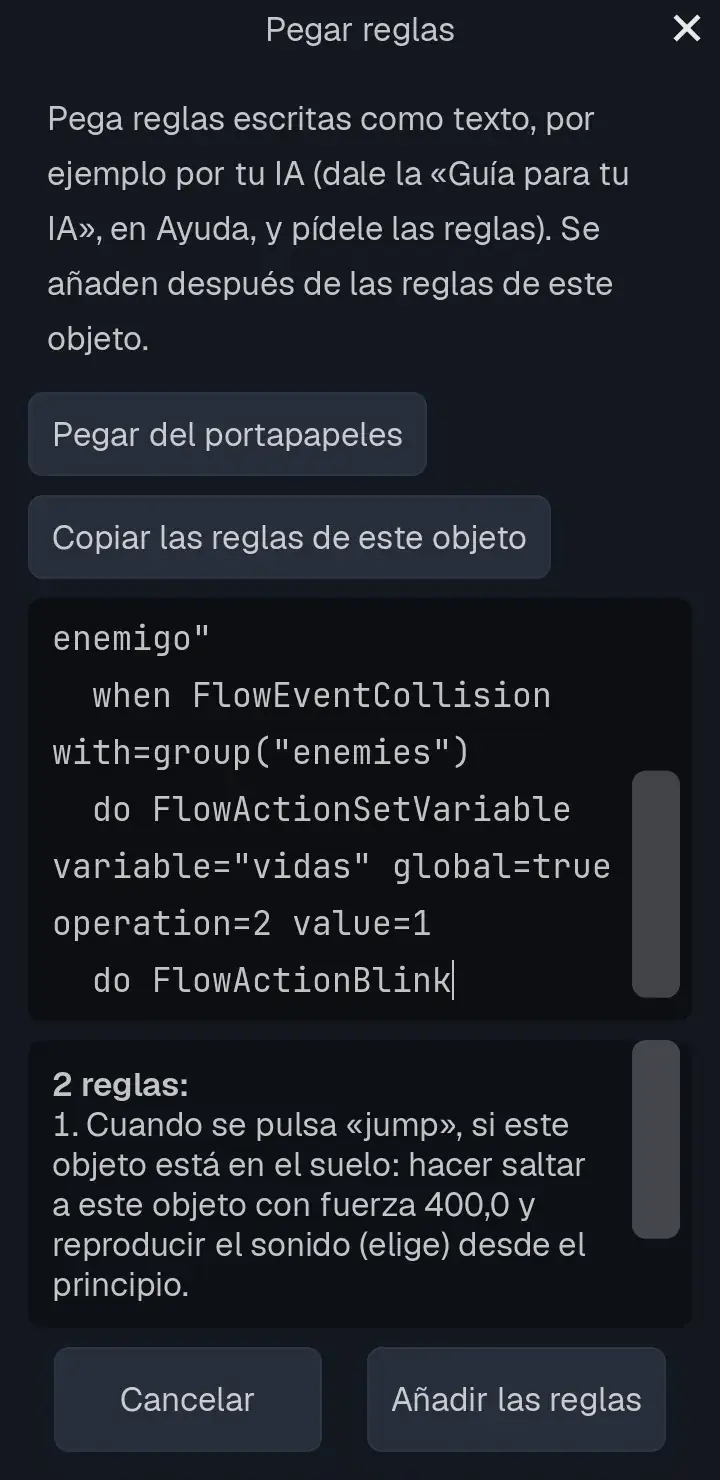
The AI will give you the code of the piece ready to paste, and it can also give you rules as text. Those rules are pasted in one go: copy the text, go to the BreynFlow screen, tap Paste Rules... and then Paste from the Clipboard. Before adding them you'll see how they read, sentence by sentence, and any problem they have. If it's all right, tap Add the Rules.
If you'd rather learn to do it yourself (or understand what the AI wrote for you), read on: in this tutorial you make a piece step by step.
Chapter 2What You'll Do
BreynFlow comes with lots of pieces: events (WHEN), conditions (IF) and actions (DO). But sometimes you're missing exactly one. That's what pieces of your own are for: a short GDScript file that BreynFlow shows in the finder and uses like any other piece.
You'll make Pulse, an action that makes an object grow and go back to its size a few times, like a heart. In the rule it will read like this: "make this object pulse 3 times in 1 s", and you'll be able to tap each value to change it, like in BreynGINE's pieces.
Then you'll see how to change its code, what namespaces are and how to gather your pieces in a pack to share them or sell them.
This is the version of the tutorial for the editor's touch interface, with pictures of the phone. If you don't know the tabs at the bottom yet (Scene, View, Inspector, Project, More) and the bar of screens, see the chapter The editor on a phone of My first game.
Chapter 3Get an Object Ready
You can use any game project. If you want to start from scratch, create a new one with the 2D (camera) template.
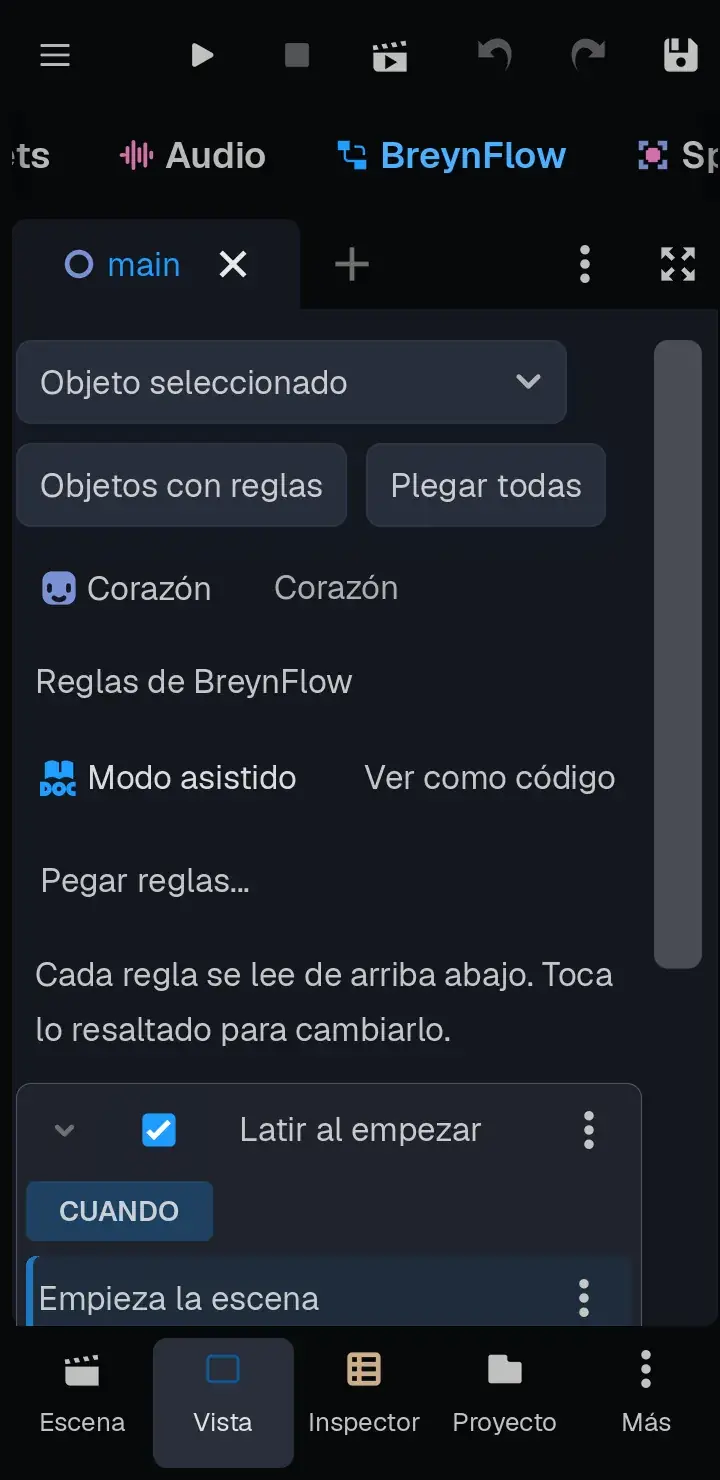
Now you have a rule that says "When the scene starts". What it does is missing: that's where your piece goes.
Chapter 4Create the Piece
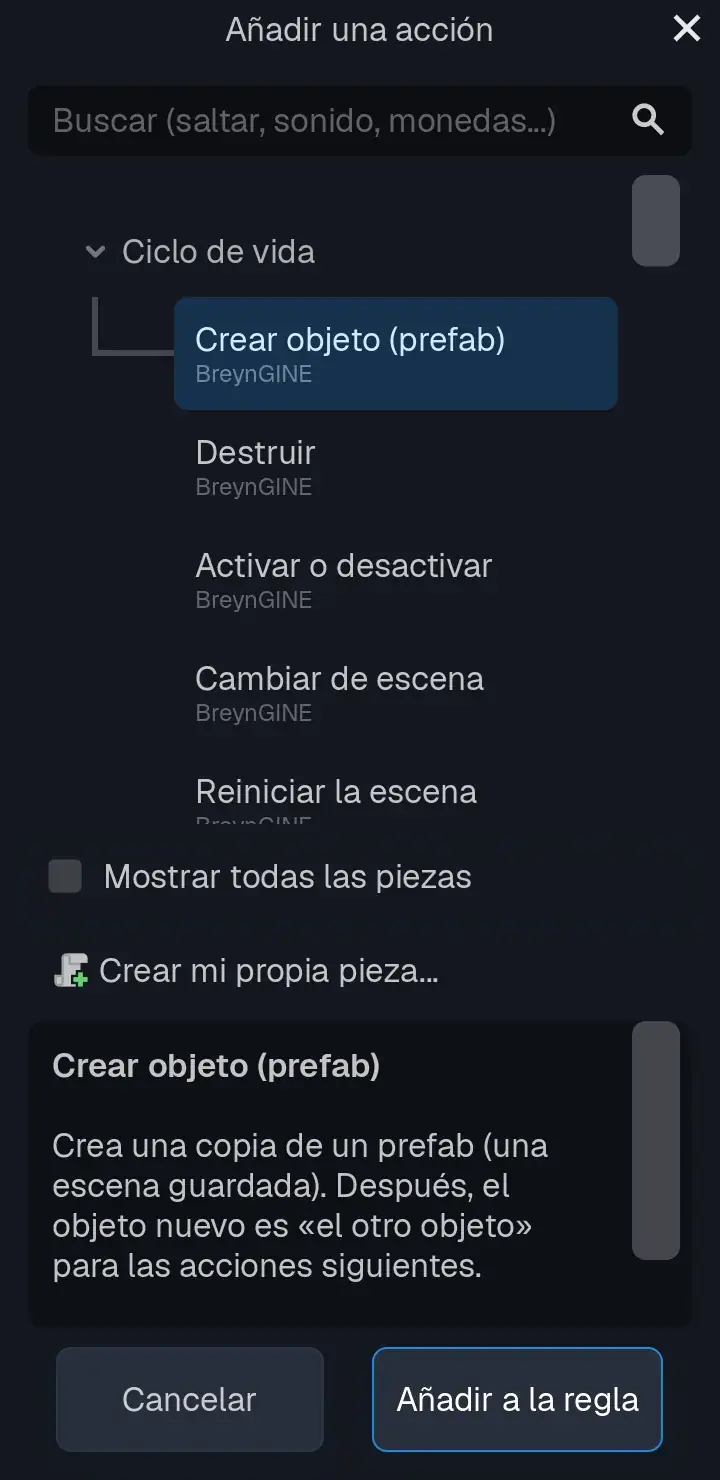
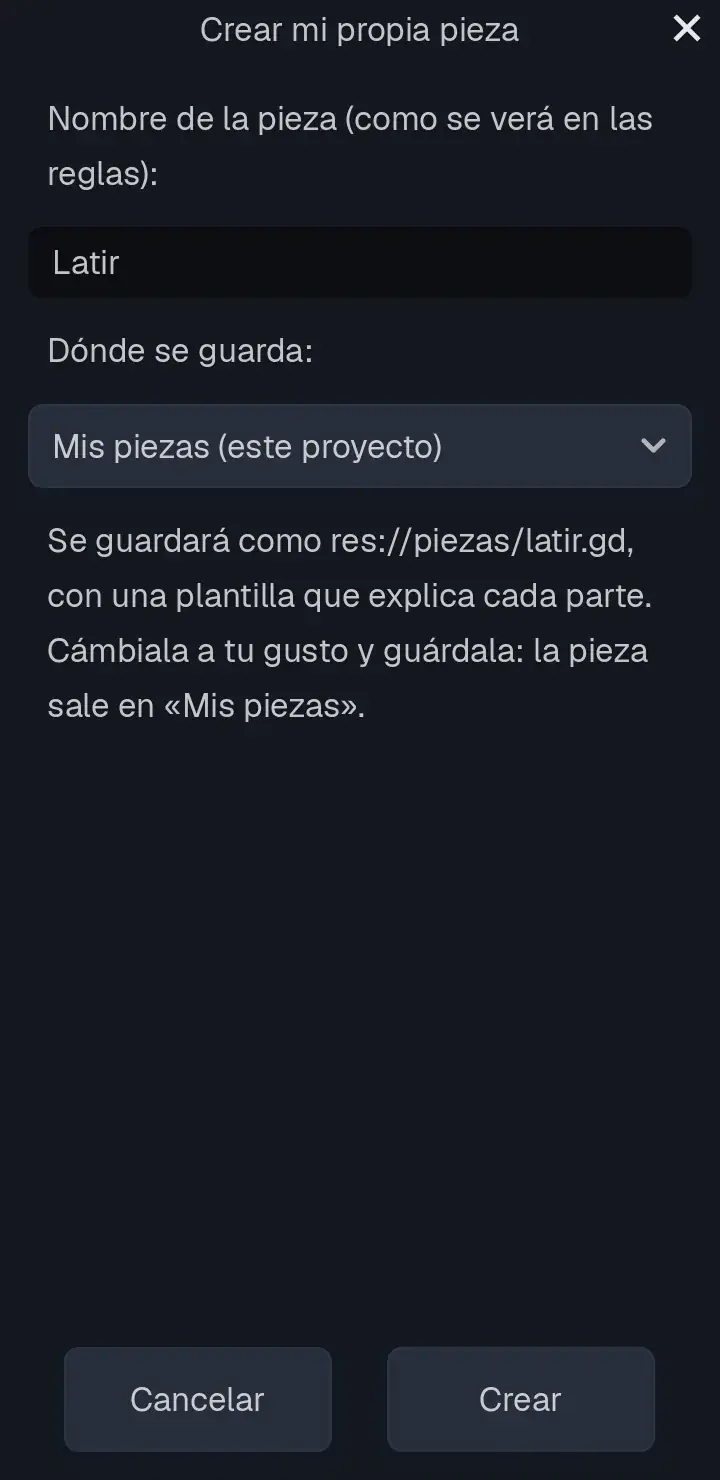
Three things happen at once: the file res://piezas/pulse.gd is created with a template, the piece is added to your rule and its code opens in the Script screen.
Chapter 5What the Template Has
The template already works: it's a sample piece with comments (the lines starting with #) that explain each part. These are the important ones:
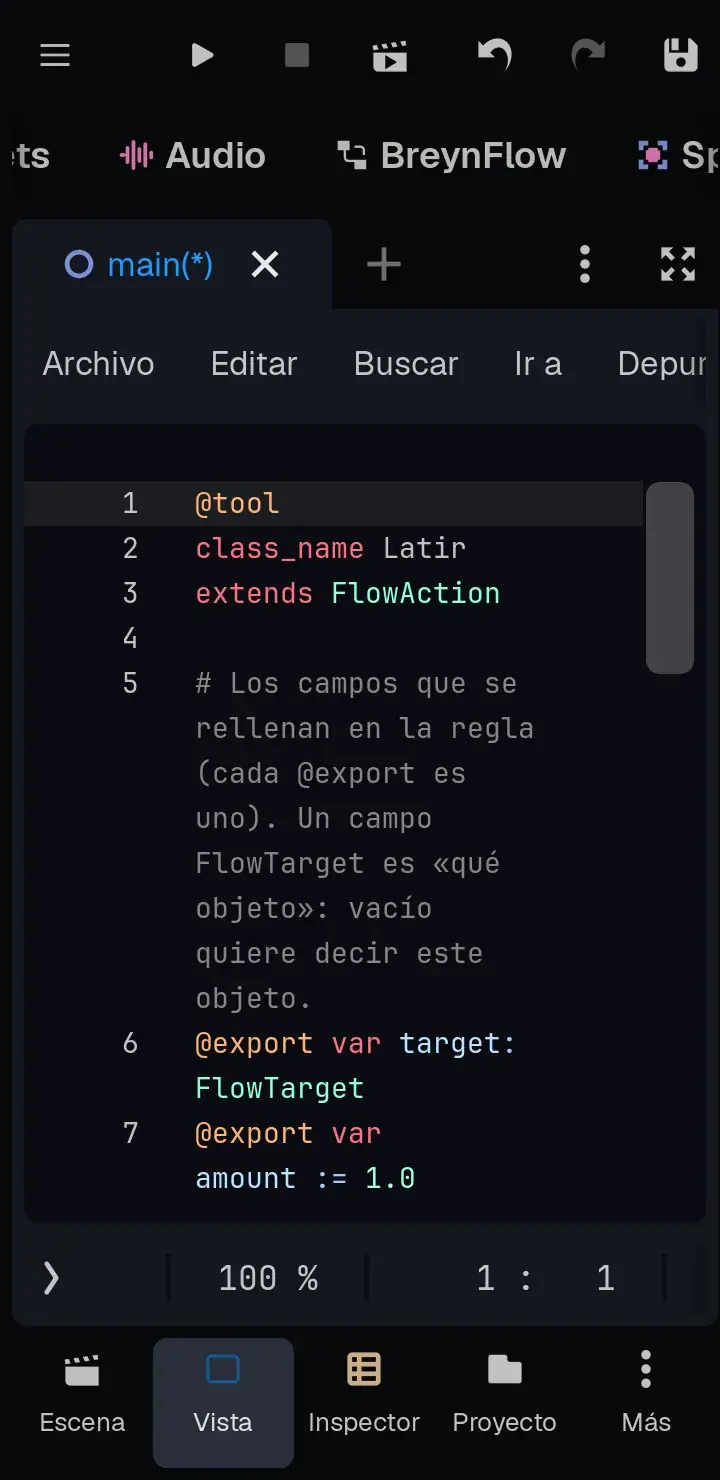
- @tool: lets the editor use the piece while you work (to show it in the finder and in the rules). It always goes first.
- class_name Pulse: the name of the piece in the code.
- extends FlowAction: says it's an action. A condition would be FlowCondition and an event, FlowEvent.
- The @export var lines: the fields filled in in the rule. A FlowTarget field is "which object" (empty means this object).
- _get_piece_info(): how the piece looks. Its name, its sentence (each field goes between braces, like {target}), its category, its description and an example.
- _execute(context): what the piece does. It returns true when it's done.
Chapter 6Write Pulse
Now swap the template for the real piece. You don't need to type it:
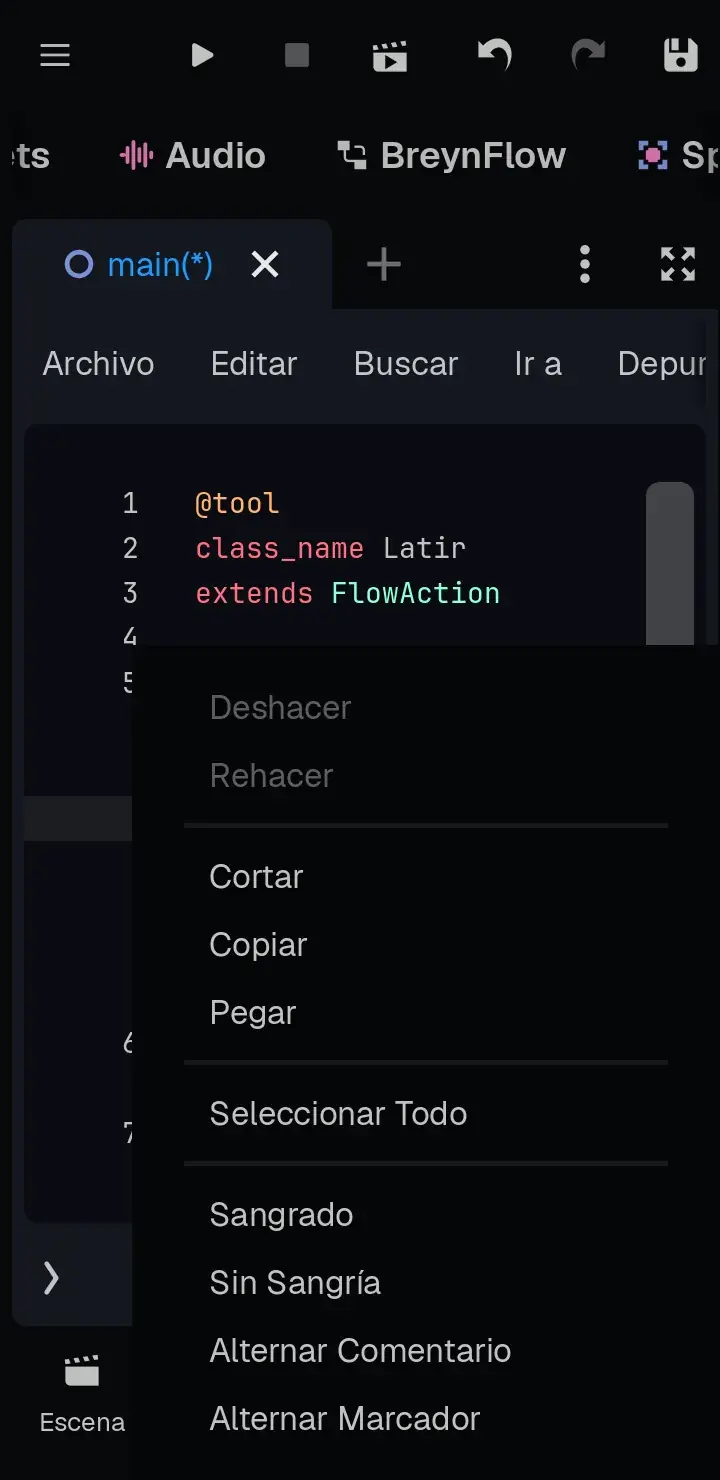
@tool
class_name Pulse
extends FlowAction

# The fields of the piece: which object pulses (empty: this object), how many times,
# in how many seconds and how much it grows (1.3 is 30% bigger).
@export var target: FlowTarget
@export var beats := 3
@export var seconds := 1.0
@export var size := 1.3

func _get_piece_info() -> Dictionary:
	return {
		"name": "Pulse",
		"sentence": "make {target} pulse {beats} times in {seconds} s",
		"category": "My Pieces",
		"description": "Makes an object grow and go back to its size a few times, like a heart.",
		"example": "The scene starts: make this object pulse 3 times in 1 s.",
	}

# It starts: keeps the size of each object and sets the clock to zero.
func _execute(context: FlowContext) -> bool:
	var start := {}
	for node in context.get_targets(target):
		if "scale" in node:
			start[node] = node.scale
	context.set_state(self, &"start", start)
	context.set_state(self, &"time", 0.0)
	return false # Not done yet: the rule waits.

# Every frame, until it returns true: it grows and shrinks.
func _process_action(context: FlowContext, delta: float) -> bool:
	var time: float = context.get_state(self, &"time", 0.0) + delta
	context.set_state(self, &"time", time)
	var done := time >= seconds
	var grow := 0.0 if done else absf(sin(time / seconds * beats * PI))
	var start: Dictionary = context.get_state(self, &"start", {})
	for node in start:
		if is_instance_valid(node):
			node.scale = start[node] * (1.0 + (size - 1.0) * grow)
	return done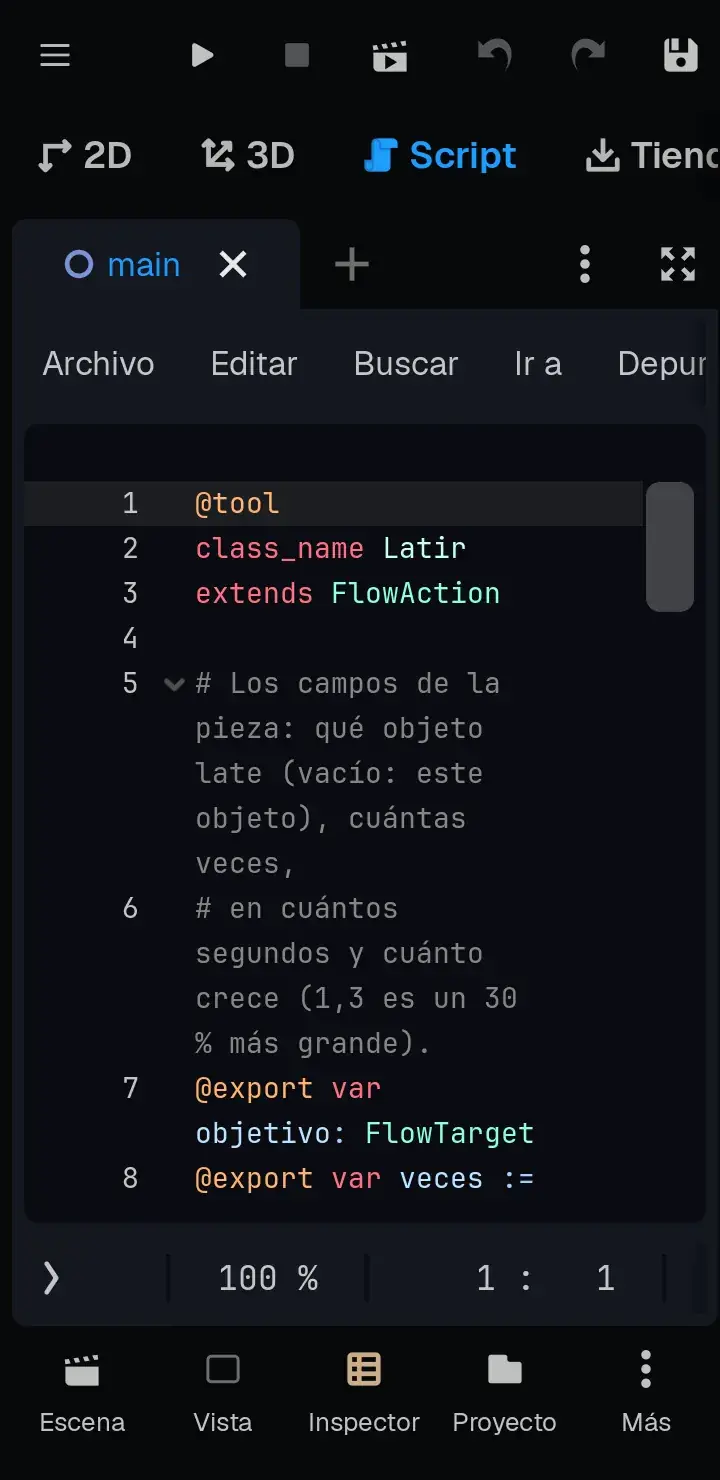
How It Works
- _execute() is called once, when the rule gets to the piece. It writes down the size of each object and returns false: "I'm not done yet".
- While it isn't done, BreynFlow calls _process_action() every frame. The piece works out how much to grow with a wave (the sin function) and returns true when the seconds have passed. Then the rule goes on with the next action.
- get_state() and set_state() keep the values of each time the piece is used. It matters: if ten enemies have the same rule, they share the piece, so what changes while the game runs isn't kept in its variables.
Chapter 7Use It in the Rule
Go back to the BreynFlow screen (in the bar of screens). Your rule now says:
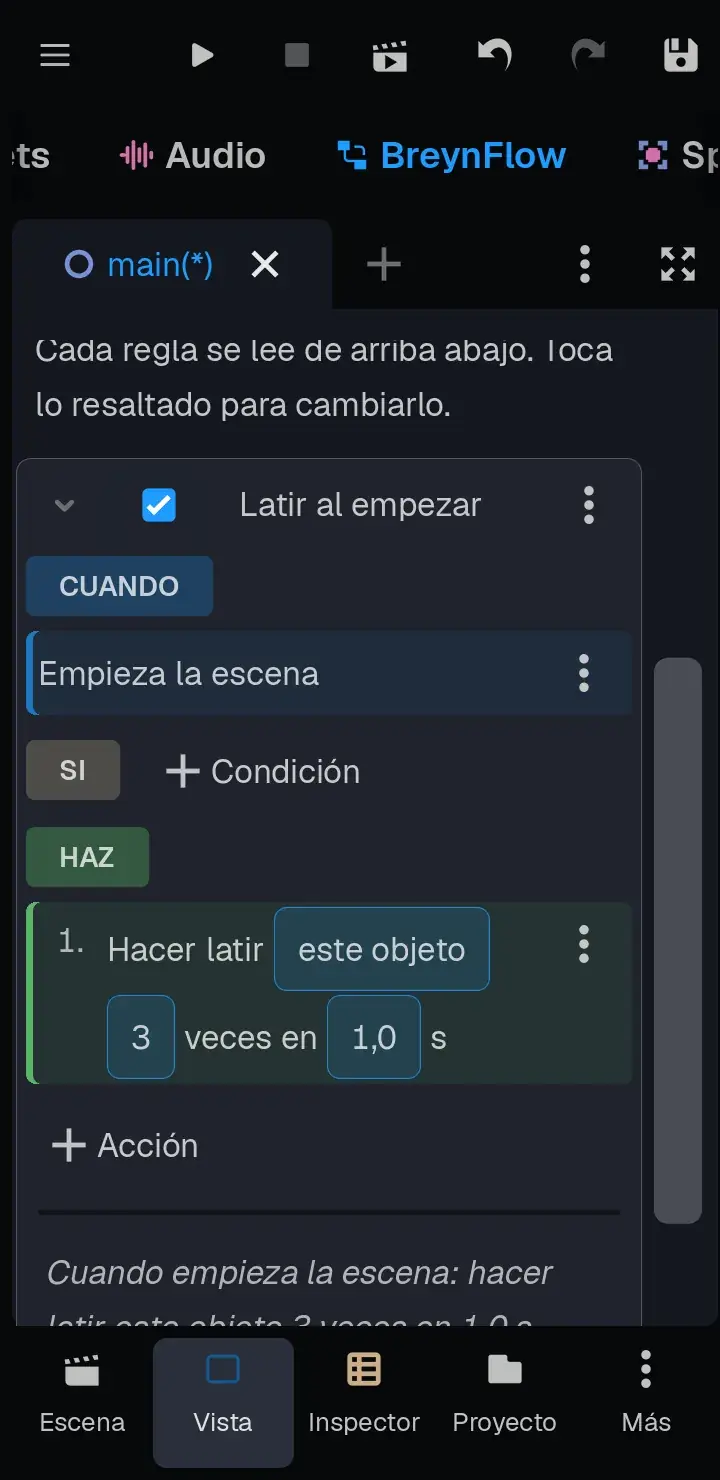
"When the scene starts: make this object pulse 3 times in 1 s". Tap any highlighted value to change it: make it 5 times, or 2 seconds.
Tap ▶ (at the top) to try the game: the heart pulses when it starts.
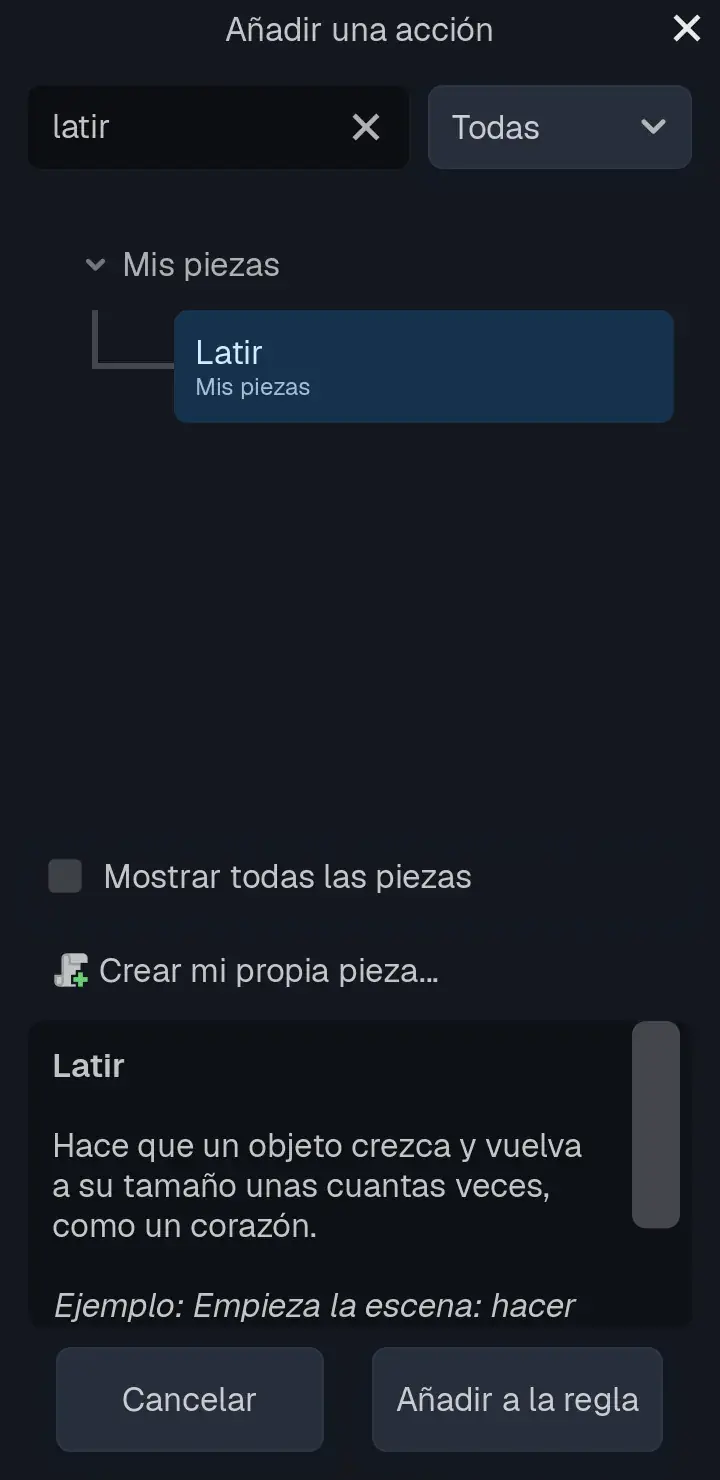
Your piece is in the finder for good, in the My Pieces category: write pulse in the search and there it is. You can use it in any rule of this project, with any event: when touching the player, when receiving a message, every 2 seconds...
Changing the Code Later
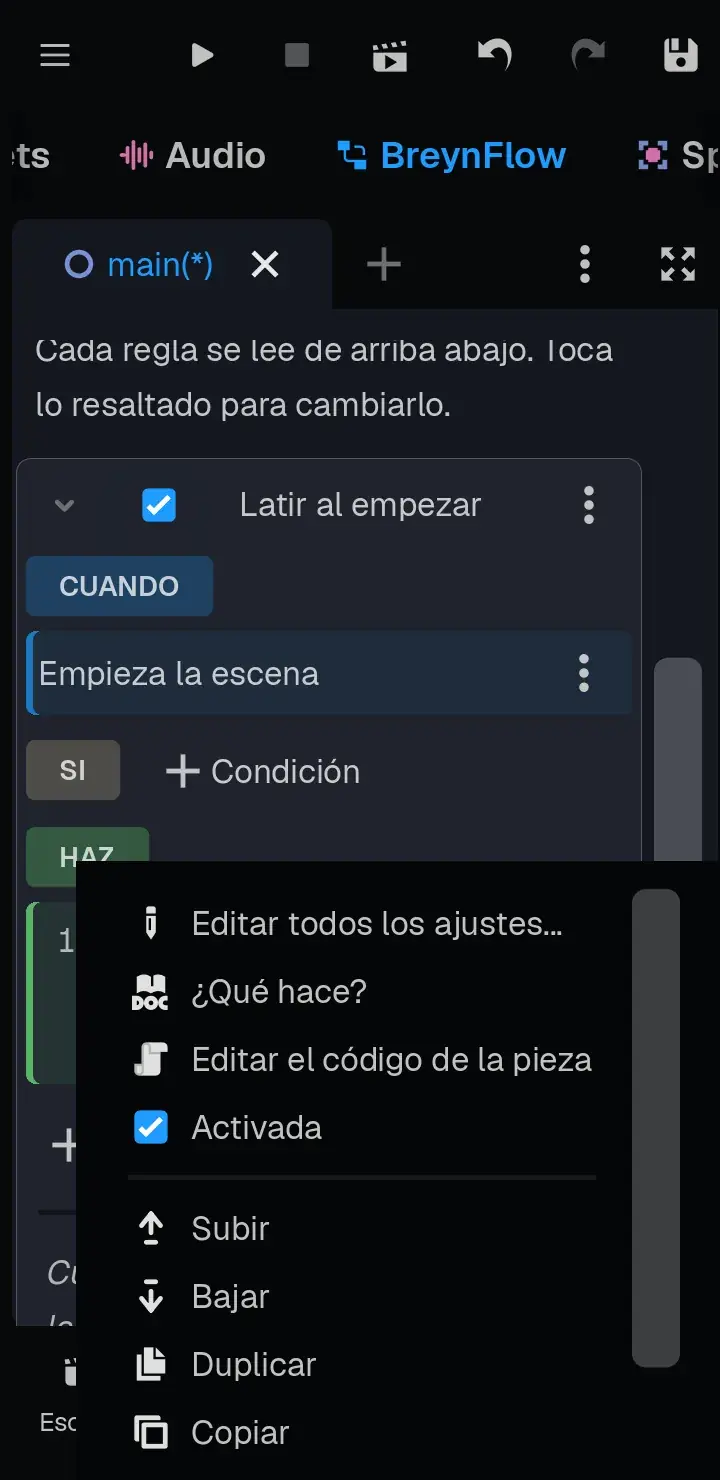
In the rule, the piece's menu (the three dots ⋮) has Edit the Piece's Code: it opens its file in the Script screen. Change whatever you want and save: every rule that uses it changes at once.
Chapter 8Namespaces
Look at the piece finder: under the name of each piece, small, it says where it comes from. It's its namespace:
- BreynGINE: the pieces that come with BreynGINE.
- My Pieces: those of your project, like Pulse.
- author.pack: those of a pack of pieces (the next chapter).
With the drop-down next to the search you can see only those of one of them.
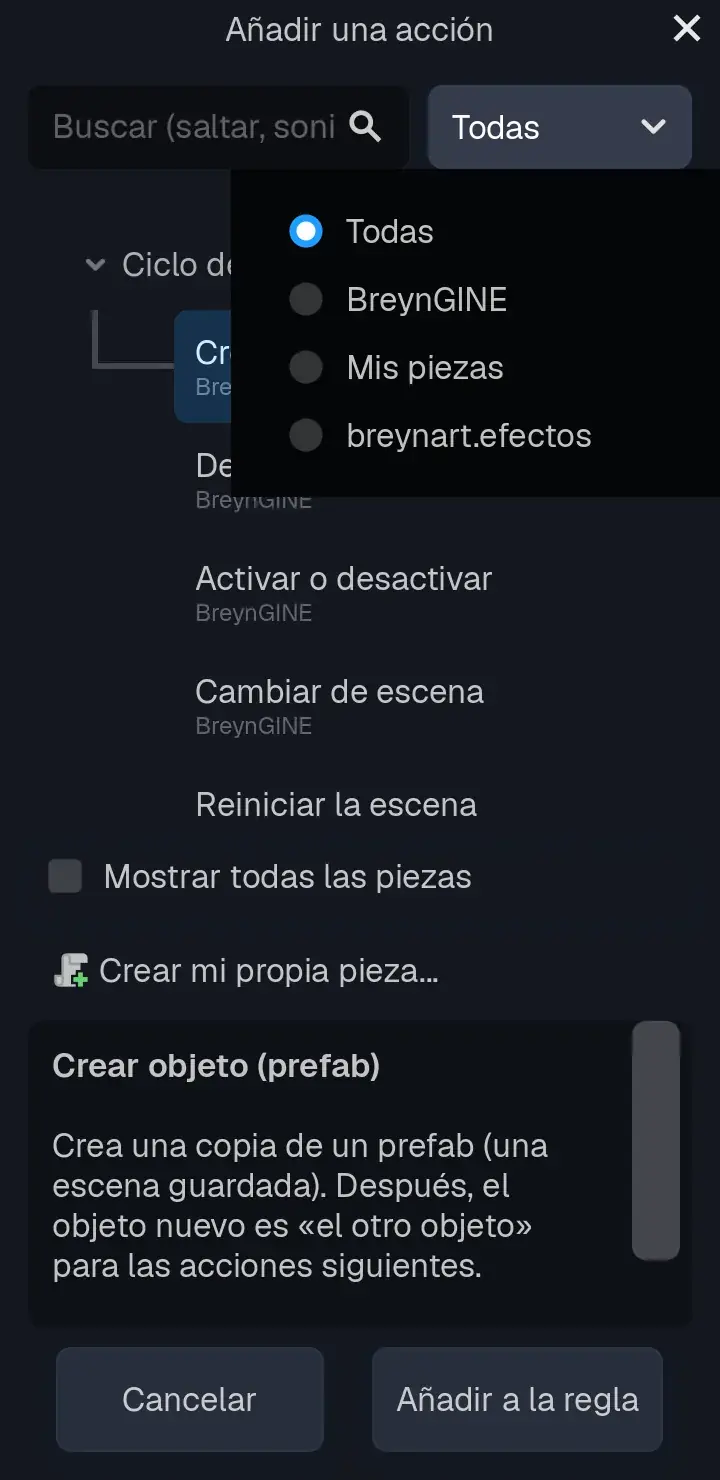
Thanks to namespaces, two pieces can have the same name without mix-ups: the "Pulse" of your project and the "Pulse" of a pack you download are two different pieces, and in the finder you know which is which.
Chapter 9Make a Pack
A pack gathers several pieces to share them with other people or sell them in the store. It's a folder res://addons/author/pack/ with the pieces inside and a pack.cfg file that says its name, its author, its version and its description.
To start one:
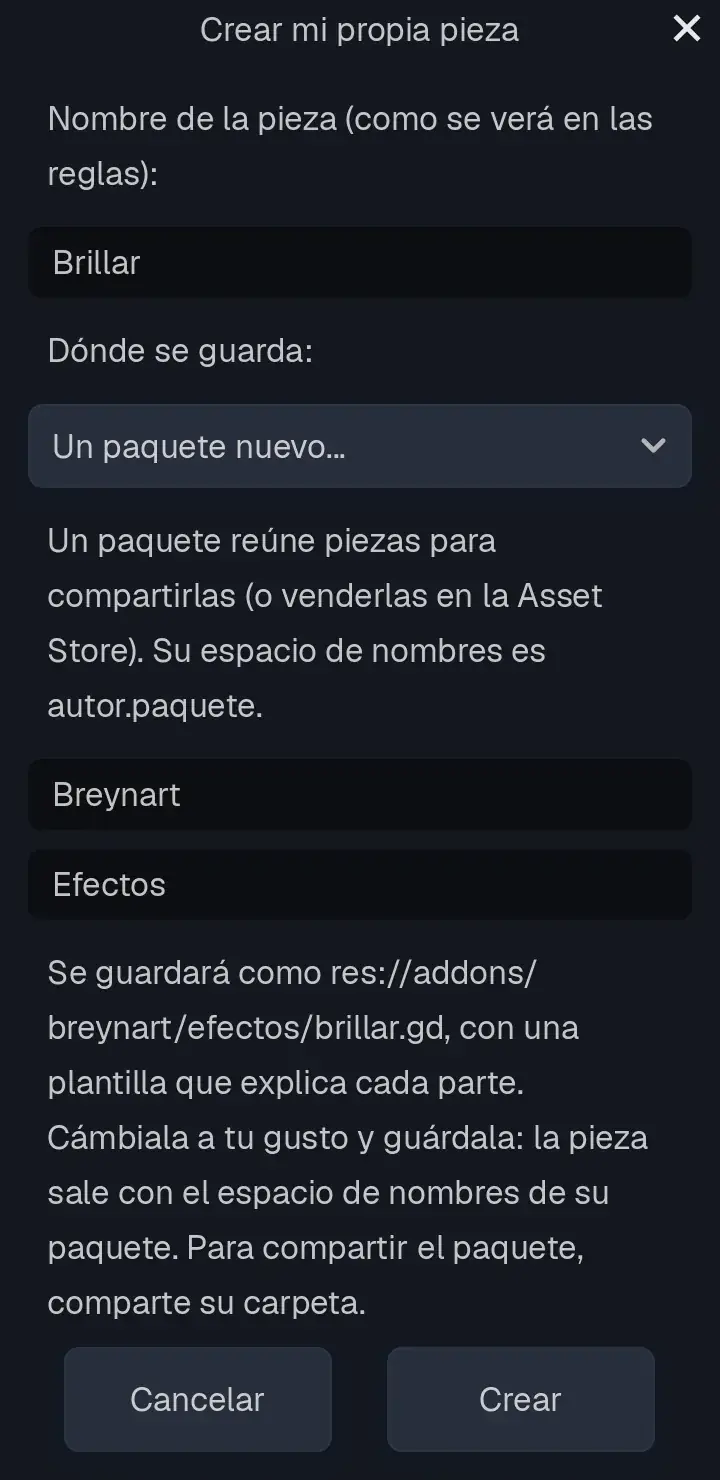
You create the next pieces of the pack the same way, choosing the pack in Where it's saved.
Share It
Your project is in the Documents/BreynGINE folder of the phone, under its name. Inside, the pack is in addons/author/pack. To share it, zip that folder with the phone's file manager and send it. Whoever copies it into the addons folder of their project gets your pieces in their finder, with your namespace. And soon you'll be able to publish it in BreynGINE's store.
In the Project tab you can open pack.cfg to write its description and raise its version when you improve it.
Chapter 10Now It's Your Turn
You know how to make pieces of your own. Some ideas to go on:
- A condition (FlowCondition): "the life is even", "it's night". Its function is _check(context) and it returns true or false.
- An event (FlowEvent): "every 3 jumps", "the phone is shaken". It fires the rule with flow.trigger_rule(rule_index).
- Ask your AI for ideas with the Guide for Your AI: with your project included, it knows exactly which pieces you have and which ones you're missing.