
My 3D shooter (on your phone)
Chapter 1Infernal Base
In this tutorial you'll make a first-person shooter in the style of the 90s classics, like Doom: corridors of a base, demons that chase you, a gun, medkits, ammo, a red key and a door that only opens with it. Without writing a single line of code, and all of it on your phone.
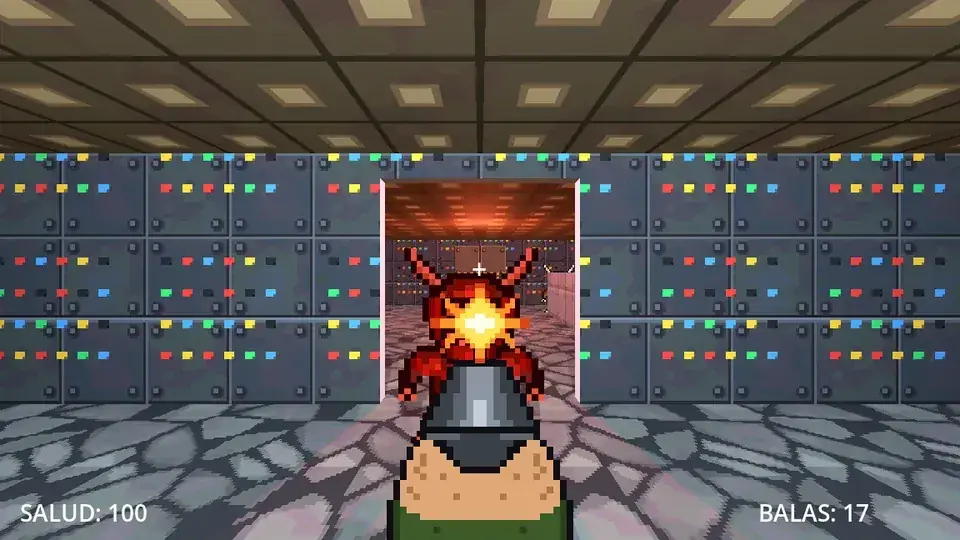
Along the way you'll learn:
- Shapes: building the level right inside the editor, with floors, walls, stairs and textures, and cutting doorways in the walls.
- Lights: setting the mood with colored lights.
- 3D game objects: the first-person player, the enemies and the pickups, ready to use.
- BreynFlow in 3D: moving, looking around, shooting, chasing, biting, picking up and opening doors.
- Touch controls: a joystick to walk and a button to shoot, and your finger to look around.
This is the version of the tutorial for the editor's touch interface, with pictures of the phone. If you don't know the bottom tabs yet (Scene, View, Inspector, Project, More), the workspace bar and the gestures, look at the chapter The editor on a phone of My first game: it also explains how BreynFlow rules work. Here we'll go a bit faster.
Chapter 2The project
The editor opens in the 3D view with the scene main: a sky, a light (the sun), a camera and a plane.
We'll build the level with shapes, and the player brings its own camera, so delete what we don't need: in the Scene tab, hold your finger on Main Camera and choose Delete. Do the same with Plane.
The drawings and the sounds
So you don't have to draw everything, this tutorial comes with the game's drawings and sounds. With your project open, tap ☰ > Help > Tutorials > My 3D shooter (tutorial) and choose Copy and Open: BreynGINE copies them into the project and opens this page again. (You can also download them here (download the ZIP).)
Two folders appear in the Project tab: sprites (the demon, the gun, the muzzle flash, the medkit, the ammo and the key) and sounds (the shot, the pain, the death, the hurt, the pickup and the door).
Chapter 3Moving around the 3D world
In the View tab, with the 3D view:
- One finger taps to select, and drags the colored arrows to move what's selected.
- Two fingers: pinch to zoom in or out, and drag to turn the camera around.
- The axes at the top right (X, Y, Z) put the camera facing front, from above or from the side with one tap. From above (Y) is the best way to see the plan of the level.
- ⋮ Perspective > Focus Selection takes the camera to the selected object.
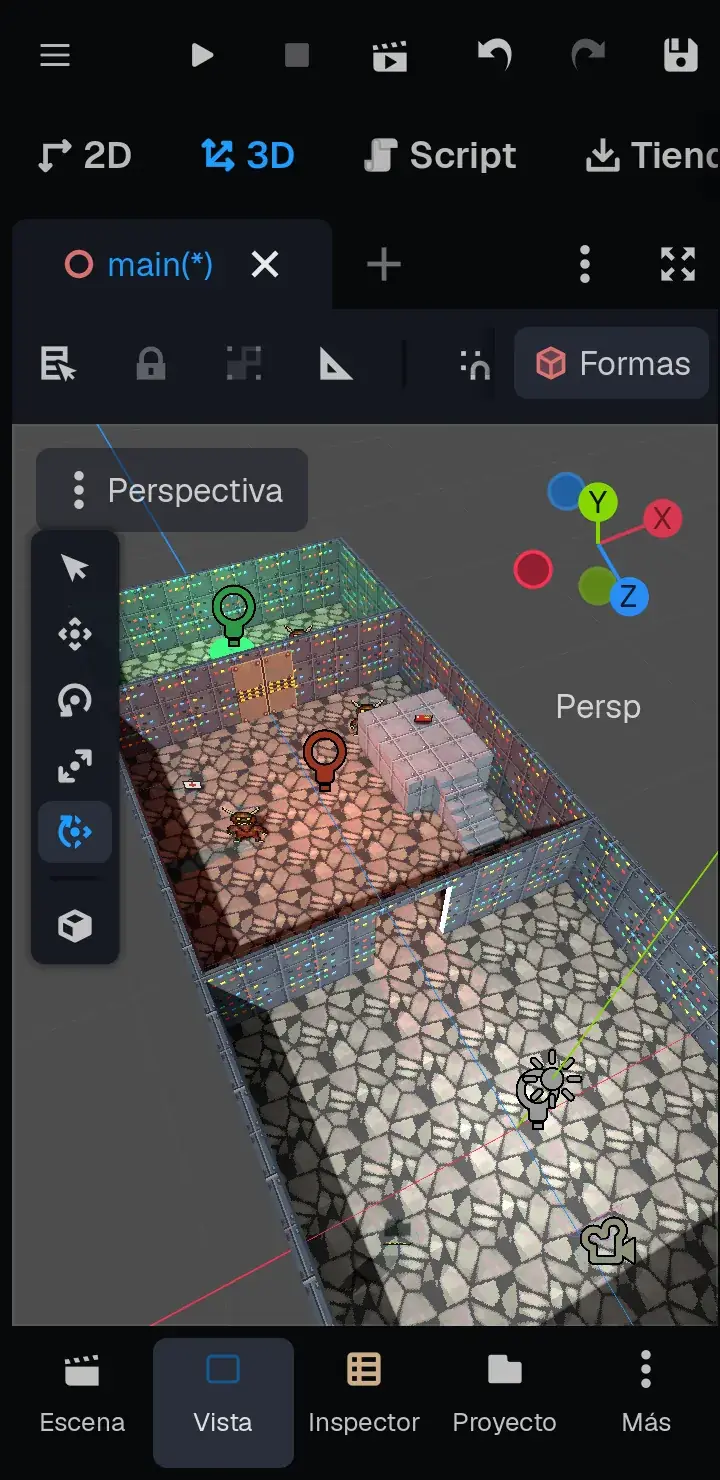
Chapter 4The floor
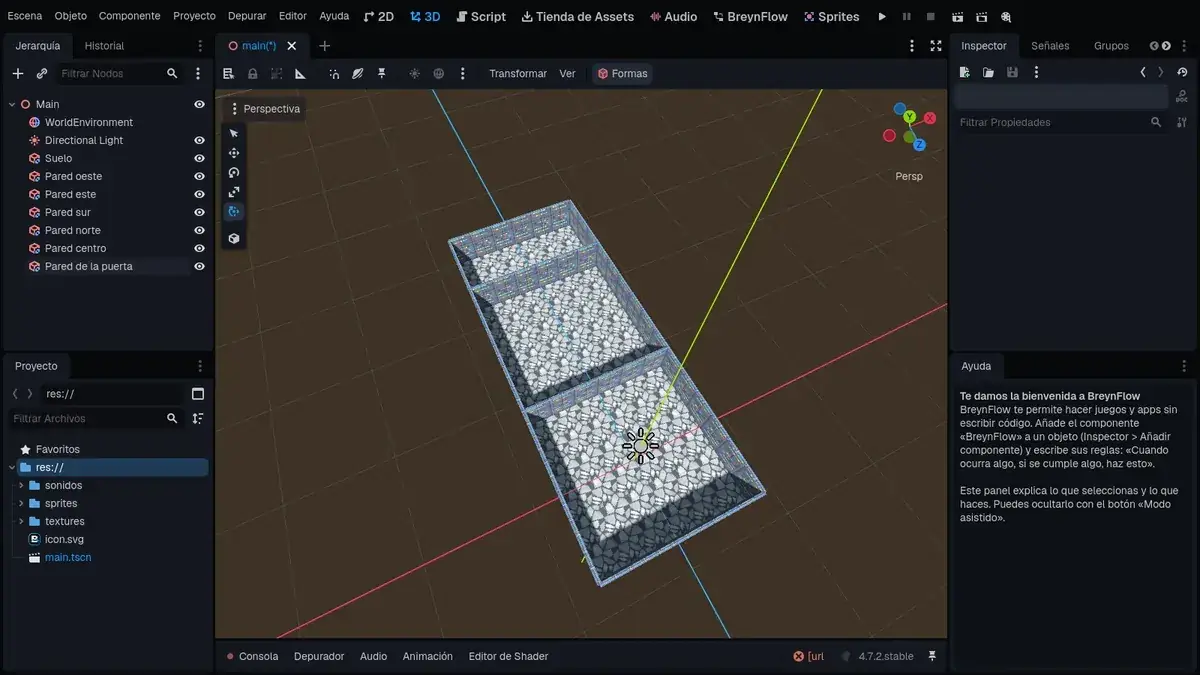
The level has three rooms in a row: the starting room, the demons' room and the final room, with the exit. It's 12 meters wide and 30 long.
At the top of the 3D view there's the Shapes button. Tap it:
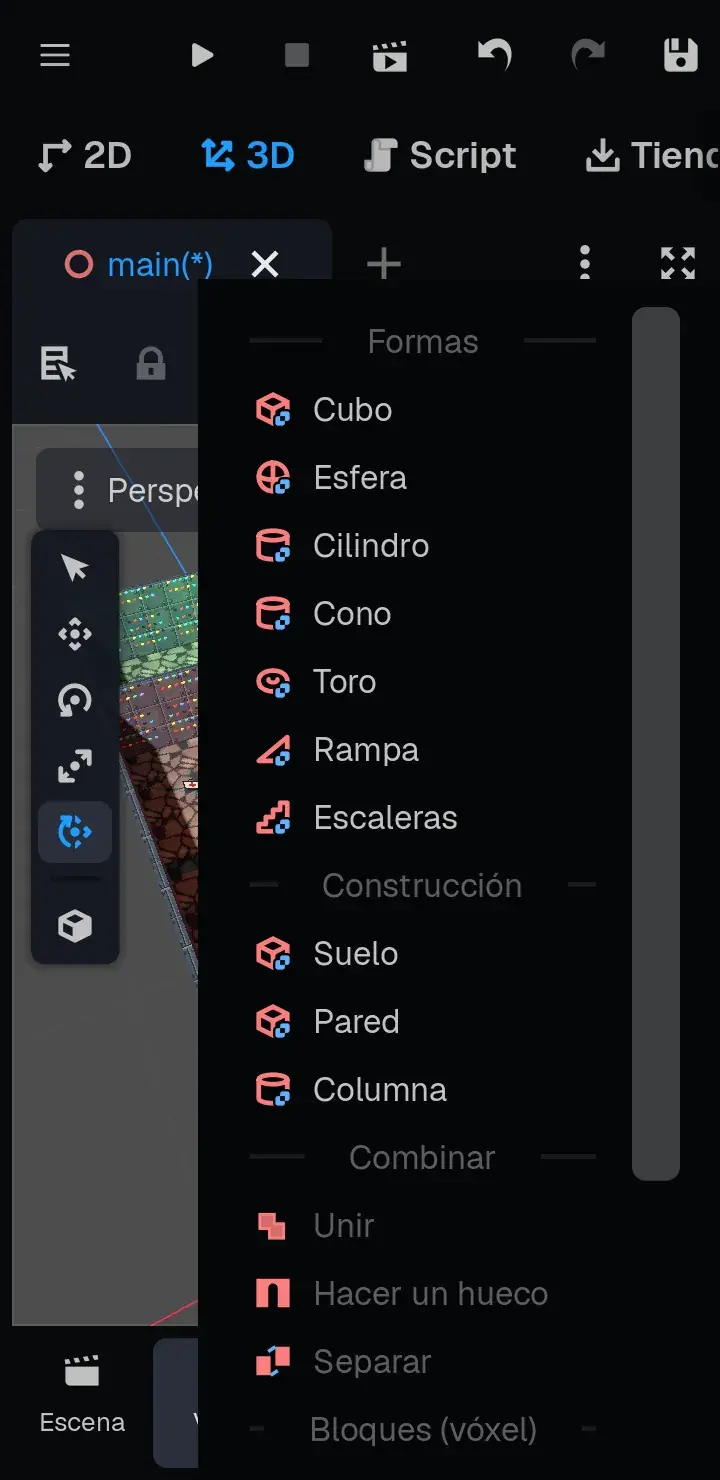
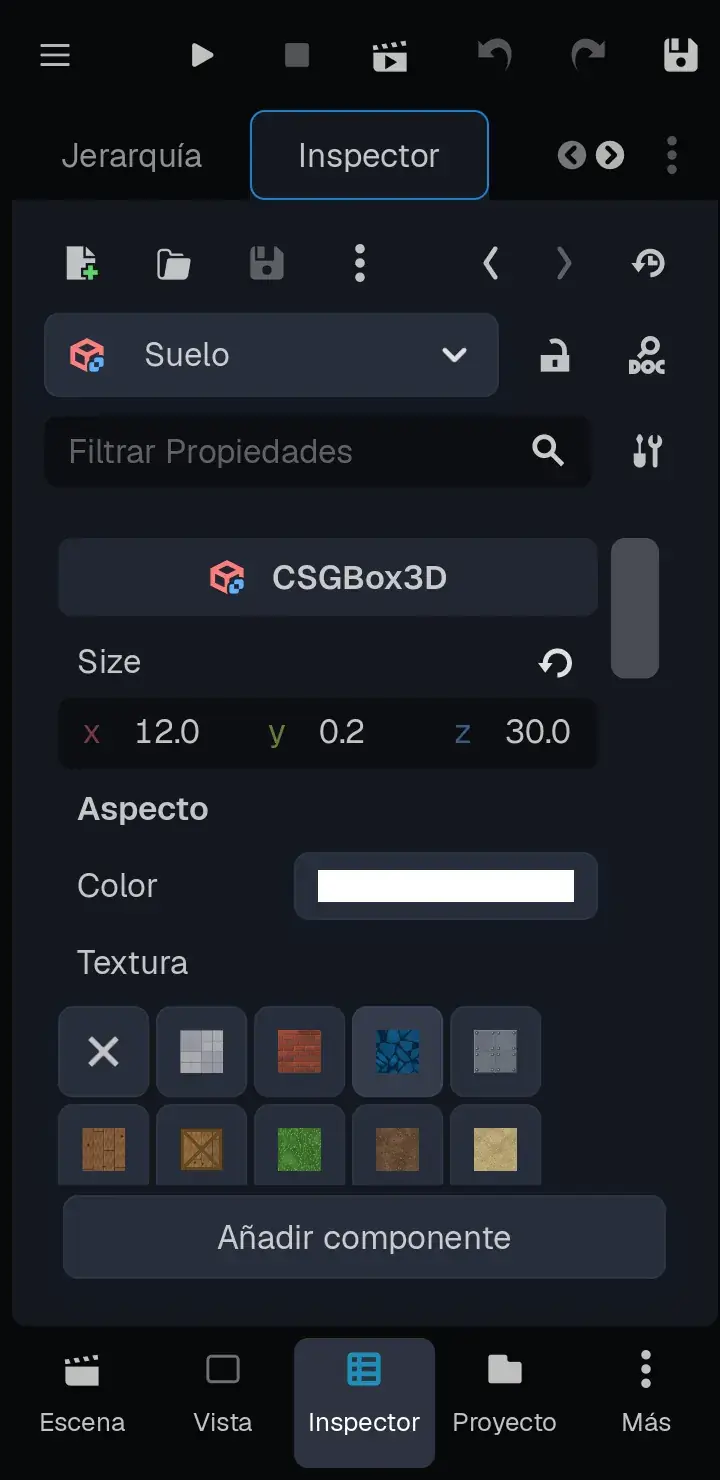
Textures are measured in meters: however much you stretch a shape, they never get distorted, and they continue from one shape to the next. The first time you use one, it's copied to the project's textures folder.
Chapter 5The walls
- North Wall: z = -24.
- Middle Wall: z = -6 (between the first and the second room).
- Door Wall: z = -18 (between the second room and the final one).
Chapter 6Doors in the walls
Right now you can't go from one room to another. Let's cut an opening in the two middle walls with the Cut a Hole tool: one shape "bites" another.
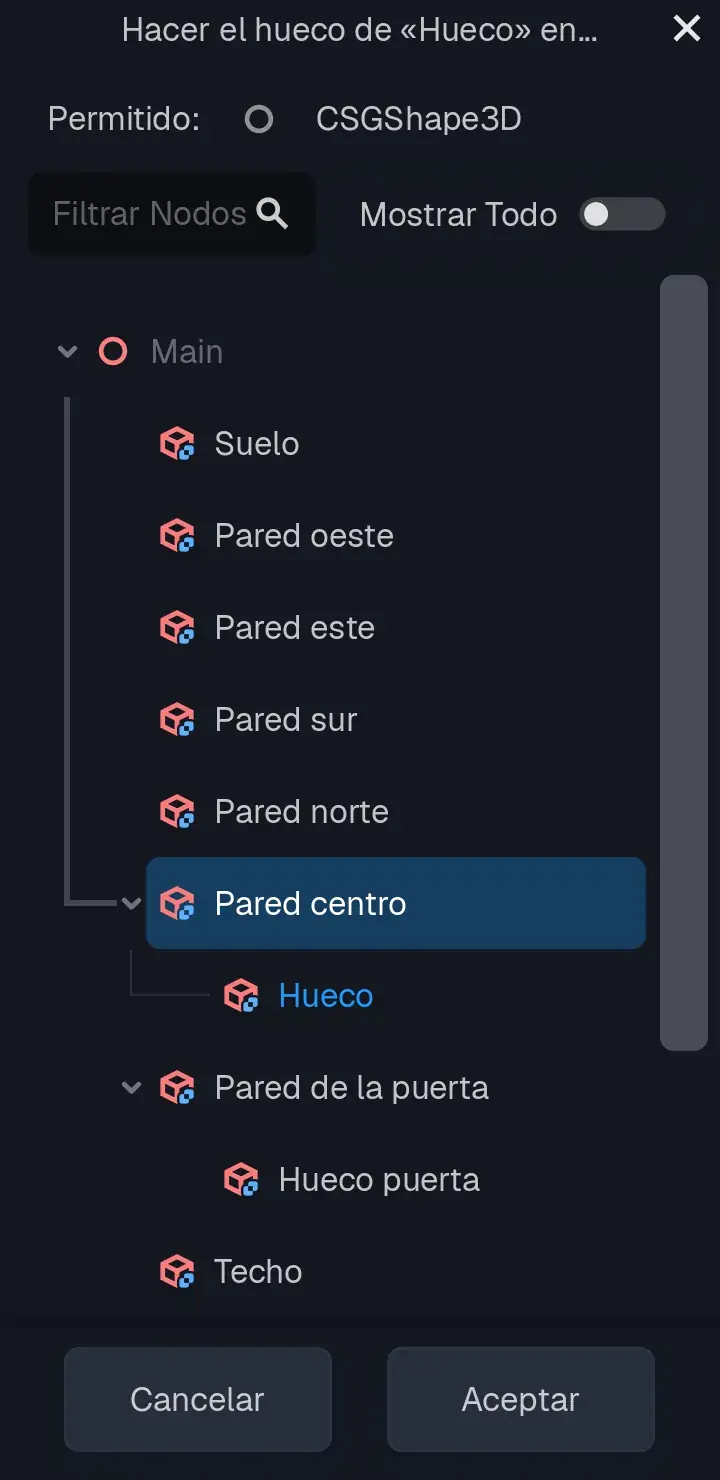
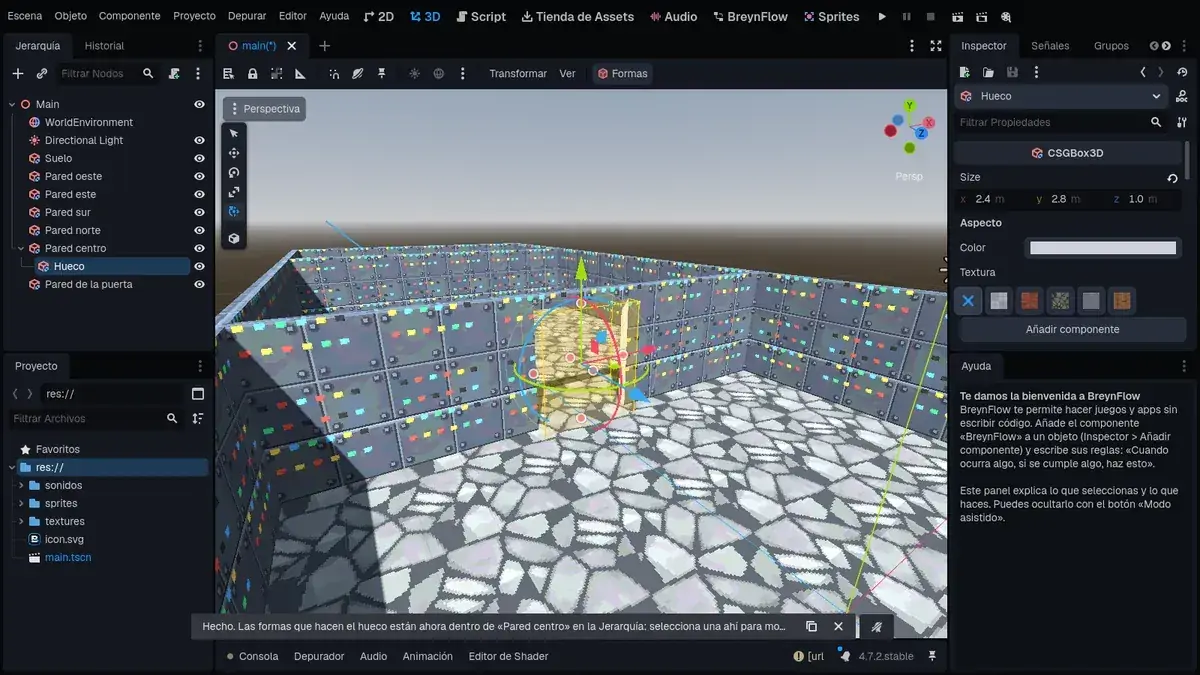
The Hole is now inside the Middle Wall: if you move it, the opening moves. Do the same with the Door Wall: another cube, Door Hole, the same but at z = -18.
Chapter 7Ceiling, stairs and a platform
The ceiling: Shapes > Floor, called Ceiling, with Size 12, 0.2, 30, Position 0, 3.1, -9 and the Ceiling texture. Now the inside can't be seen from above: tap the Ceiling's eye in the Hierarchy to hide it while you build (and show it again when you finish).
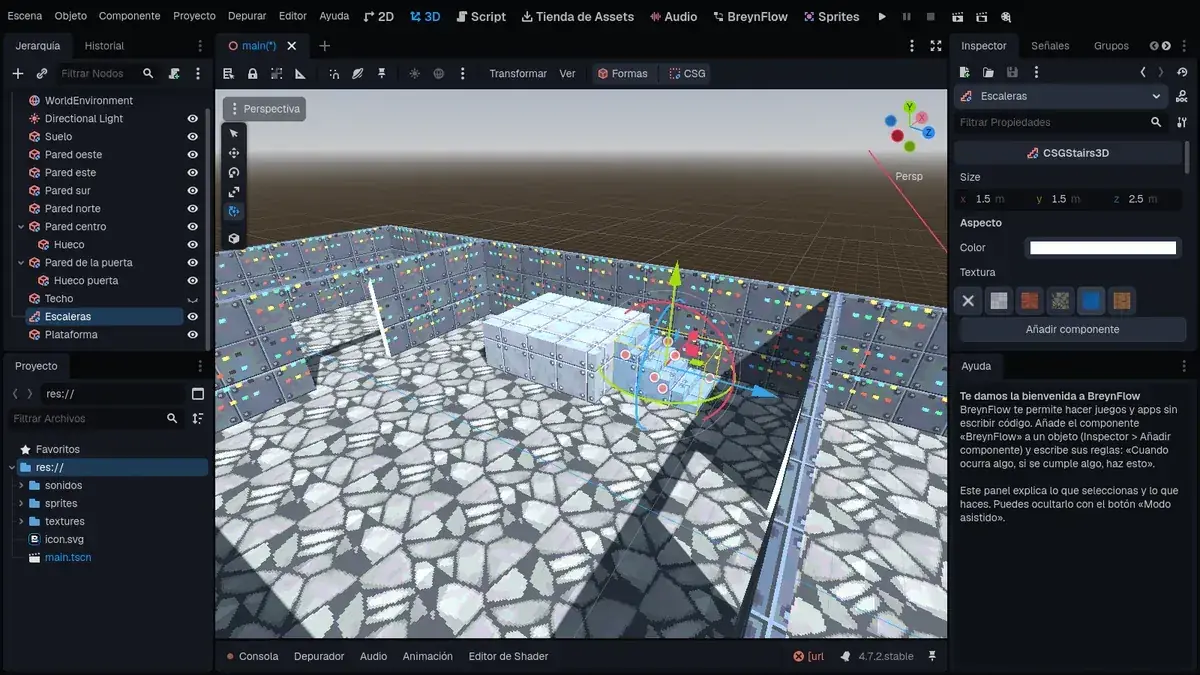
The stairs: in the second room, some stairs go up to a platform where the key will be.
Chapter 8The lights
With the ceiling on, it's dark inside: the sun doesn't get in. Good: we'll set the mood with lights.
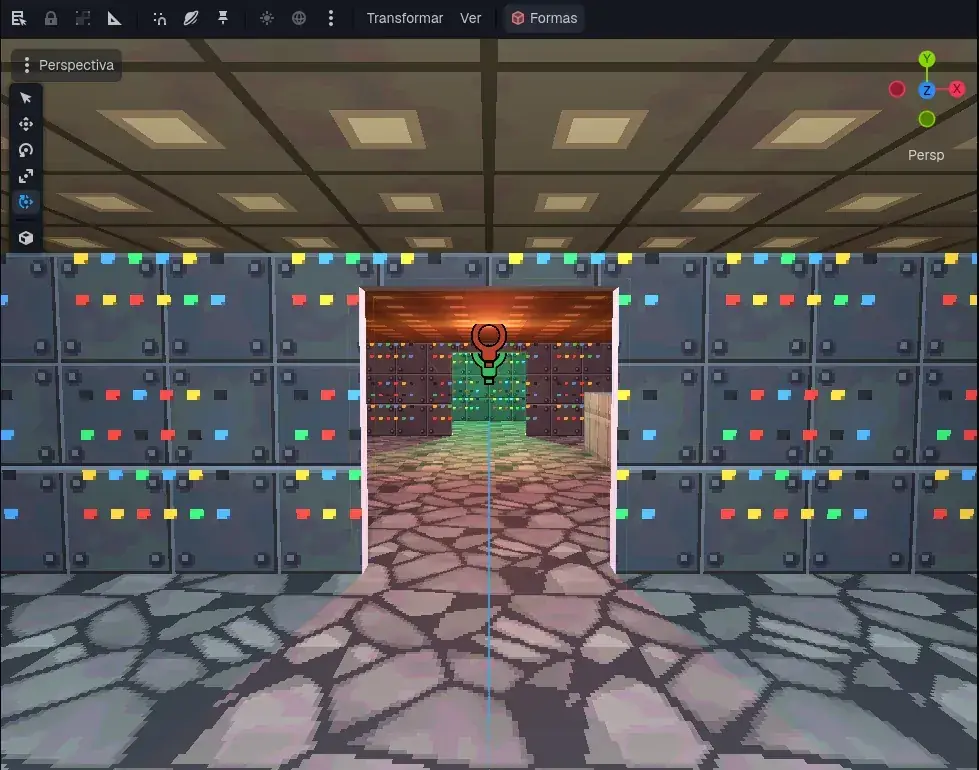
Chapter 9The player
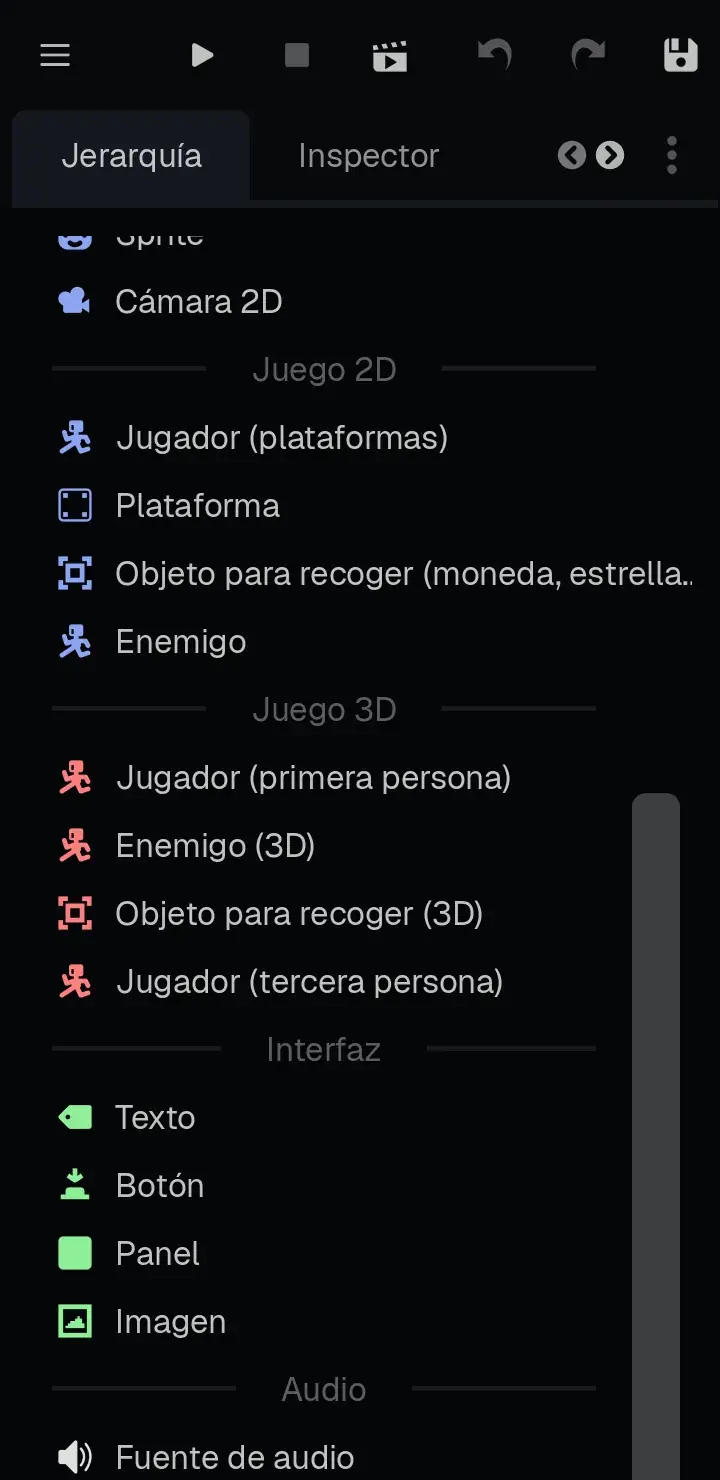
It comes with its body, a capsule-shaped collider and a Camera at eye level: what the player sees. It's already in the group player.
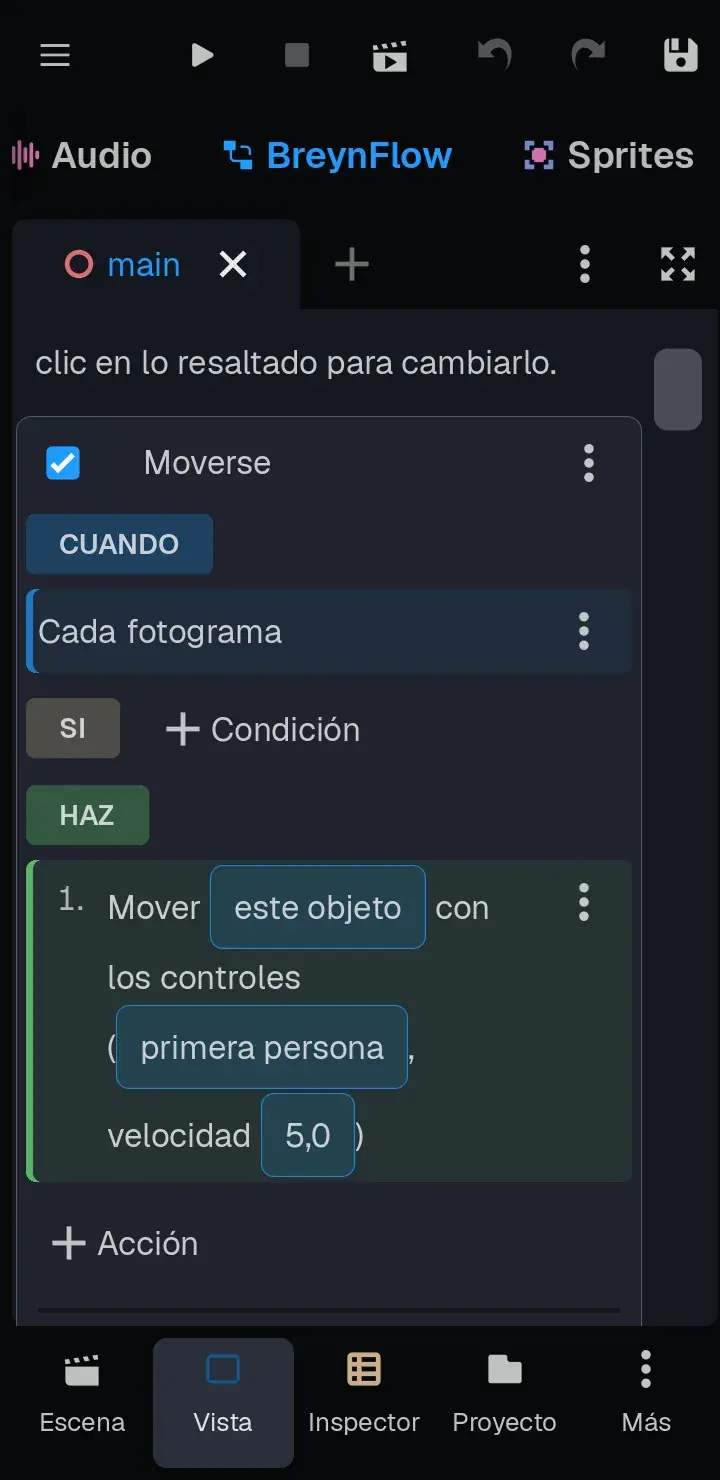
- WHEN: Every Frame.
- DO: Move with the Controls. Tap platformer and, in its settings, choose the first person style and Speed 5 (in 3D it's in meters per second).
The touch controls
A phone has no mouse and no keyboard: you need a joystick to walk and a button to shoot. With the Player selected, make another rule:
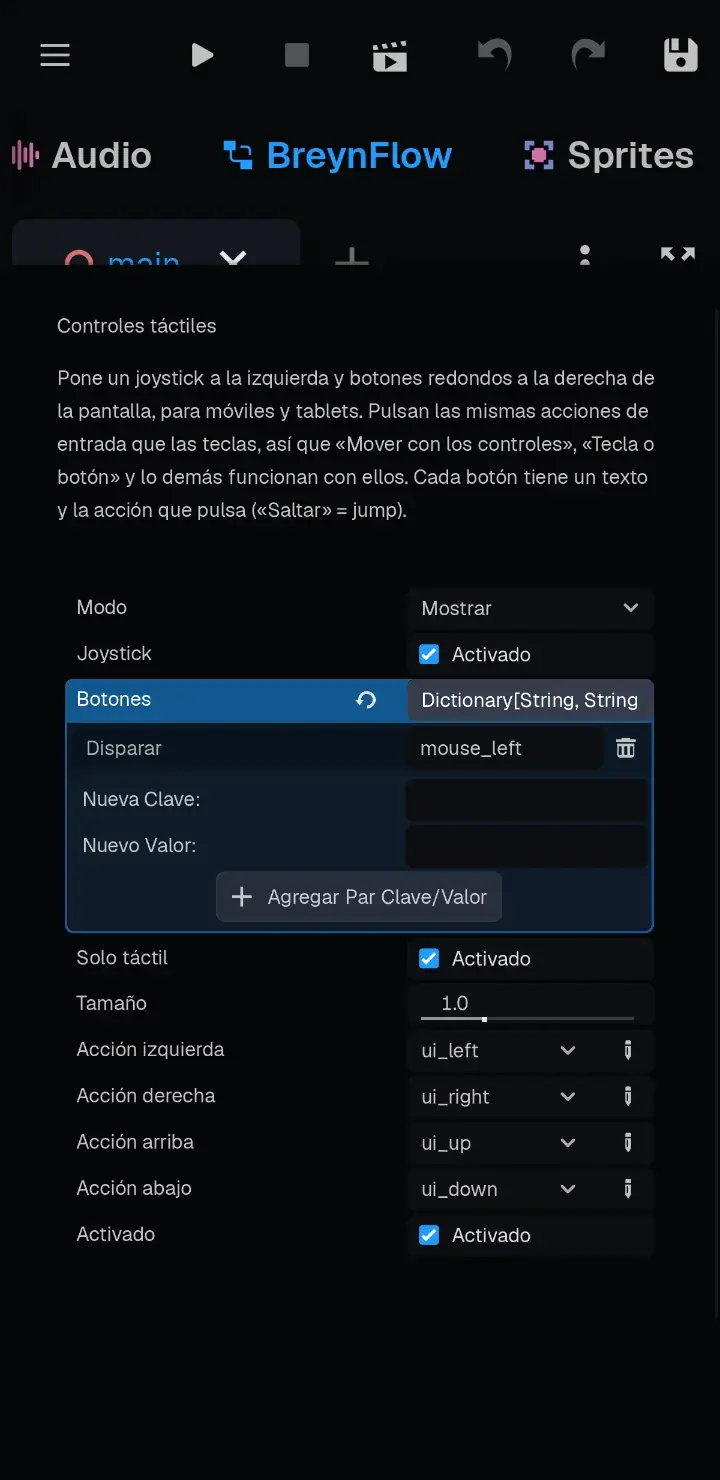
- Touch controls. WHEN: Scene Starts. DO: Touch Controls (type touch in the search box).
The action comes as "show the touch controls (joystick yes, buttons A = ui_accept)". Tap A = ui_accept and, in its settings, tap Buttons. Write Shoot in New Key and mouse_left in New Value (the left mouse button, the one that shoots on a computer), tap Add Key/Value Pair and delete the A with its trash can.
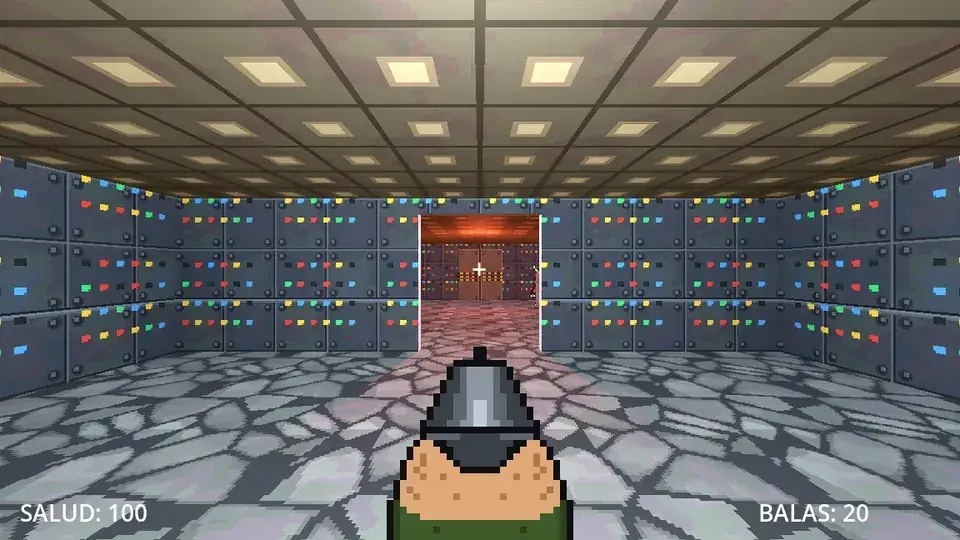
This is how it plays on a phone:
- The joystick, on the left: it appears where you put your thumb and moves you like WASD: forward, back and sideways.
- A finger anywhere else on the screen looks around: drag it to turn the view, like the mouse on a computer.
- Shoot, at the bottom right. It doesn't do anything yet: the shooting rule comes soon.
Try it!
Save (💾) and tap ▶. Walk with the joystick and look around with your other thumb. Go through the doorways and up to the platform. To stop, tap ■.
Chapter 10The player's screen
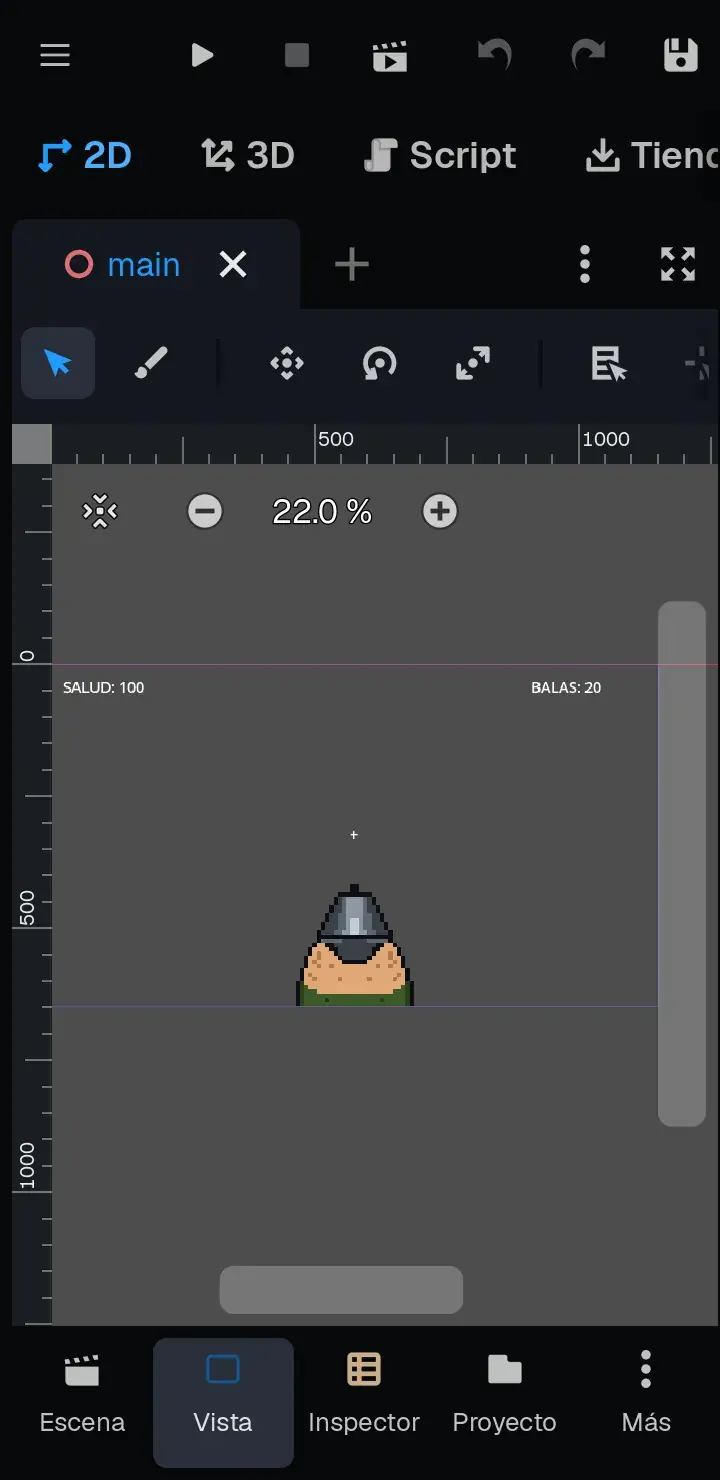
Now, what is shown over the game: the gun, the crosshair, the health and the ammo. First, two settings so it looks right on any screen. Open ☰ > Project > Project Settings:
- Type stretch in the search box, tap Window and set Stretch > Mode to canvas_items: the player's screen grows with the window.
- Type texture filter, tap Textures (in Rendering) and set Default Texture Filter to Nearest: pixels look sharp.
Go to the 2D view (in the workspace bar): that's where the player's screen is laid out. The blue rectangle is the screen, 1152 × 648.
Chapter 11Shooting
Ammo and health are global variables: the player, the enemies and the pickups use them. Add BreynFlow to the Health text with these rules:
- Start. WHEN: Scene Starts. DO: Change Variable health (global): set to 100; ammo (global): set to 20; key (global): set to 0.
- Show the health. WHEN: Variable Changes: health (global). DO: Change Text of this object to HEALTH: {health}.
- Show the ammo. WHEN: Variable Changes: ammo (global). DO: Change Text of the text Ammo to AMMO: {ammo}.
Now, on the Player, a new rule, Shoot:
- WHEN: Key or Button. Tap ui_accept and choose mouse_left: the Shoot button on a phone, and the left click on a computer.
- IF: Compare Variable ammo (global) greater than 0.
- DO: Shoot. In its settings, change health to life: the shot takes 25 from the variable "life" of whatever it hits.
- DO: Change Variable ammo (global): subtract 1.
- DO: Play Sound sounds/shot.wav (little arrow of the field > Quick Load... > shot).
- DO: Show or Hide: show the Flash; Wait 0.05 s; hide the Flash.
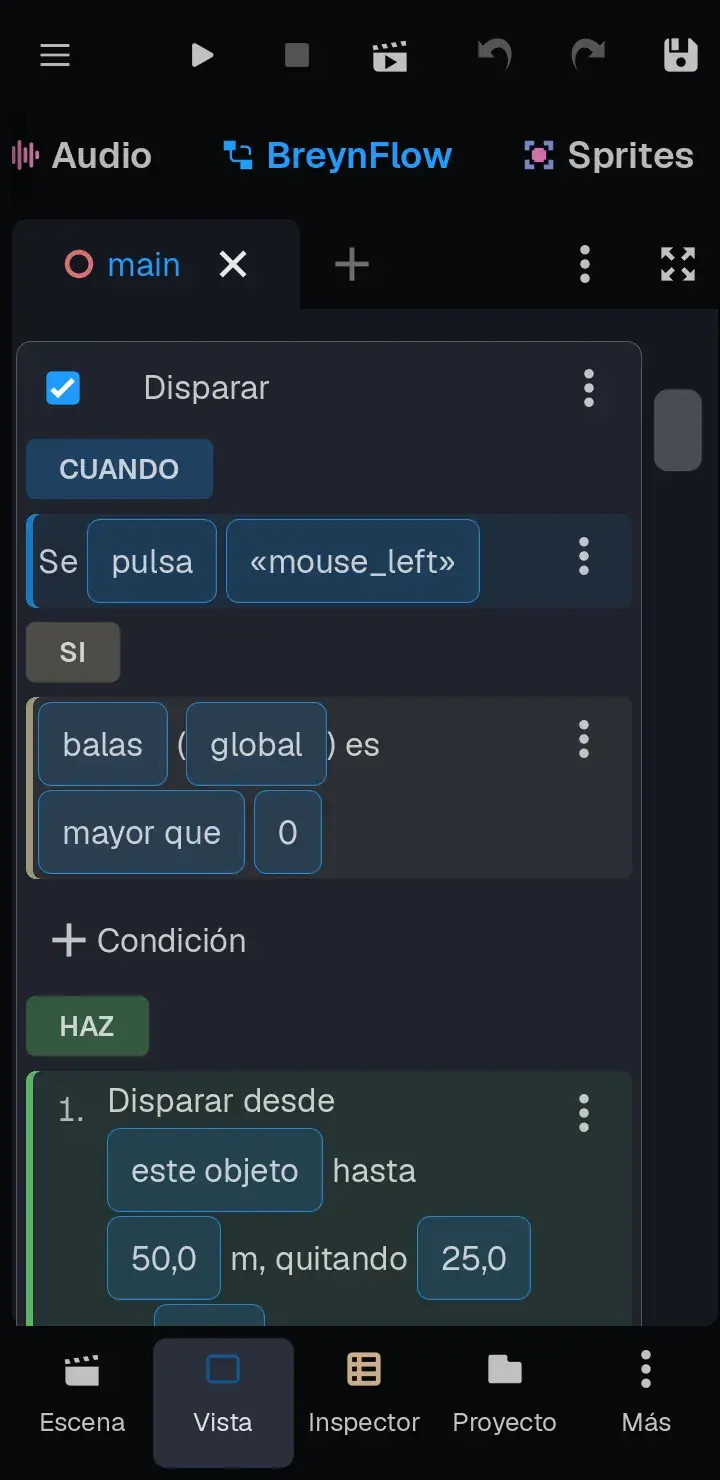
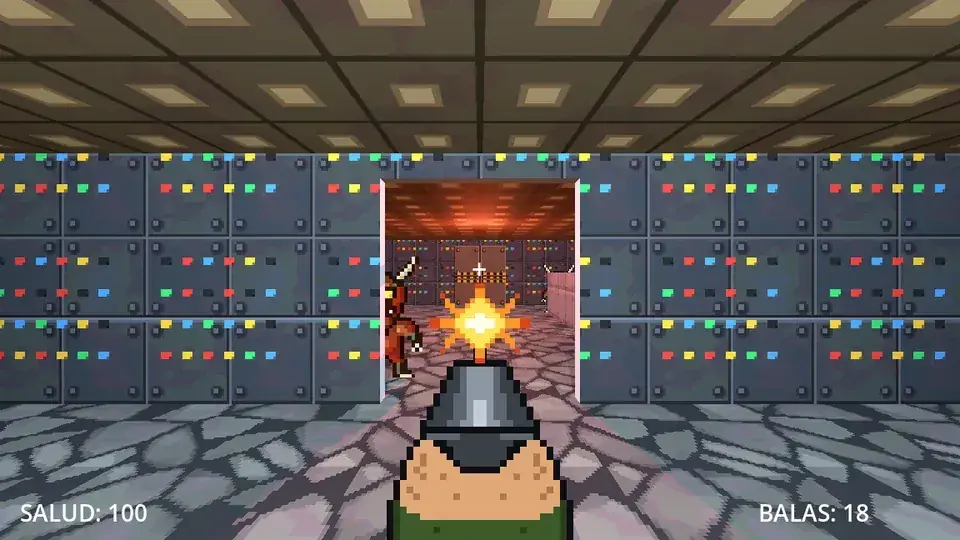
Try it: every tap on Shoot sounds, the flash shows and the ammo counter goes down. With 0 ammo, it doesn't shoot any more. The shot goes where the crosshair points, the center of the screen: aim by turning the view with your finger.
Chapter 12The demon
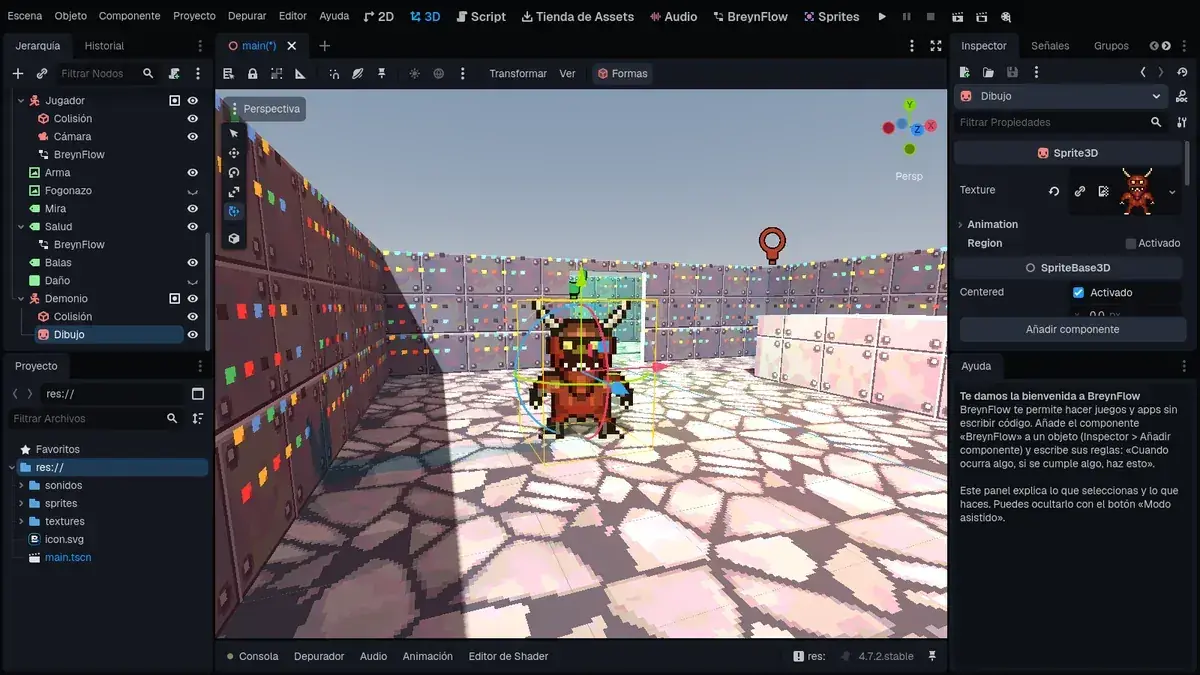
- Start. WHEN: Scene Starts. DO: Change Variable life (of the object: each demon has its own): set to 50. Two shots and it's down.
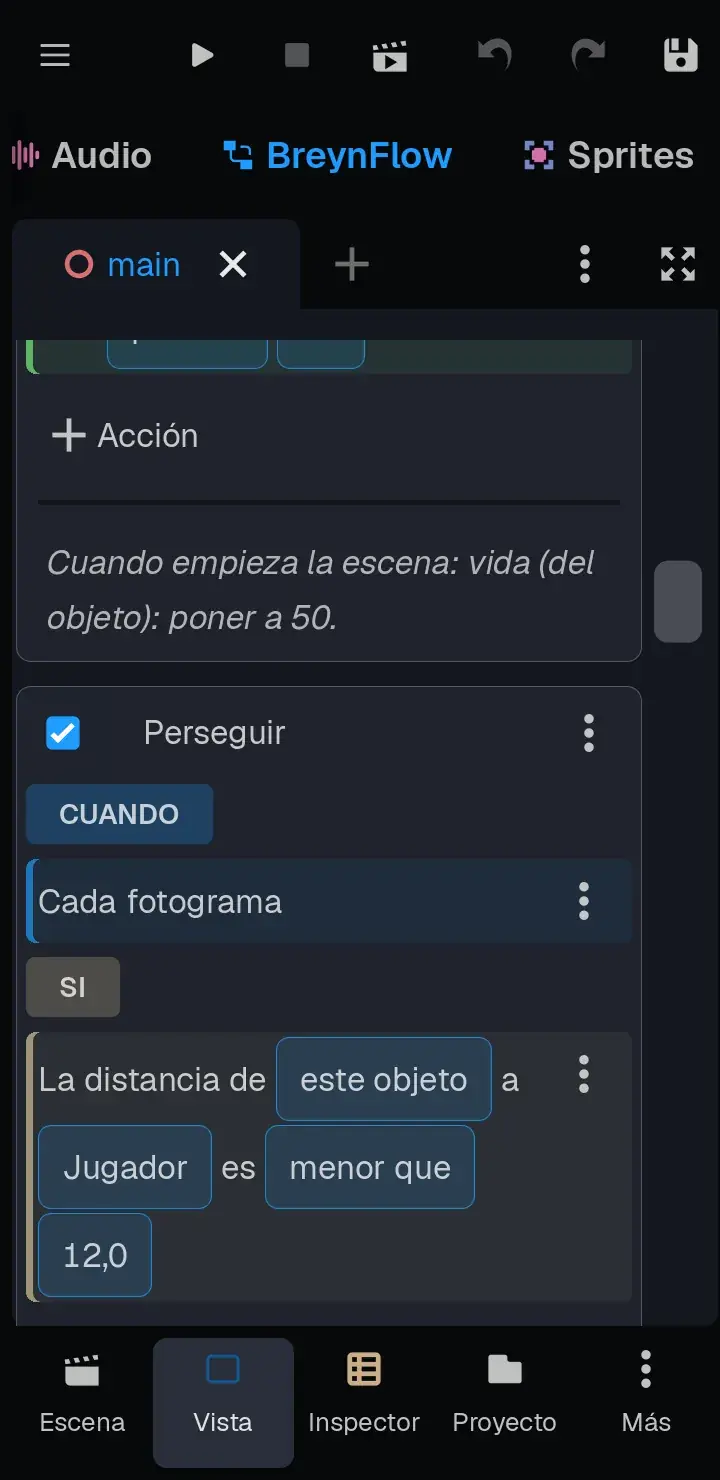
- Chase. WHEN: Every Frame. IF: Distance from this object to the Player less than 12. DO: Move Towards (Follow) the Player, speed 2.5, stop distance 1.2. In 3D it walks on the floor and doesn't go through walls.
- Bite. WHEN: Time Passes: every 1 s. IF: Distance to the Player less than 1.8. DO: health (global): subtract 10; Play Sound hurt.wav; show the Damage panel, wait 0.15 s and hide it.
Chapter 13Hurt and defeated
When a shot hits the demon, it takes 25 from its "life" and sends it the message hit. Two more rules for the Demon:
- Hurt. WHEN: Message Received: hit. DO: Play Sound pain.wav; Change Property modulate of the Drawing to #ff5050 (red); wait 0.12 s; modulate to white.
- Defeated. WHEN: Variable Changes: life (of the object). IF: life (of the object) less or equal to 0. DO: Play Sound death.wav; Destroy this object.
Now, a horde: hold your finger on the Demon and choose Duplicate, twice. Put one copy at 3, 0, -15 and another in the final room, at 2.5, 0, -20.5. Copies share the rules, but each one has its own life.
Chapter 14Medkits and ammo
Chapter 15The red key and the door
The key: another pickup, Key, on the platform: 4.25, 1.5, -13, with sprites/key.png. Its rule: WHEN: Collision with player. DO: key (global): set to 1; Show Message "You have the red key!" for 2 s; sound pickup.wav; Destroy.
The door: tap Main and Shapes > Cube, called Door, with Size 2.4, 2.8, 0.3 and Position 0, 1.3, -18: it covers the opening of the Door Wall. In Look, the Metal Door texture (it goes once per face). Add BreynFlow to it:
- Start. WHEN: Scene Starts. DO: open (of the object): set to 0.
- Open. WHEN: Every Frame. IF: Distance from this object to the Player less than 3; key (global) equal to 1; open (of the object) equal to 0. DO: open: set to 1; sound door.wav; Move To: this object, by an offset of (0, 2.8, 0) in 1 s. It goes up and lets you through.
- Locked. WHEN: Time Passes: every 2 s. IF: Distance to the Player less than 3; key (global) equal to 0. DO: Show Message "You need the red key" for 1.5 s.
Chapter 16The exit and defeat
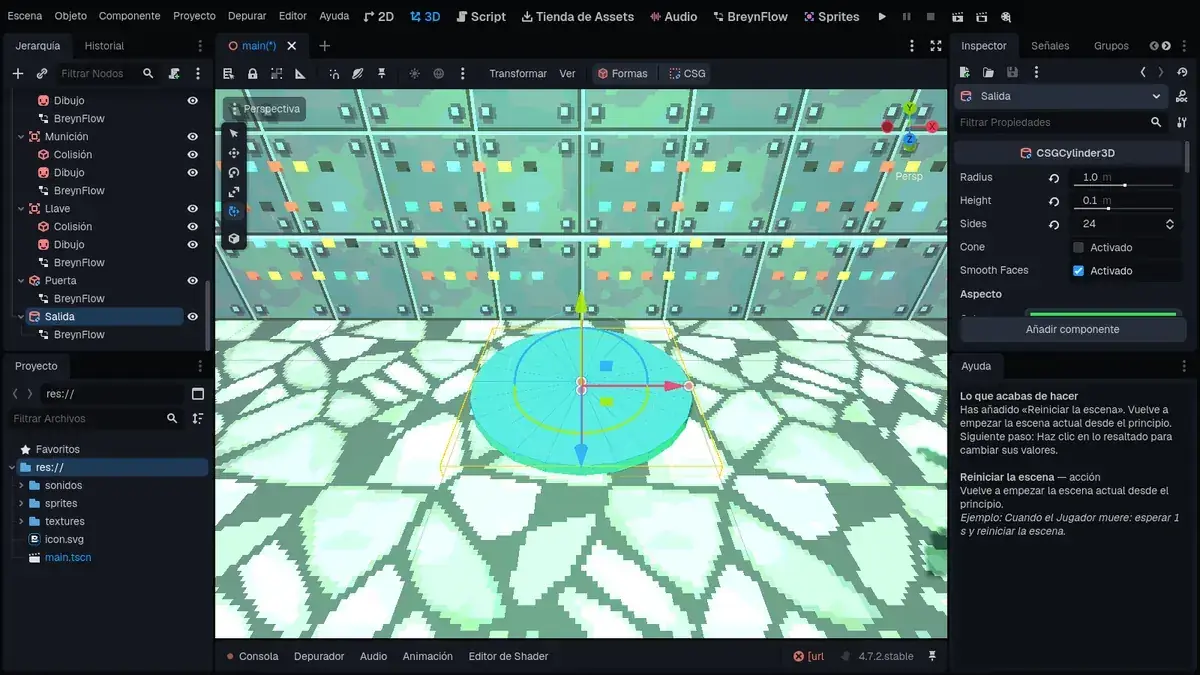
The exit: Shapes > Cylinder, called Exit, in the final room: Radius 1, Height 0.1 and Position 0, 0.05, -22.5, with a green color in Look. Add BreynFlow to it:
- Win. WHEN: Every Frame. IF: Distance from this object to the Player less than 1.2; won (of the object) not equal to 1. DO: won: set to 1; Show Message "LEVEL COMPLETE!" for 3 s; Wait 3 s; Restart Scene.
Defeat: on the Health text, one last rule:
- Die. WHEN: Variable Changes: health (global). IF: health (global) less or equal to 0. DO: Activate or Deactivate: deactivate the Player; Show Message "YOU DIED!" for 2 s; Wait 2 s; Restart Scene.
Chapter 17Play!
Show the Ceiling (its eye in the Hierarchy), save (💾) and tap ▶.
When you stop the game, look at the BreynFlow view: each rule counts how many times it ran. If something doesn't work, you'll see there which condition isn't met.
Chapter 18What now?
You have your own shooter! Some ideas to keep going:
- More levels: make another scene with other shapes and, when winning, use Change Scene instead of restarting.
- Lava: a floor with the Lava texture and a rule "Every frame, if the distance to the Player is less than 2: health subtract 1".
- More weapons: another touch button, Strong = mouse_right, and a rule with "Key or Button" mouse_right for a stronger shot that uses more ammo.
- Music: a "Scene Starts" rule with Play Music.
- Your drawings: open the sprites in the Sprites view and make them yours, or draw other enemies.
- Convert to Mesh: when the level is finished, Shapes > Convert to Mesh makes it lighter for phones.