
My first game (welcome tutorial)
Chapter 1Welcome
This tutorial teaches you how to make a complete platform game, from scratch and without writing a single line of code. At the end you'll have a character that runs and jumps, coins to pick up, a score, an enemy to stomp on and a victory screen.
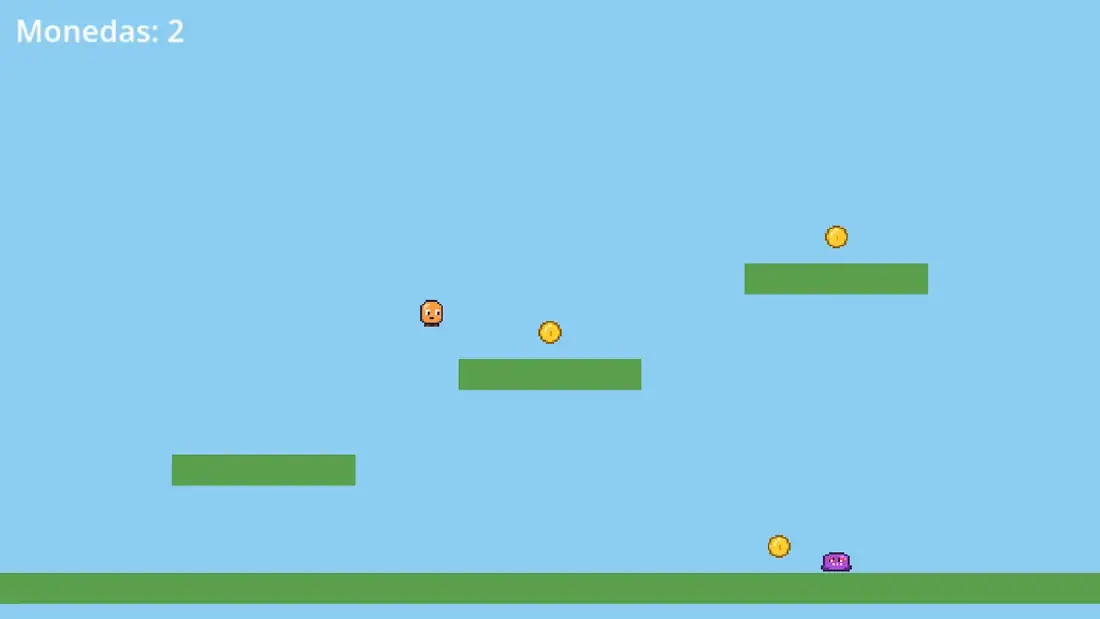
Along the way you'll get to know the three tools that make BreynGINE easy:
- Sprites: to draw your characters and objects pixel by pixel, with their animations.
- Audio: to see the shape of sounds, trim them, make them louder and take their background noise out.
- BreynFlow: to say what each thing does with rules that read like sentences: "When something happens, if something is true, do this".
Each chapter is one step, with screenshots. The tutorial is in the Tutorial tab, next to Game: you can drag it to any panel, or out of the editor to have it in its own window. Take your time: you can close it whenever you want and come back from Help > Welcome Tutorial; it opens on the chapter where you left it.
Whenever you're ready, press Next.
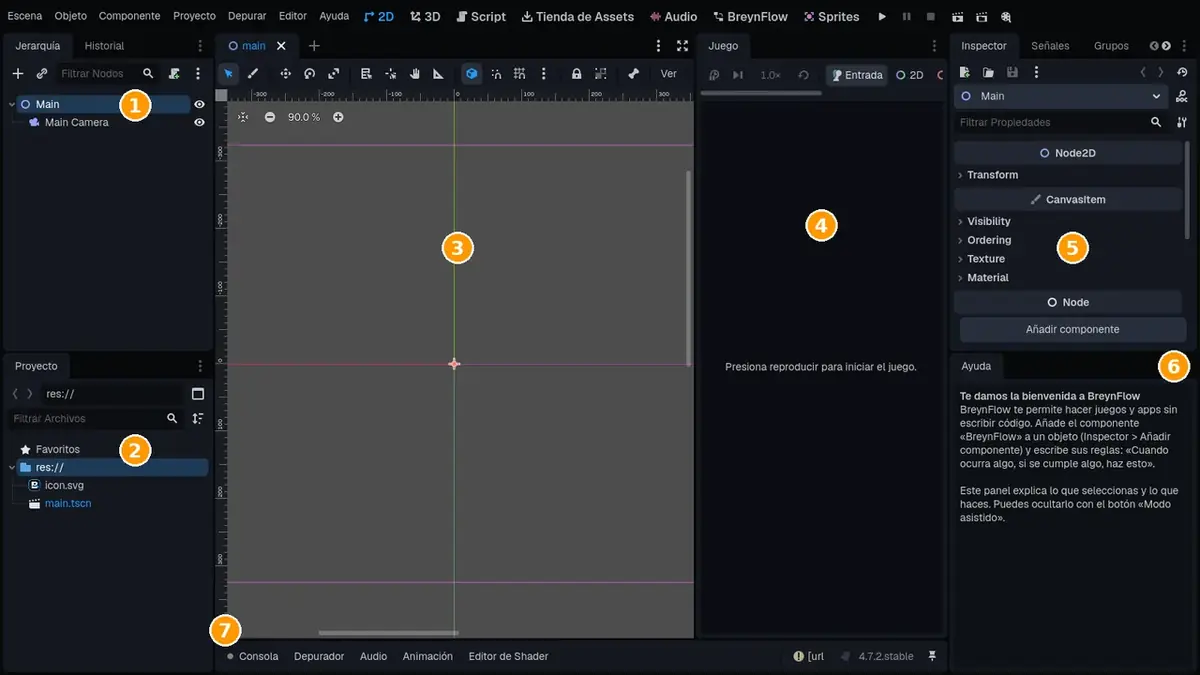
Chapter 2The editor at a glance
Before starting, a quick tour of the screen. If you have used Unity, it will all feel familiar.
Chapter 3Your project
Every game lives in a project: a folder with its scenes, drawings and sounds. For this tutorial, create a new one from the Project Manager (if you're inside another project, use Project > Quit to Project List).
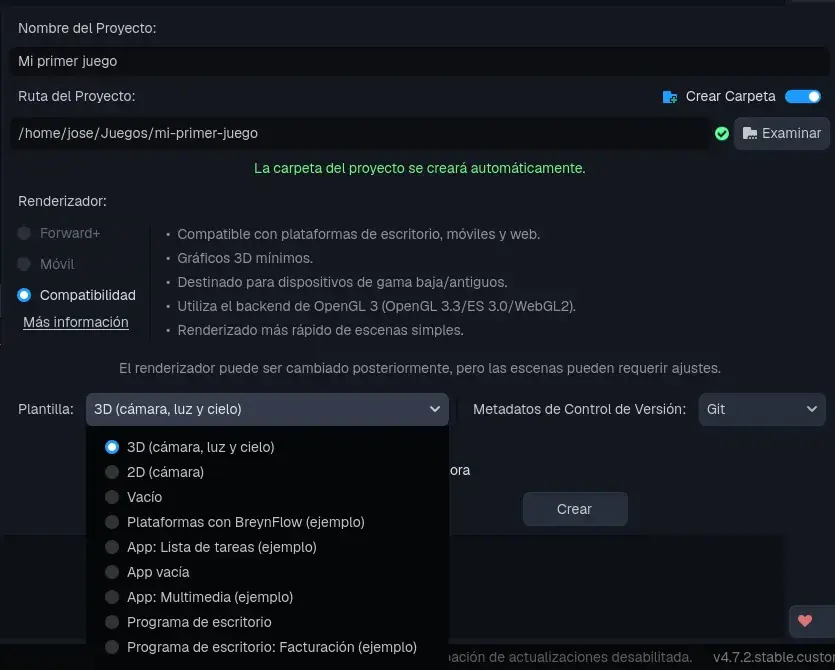
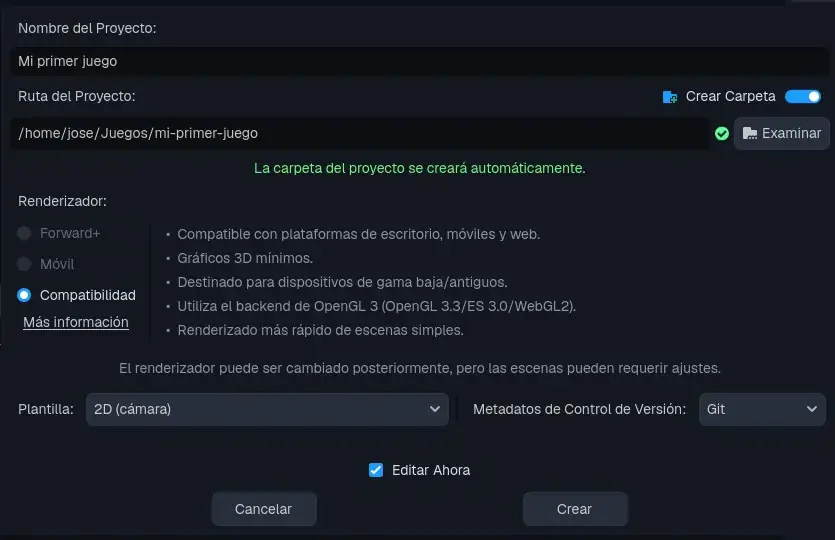
The editor opens the scene main, with two objects in the Hierarchy: Main, the root of the scene, and Main Camera, the camera that decides which part of the world is seen.
Chapter 4The camera and the color of the sky
We're making a retro-style game, with small 16-pixel drawings. To see them big, we'll tell the camera to come closer.
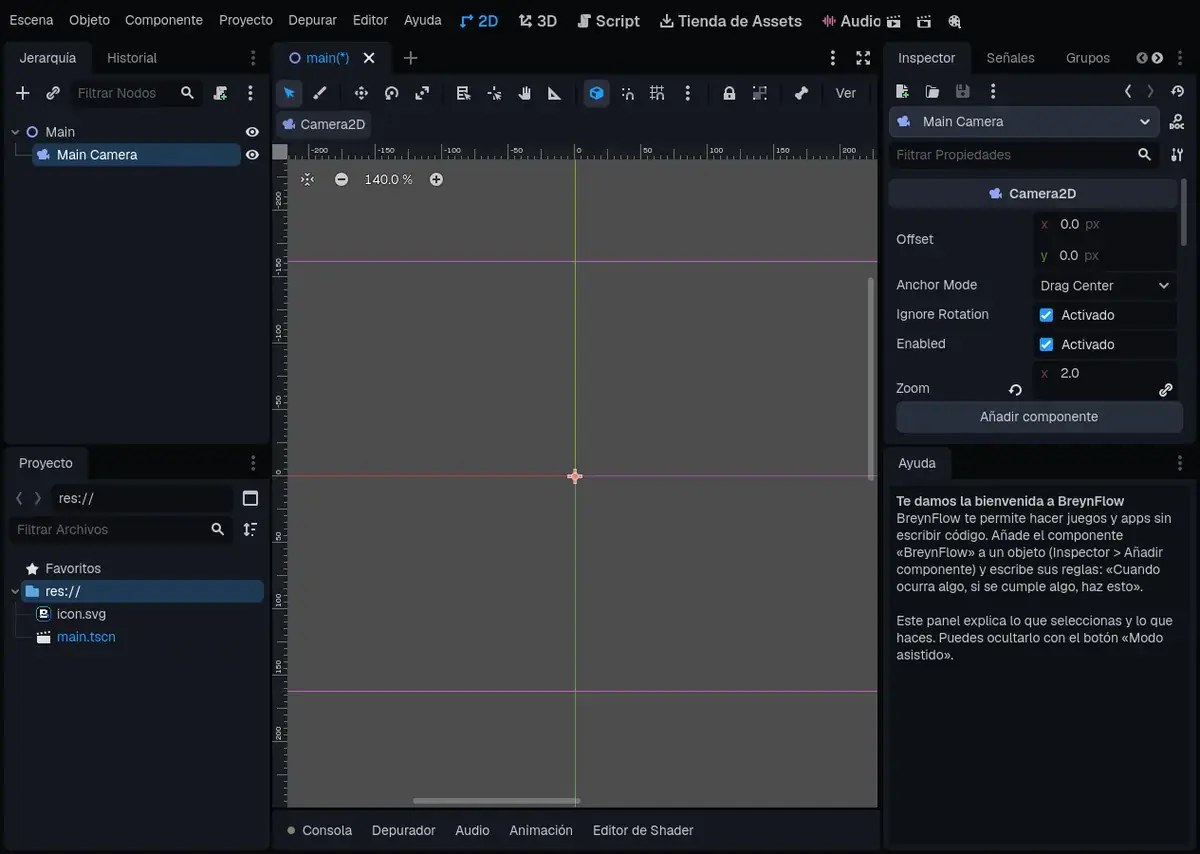
In the scene you'll see a rectangle: what the camera shows, the screen of your game. The whole level will fit inside.
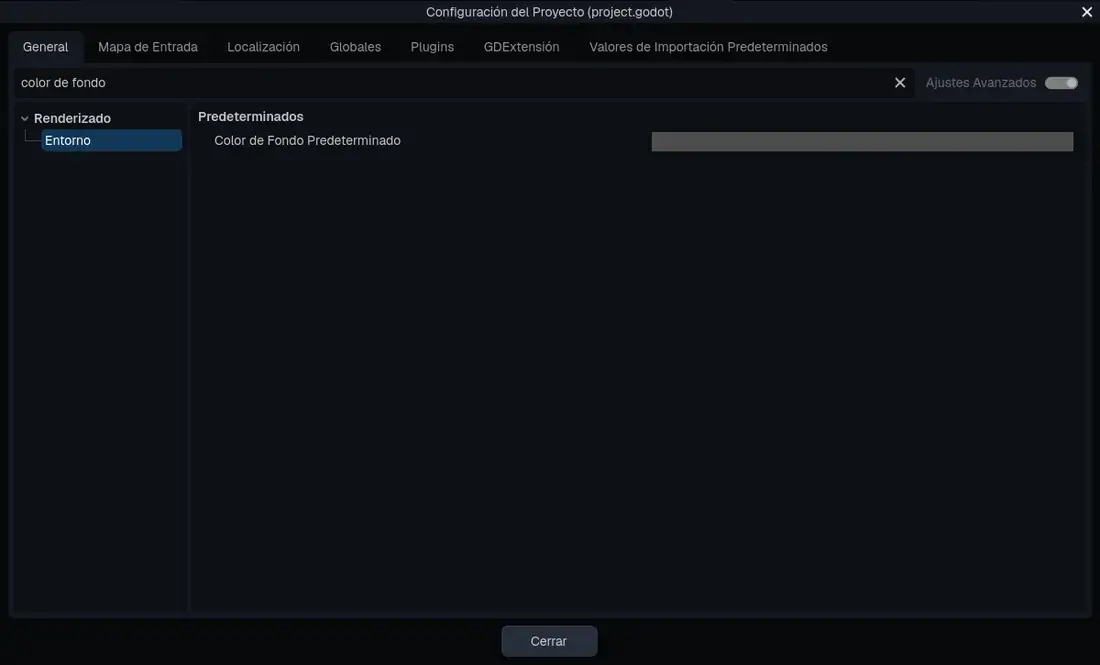
Now the sky. The background is gray by default; let's make it blue:
Chapter 5Draw the hero
Time to draw. Press the Sprites tab at the top.
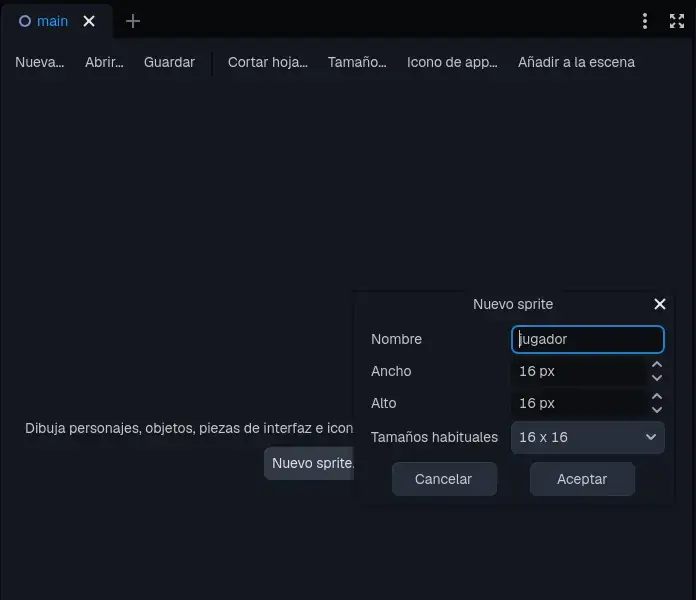
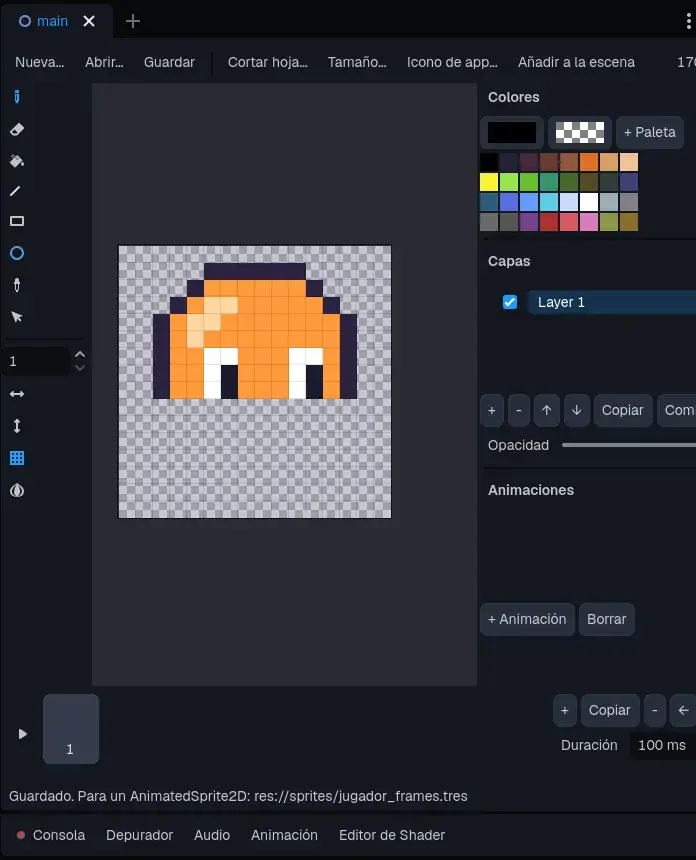
You now have a transparent 16 × 16 pixel canvas. On the left are the tools: pencil (B), eraser (E), fill (G), line (L), rectangle (U), ellipse (O), color picker (I) and select (M). On the right, the colors, layers and animations; at the bottom, the frames.
Pick a color in the palette (or press the color box for any other) and draw with the pencil. The right button paints with the second color (transparent: it erases). The mouse wheel zooms in.
The animations
A living character moves. We'll make three animations:
- idle: 2 frames, breathing (the second one with the body one pixel lower).
- walk: 2 frames, with the feet in different places.
- jump: 1 frame, with the feet together.
For the next frame, press Copy at the bottom right (it duplicates the current frame) and change what moves. The onion skin (the last button on the left) shows the previous frame faintly so you don't lose your place.
Then, in Animations, press + Animation, give it its name and choose its first and last frame and its speed. For jump, turn Repeat off.
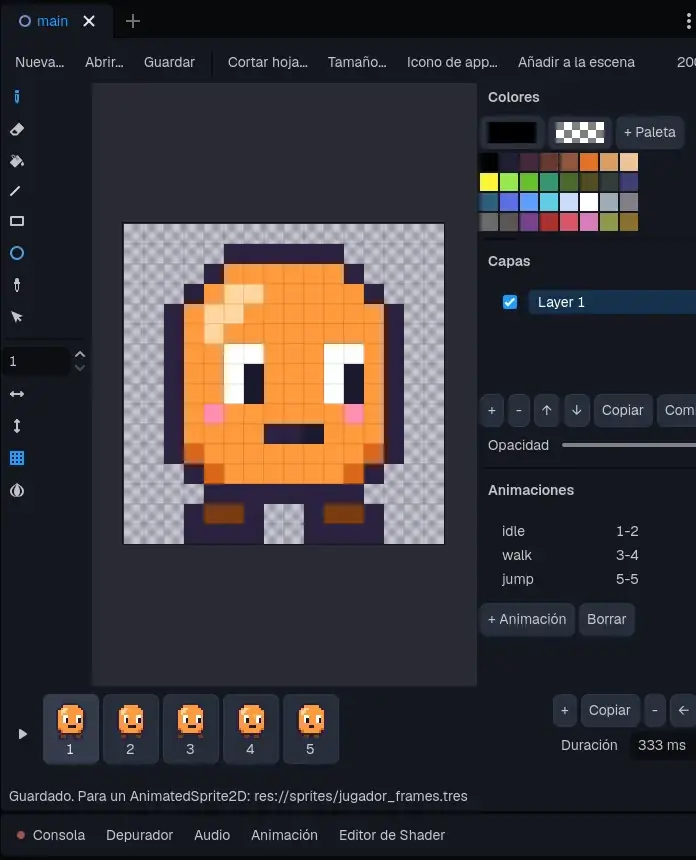
Press Save. In the sprites folder of the Project panel you'll find your drawing, its sprite sheet and its animations (..._frames.tres).
Chapter 6The coin and the enemy
With what you know, draw two more sprites:
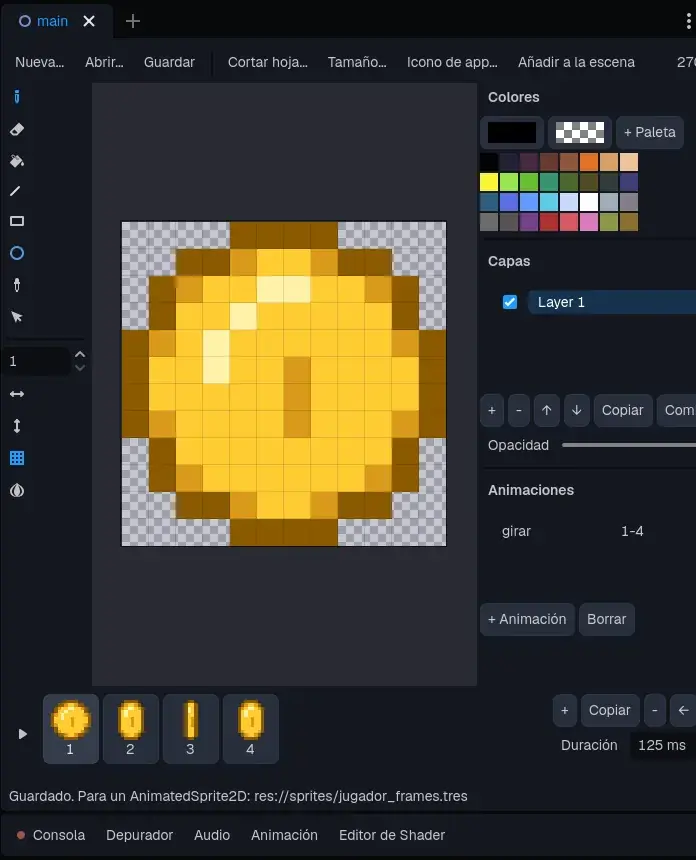
The coin: New Sprite... named coin, 12 x 12. Make 4 frames so it spins: the round coin, narrower, edge-on and narrow again. Make the animation spin with the 4 frames at 8 frames per second, and save.
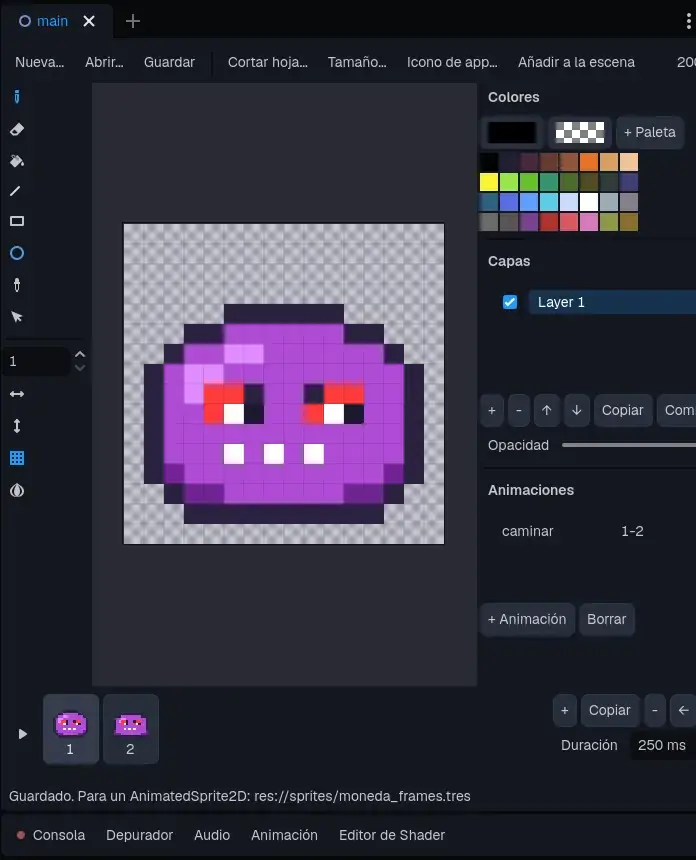
The enemy: enemy, 16 x 16, with 2 frames (squashed and stretched) and the animation walk. Save.
Chapter 7Clean the sounds
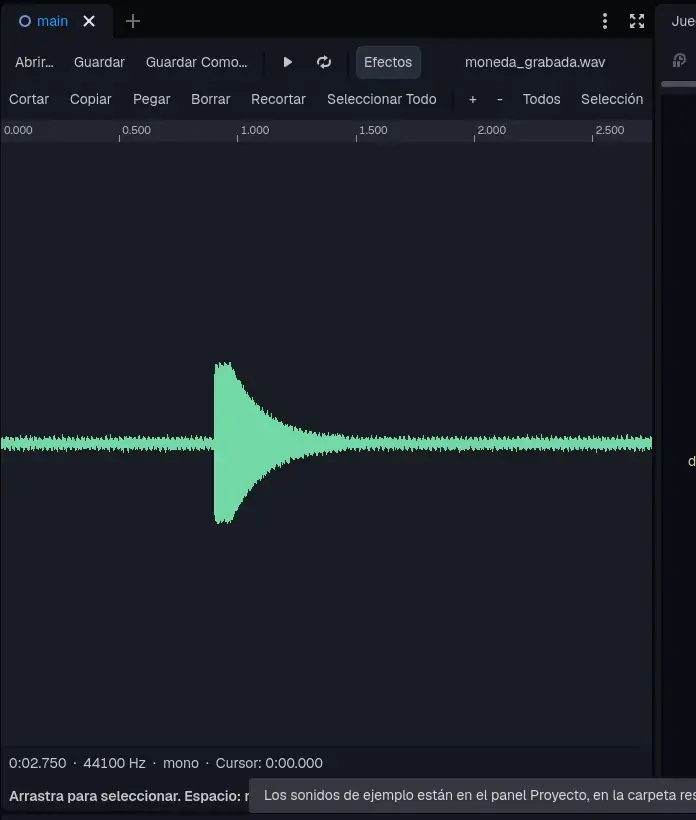
A game without sound is half done. Recording a sound with a phone is easy, but there's usually some silence at the start and at the end, low volume and background noise (a hum, the wind...). The Audio editor fixes that.
To practice, use the two sample sounds of this tutorial: copy the sample sounds to the project (download the ZIP). They appear in the sounds folder: moneda_grabada.wav (a coin) and salto_grabado.wav (a jump).
Press the Audio tab, then Open... and choose moneda_grabada.wav (you can also right-click the sound in the Project panel and choose Edit Audio).
Take the background noise out
As in Adobe Audition: first you show the editor what the noise sounds like, then it takes it out of the whole sound.
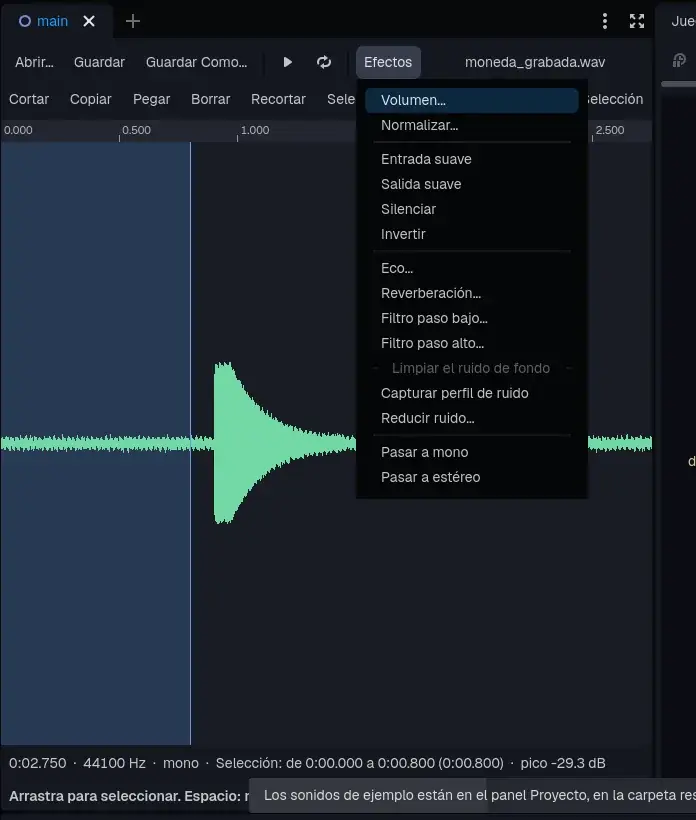
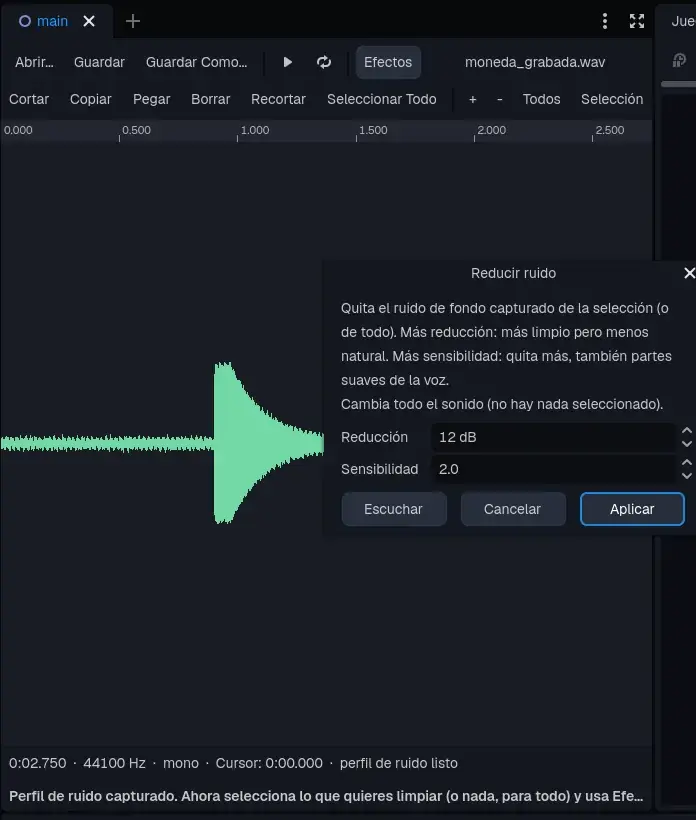
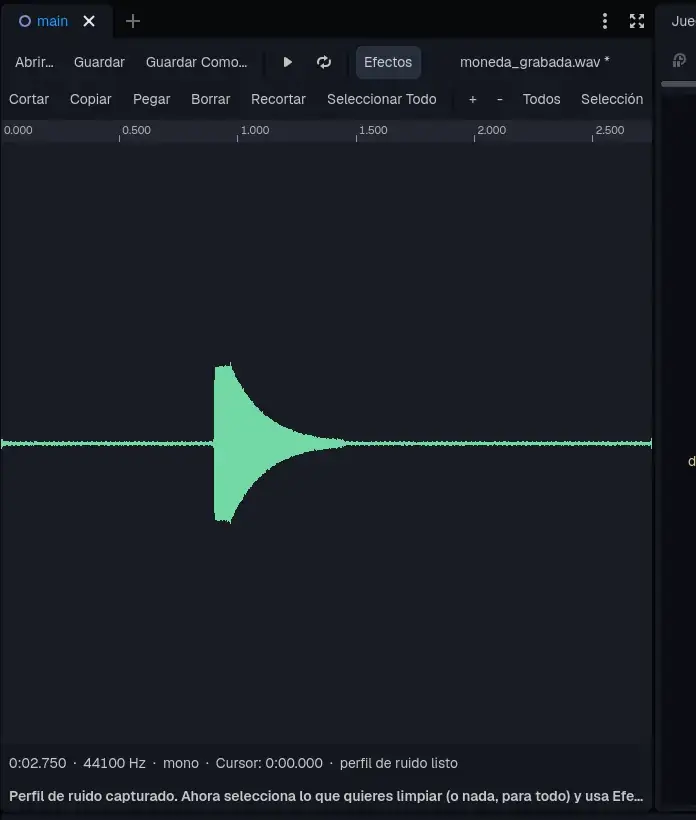
Trim, make it louder and save
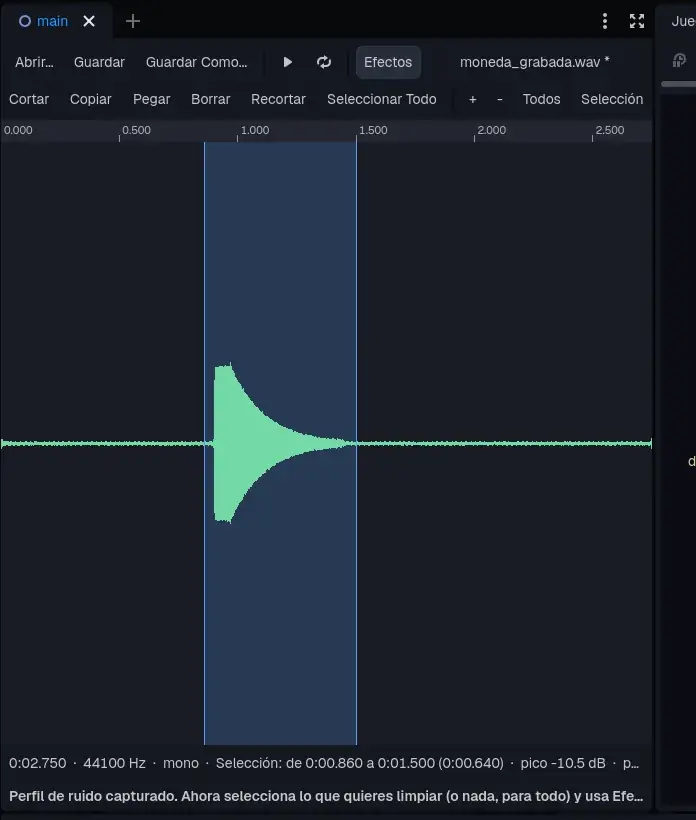
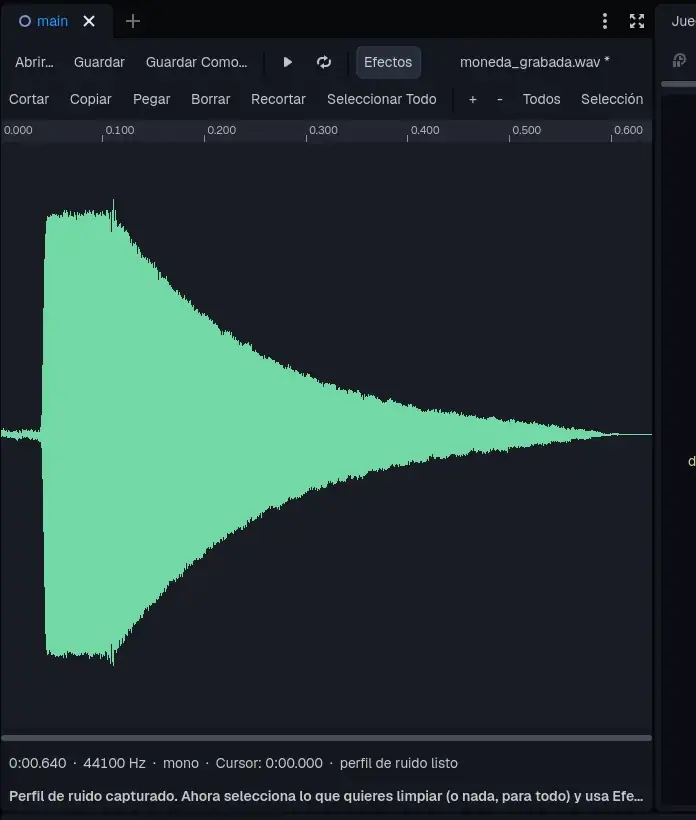
Do the same with salto_grabado.wav and save it as jump.wav.
Chapter 8Build the level
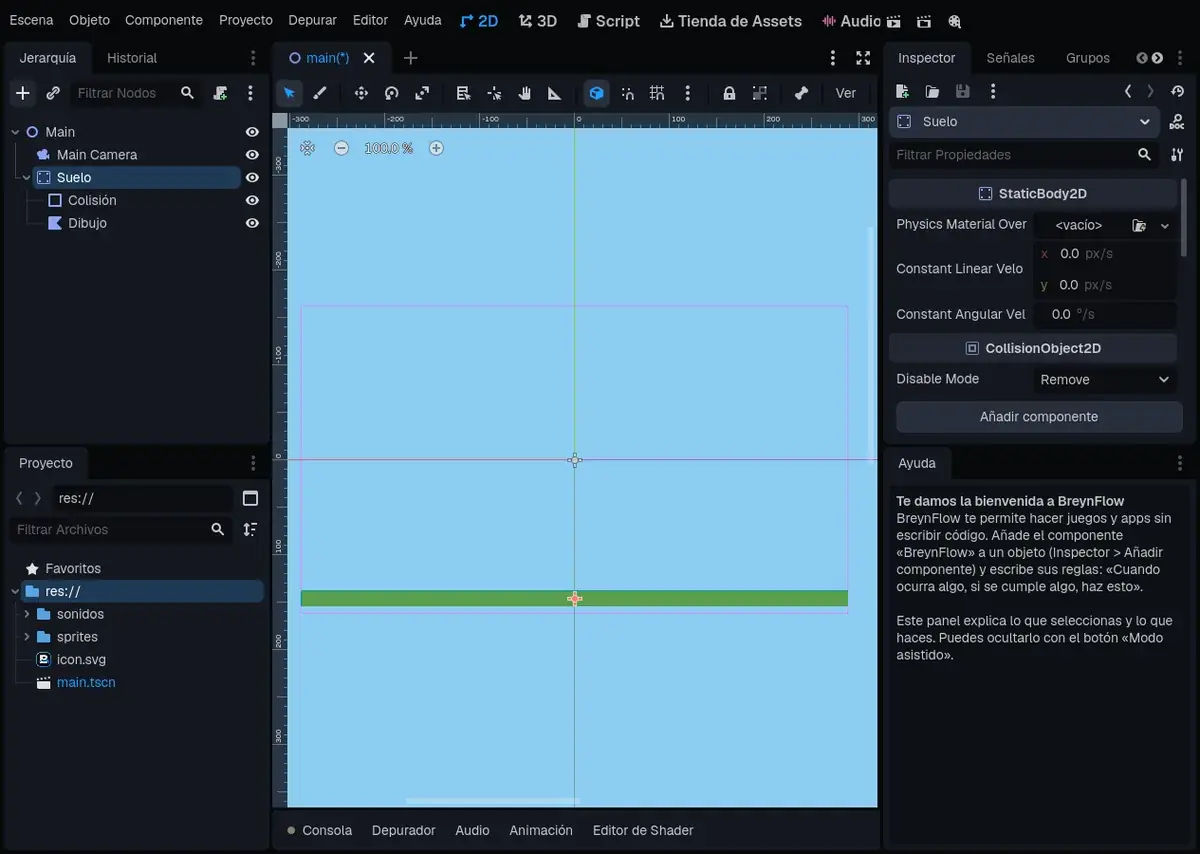
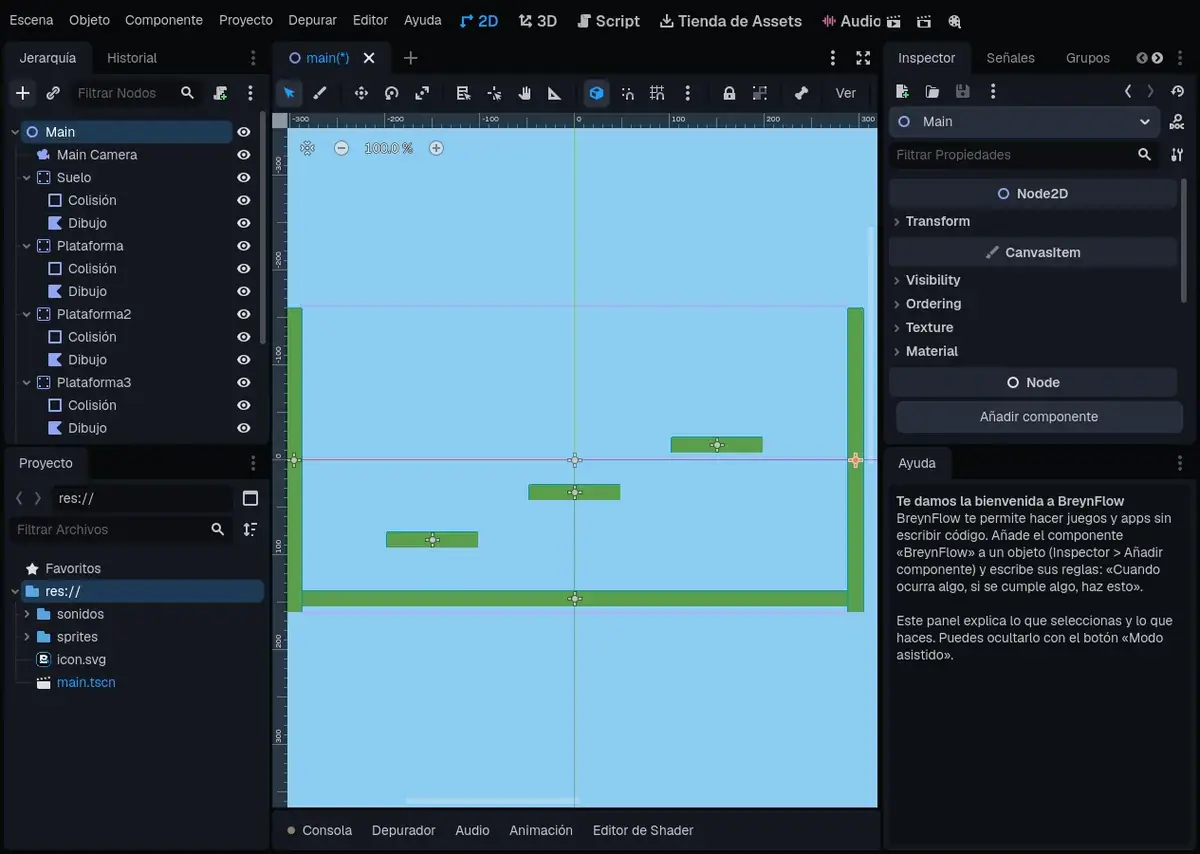
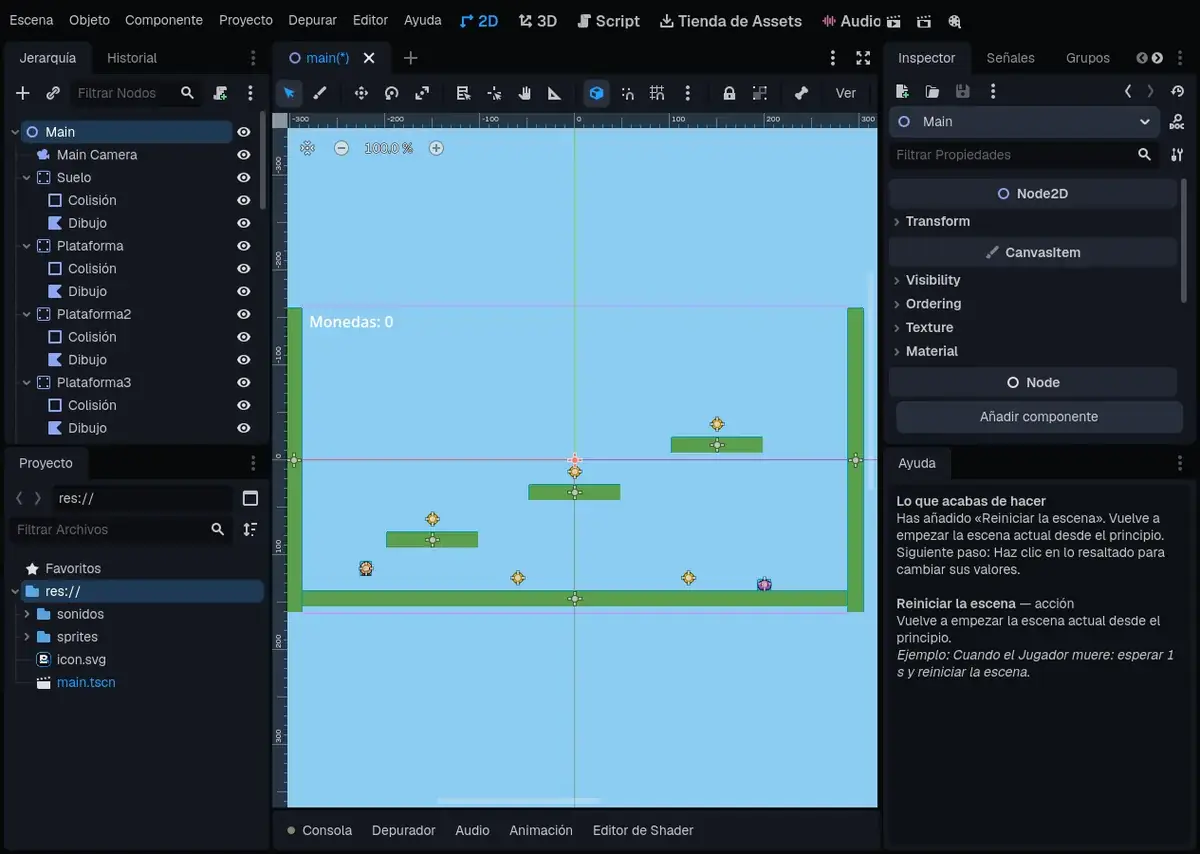
Go back to the 2D tab. We'll make the ground, three platforms and two walls.
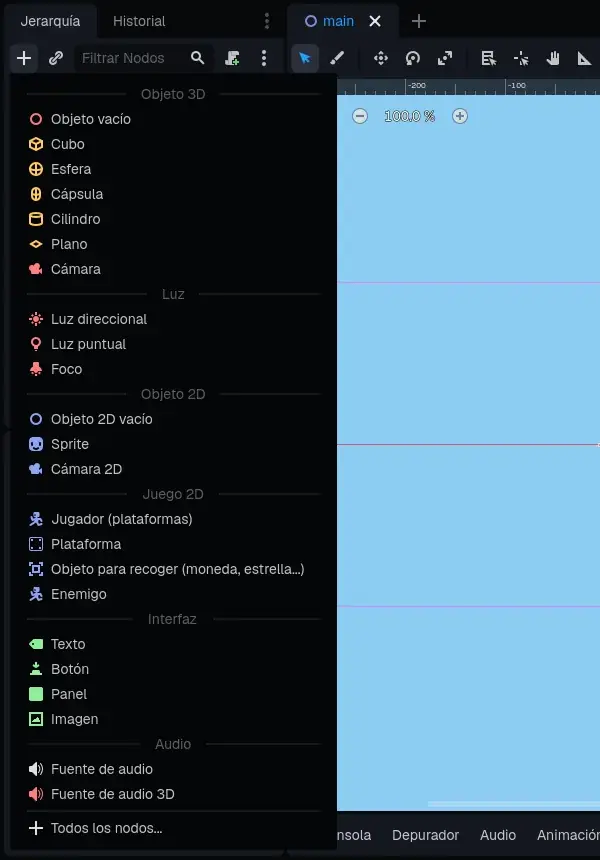
In the Hierarchy, select Main and press +. The 2D Game section has objects ready to play: each one comes with its physics body, its collider and a colored placeholder drawing.
Chapter 9The player
The drawing replaces the blue square and the collider fits its size by itself. The player is already in the group player, which we'll use in the rules.
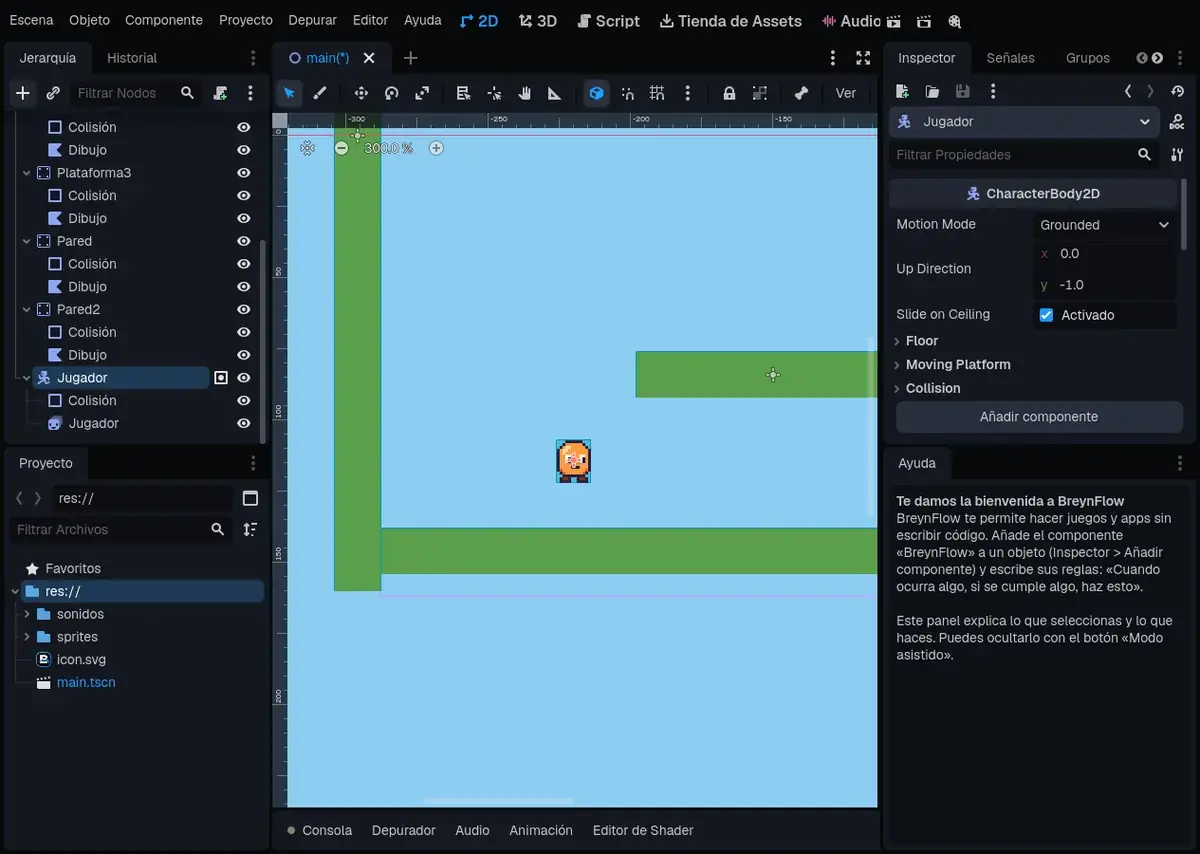
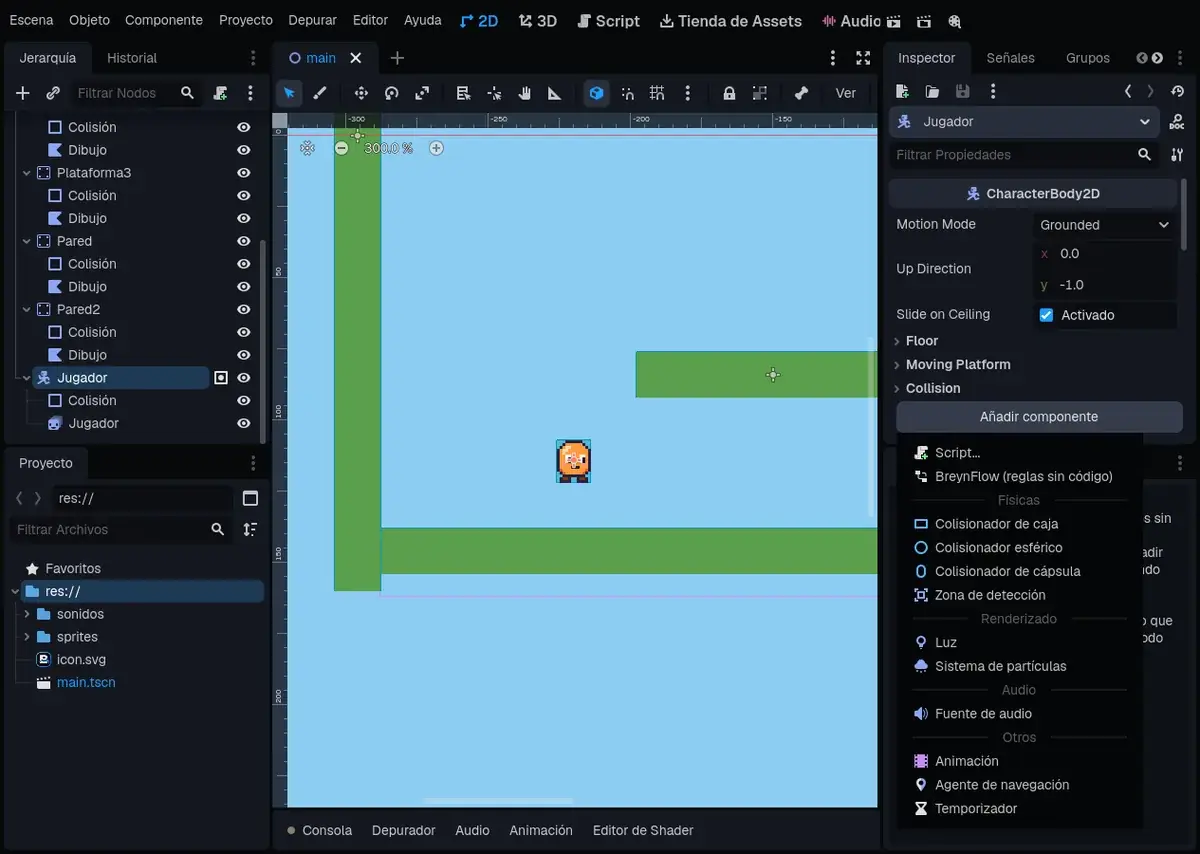
If you pressed ▶ now, the player would stand still: it doesn't know what to do yet. BreynFlow teaches it.
Chapter 10Bring it to life with BreynFlow
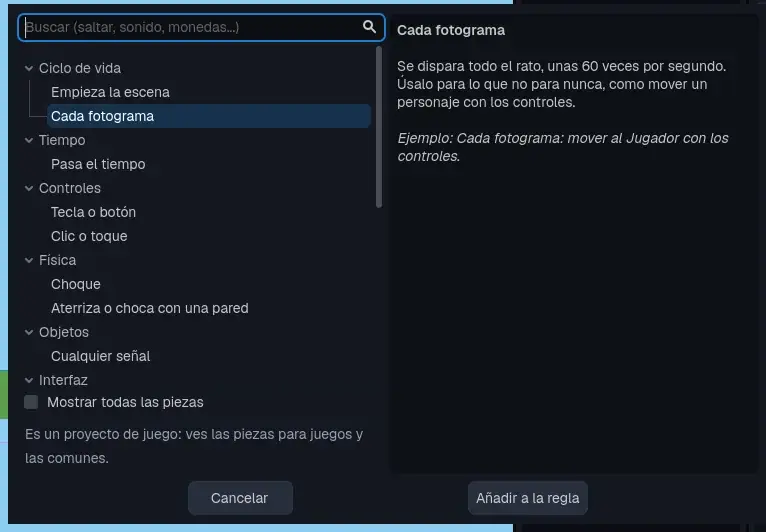
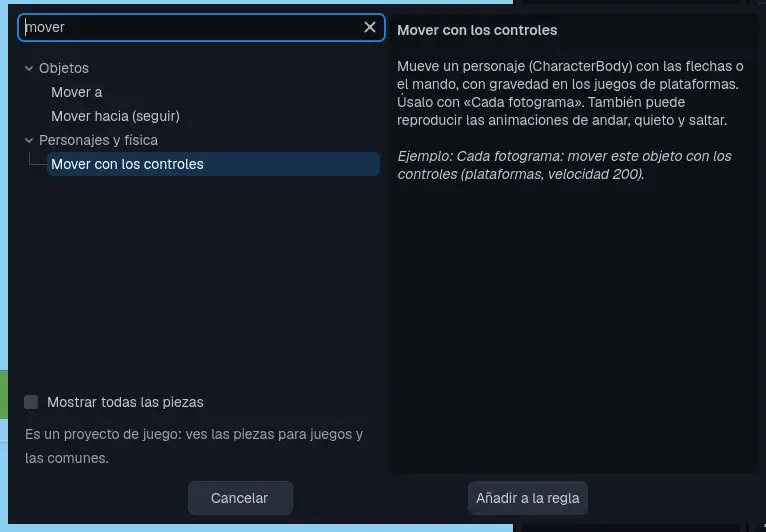
BreynFlow is the way to give orders to objects without programming. Each rule has three parts:
- WHEN: what happens (the game starts, a key is pressed, two things collide...).
- IF (optional): what must be true (it's on the floor, there are 5 coins...).
- DO: what happens then (move, jump, play a sound, disappear...).
Changing the values
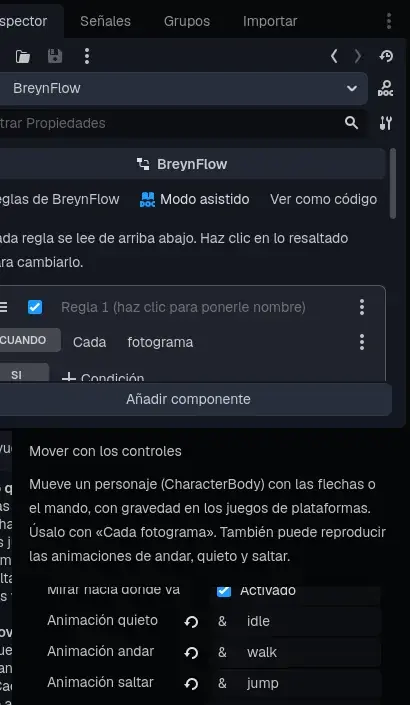
The highlighted words in rules can be changed with a click. Click the speed and, in the settings that open, set:
- Speed: 120.
- In Look: Idle Animation, Walk Animation and Jump Animation: idle, walk and jump, the names of your animations. The character walks, stands or jumps with the right drawing, and faces where it goes.
The jump rule
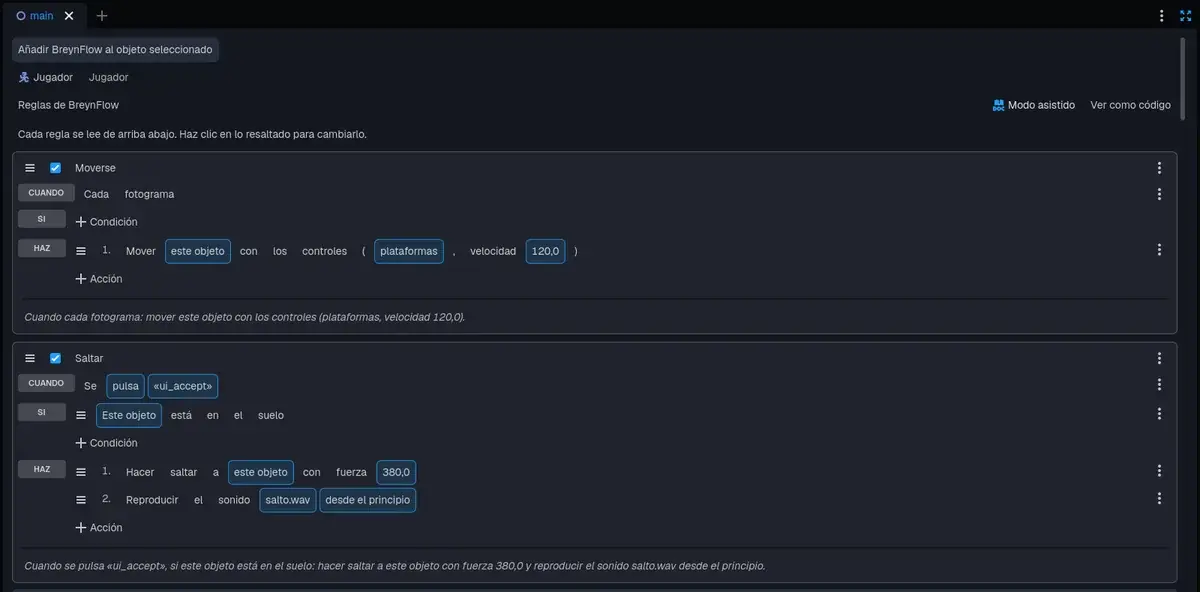
Press New Rule again and make this one:
Click "Rule 1 (click to name it)" and name the rules Move and Jump:
Chapter 11Let's play!
Save the scene (Ctrl+S) and press ▶ (top right), or Ctrl+P. Your game appears in the Game panel.
Move with the arrow keys and jump with Space. Try climbing the platforms.
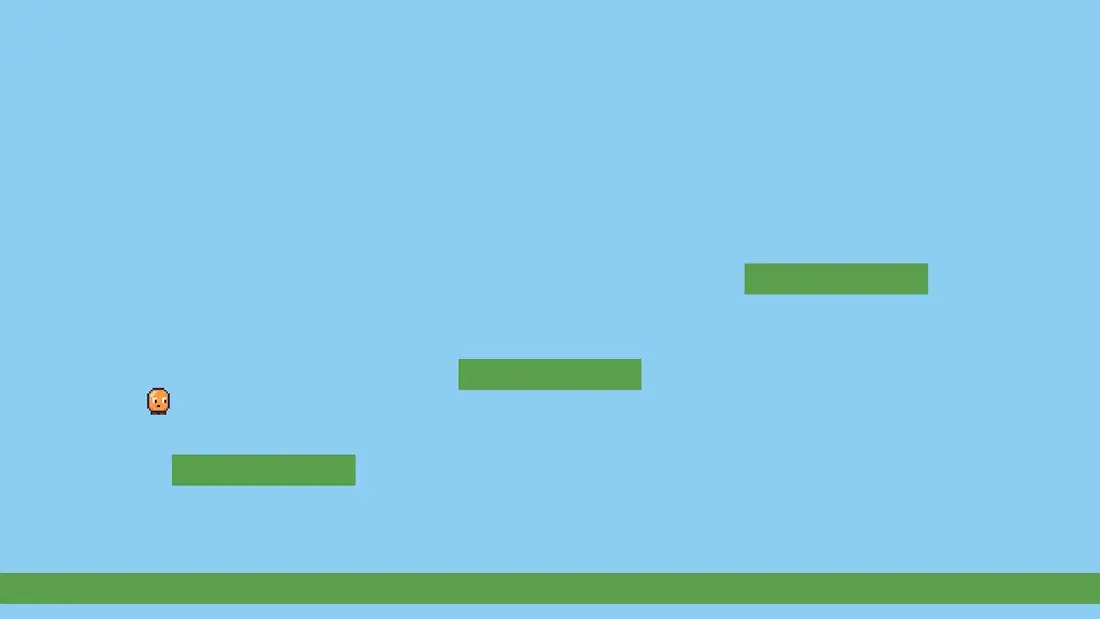
While you play, look at the BreynFlow tab: each rule flashes when it runs and counts how many times it did (▶ 25). If a condition isn't met, it's marked. It's the easiest way to find out why something doesn't work.
To stop, press the square ■ (or Ctrl+P again).
Chapter 12The coins
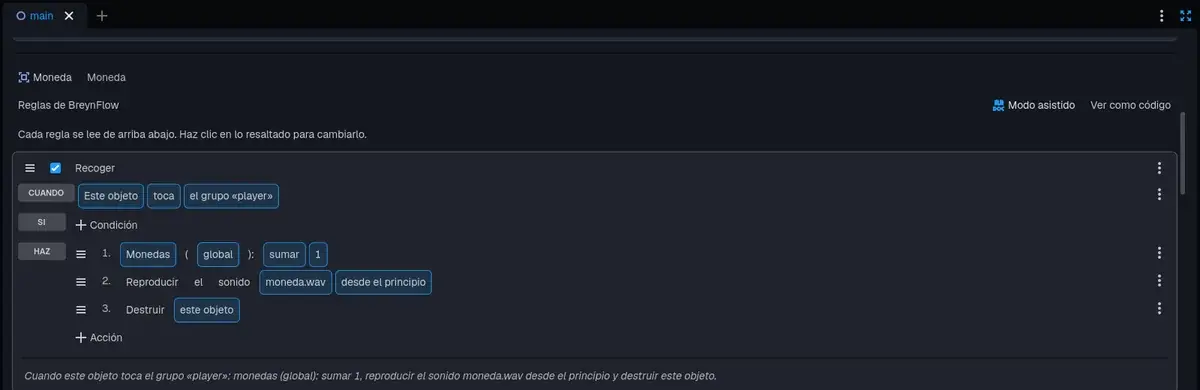
- WHEN: Physics > Collision. It comes ready: "this object touches the group player".
- DO: Change Variable: write coins as the name, click of the object to make it global (for the whole game) and leave add 1.
- DO: Play Sound: coin.wav.
- DO: Destroy: this object (the coin disappears).
More coins
Select the coin in the Hierarchy and press Ctrl+D four times. Each copy comes with its drawing and its rules. Spread the five coins over the level: one on each platform and two on the ground.
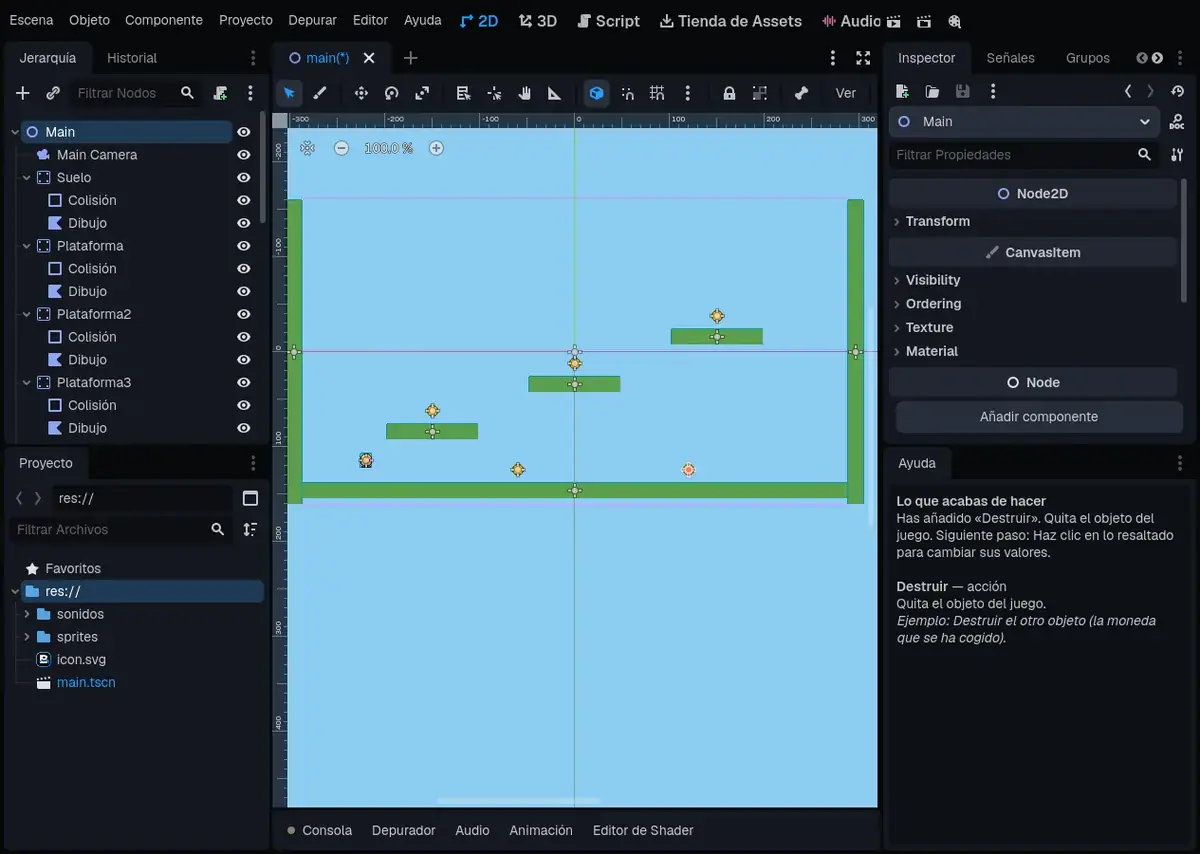
Chapter 13The score and the victory
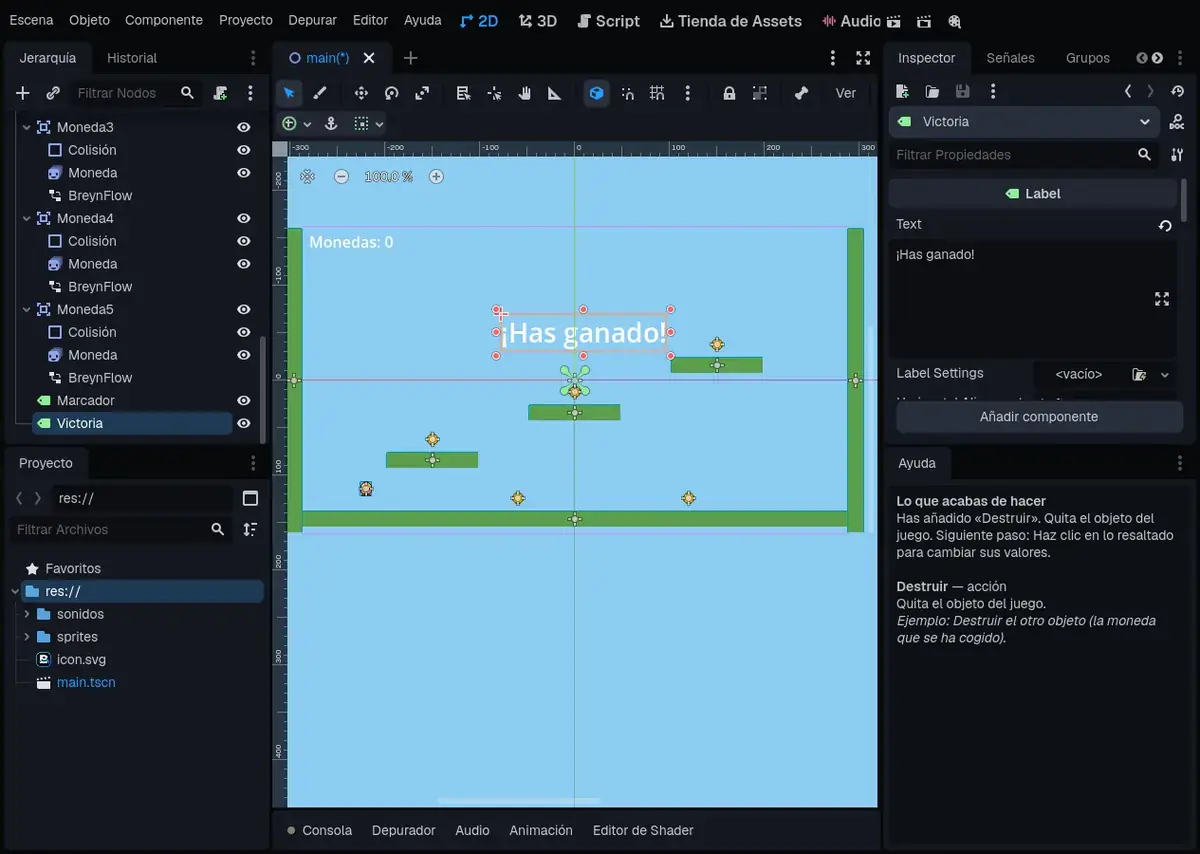
The coins are counted, but you can't see it. Let's show it.
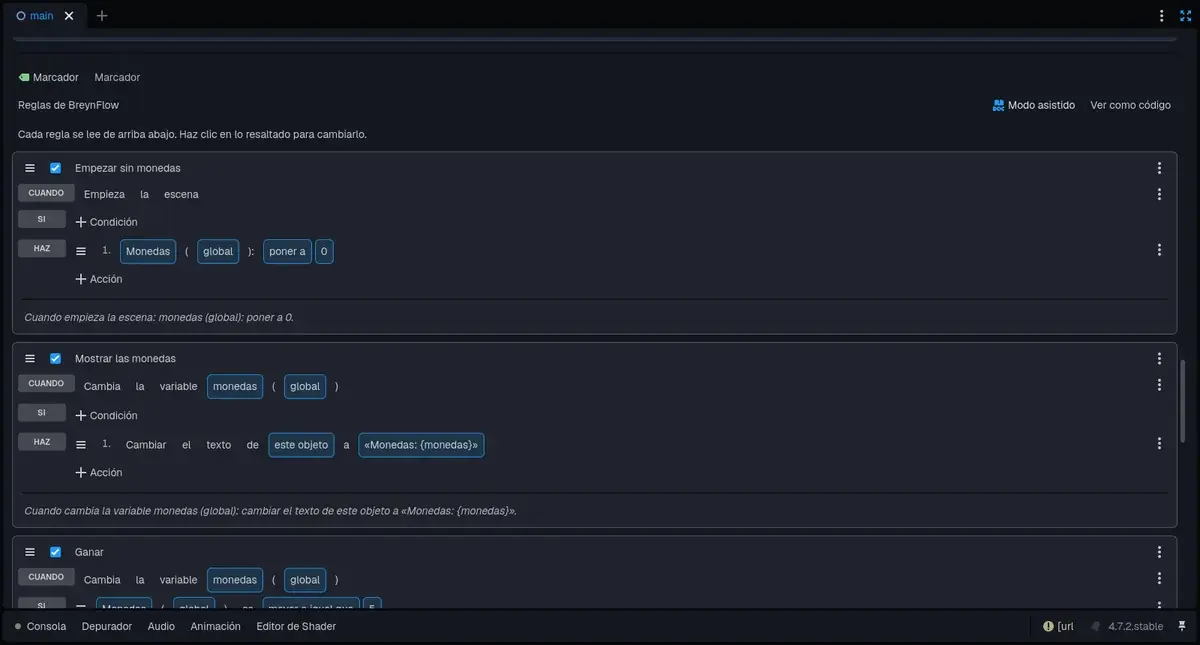
- Start with no coins. WHEN: Scene Starts. DO: Change Variable coins (global): set to 0. So, when starting again, the old coins don't carry over.
- Show the coins. WHEN: Variable Changes: coins (global). DO: Change Text of this object to Coins: {coins}. What's between braces is replaced by the value of the variable.
- Win. WHEN: Variable Changes: coins (global). IF: Compare Variable: coins (global) greater or equal to 5. DO: Show or Hide: show the Victory text (click the object, choose An object of the scene... and then Victory); Wait 2 seconds; Restart Scene.
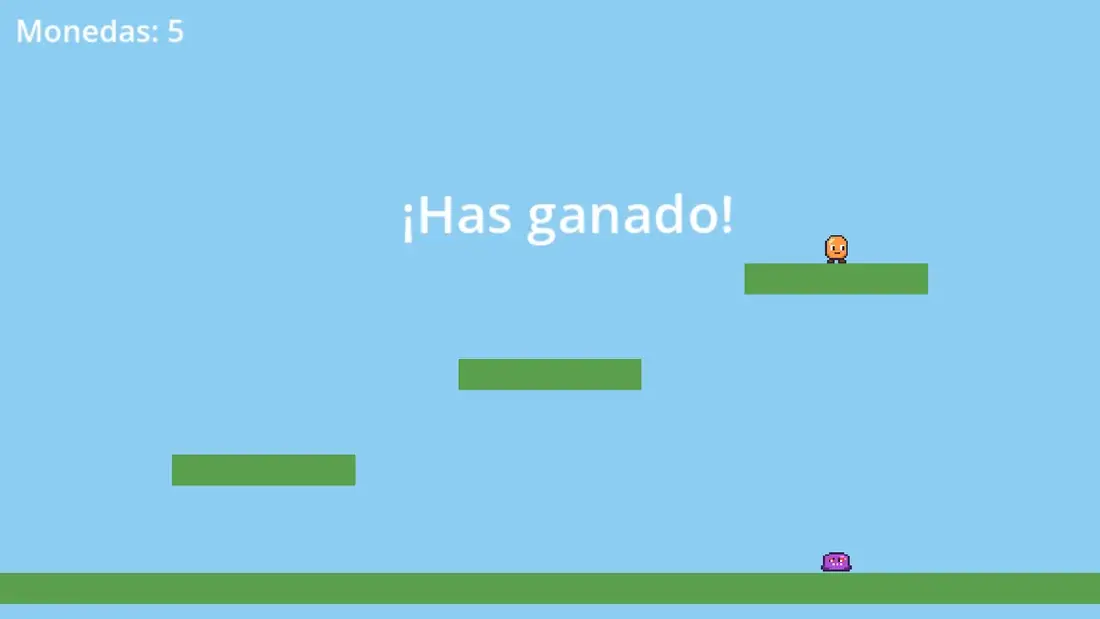
Try the game: each coin adds to the score and, with the fifth, you win!
Chapter 14An enemy
A bit of excitement.
- Walk. WHEN: Every Frame. DO: Walk Back and Forth, speed 40.
- Turn at walls. WHEN: Lands or Hits a Wall (it comes as "hits a wall"). DO: Turn Around.
- Stomped. WHEN: Collision with the group player. IF: Collision Side: the other object came from above. DO: Bounce the other object (the player) with force 260; Destroy this object.
- Touches the player. WHEN: Collision with the group player. IF: Collision Side: from the side. DO: Activate or Deactivate: deactivate the other object; Wait 0.5 seconds; Restart Scene.
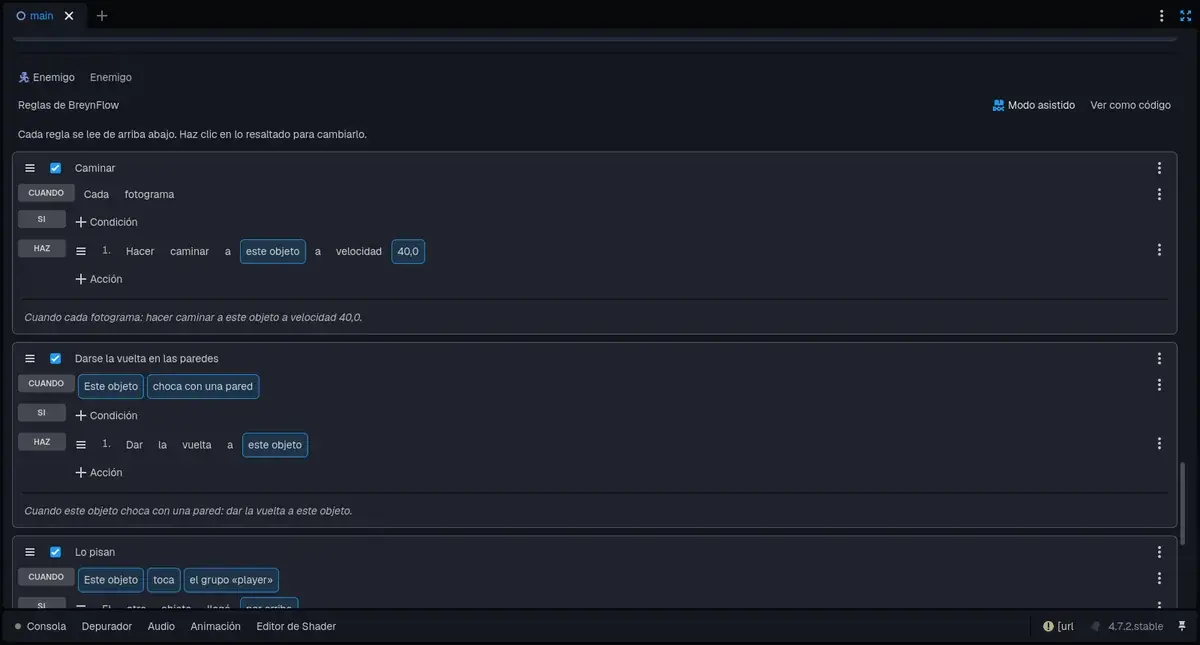
Now the enemy walks back and forth. If you stomp on it, you bounce and it disappears; if it touches you from the side, you start again.
Chapter 15Play it and share it
Your game is finished! Save (Ctrl+S) and press ▶ to enjoy it.
To take it further:
- On an Android phone: Project > Tools > Generate APK (Android)... makes the installer with one button. With App Icon... in the Sprites editor, your character can be the icon.
- On the computer: Project > Build Settings (Ctrl+Shift+B) to choose the platform and build.
- Publish it on the Breynart App Store (Help > Breynart App Store).
Chapter 16What next?
You know the basics of the three tools. Some ideas to keep going:
- Add background music: a "Scene Starts" rule with Play Music. It can repeat whole, or only a section, without gaps.
- Make more levels: create another scene and, when winning, use Change Scene instead of restarting.
- Add lives: a global variable "lives" that goes down when the enemy touches you, and the text "Lives: {lives}".
- Explore all the pieces in the BreynFlow finder: timers, messages between objects, save and load game, chase the player...
- Look at View as Code in the rules: BreynFlow shows how they would be in C#, in case you want to start programming one day.
More tutorials
Want more? To see more tutorials, go to the Help > Tutorials menu. There you'll find, with step-by-step pictures like this one:
- My task list: a phone app with screens, lists, settings and its own icon.
- My invoicing program: a desktop program with clients, products, invoices and PDFs.
- My 3D shooter: a first-person game in the style of the classics, with a level built from shapes, demons, a key and a door.
- My jungle adventure: a third-person adventure in the style of Tomb Raider, in a world of blocks: a generated jungle, a Maya pyramid and a mechanism of stone and plate to open its entrance.
Have fun creating!