This is the version for phones and tablets (Android), with the editor's touch interface. Making it on a computer? Go to the version for computers.
You're reading the tutorial in the phone's browser. In BreynGINE, ☰ > Help > Tutorials opens this same page and offers to copy the drawings and sounds it needs into your project; here you can also download them as a ZIP.
Chapter 1In five minutes
The shortest tutorial, right on your Android phone or tablet: in five steps you'll have a character that walks, jumps and picks up coins, with a joystick on the screen and a score. Without writing code and without drawing anything: the objects come with a provisional drawing and their rules.
What you're going to make: a player, a floor, a coin, the score and the touch controls.
When you finish, in My first game you'll make a complete one, with your drawings, your sounds and an enemy.
Tip: switch between the browser and BreynGINE with the phone's recent apps button (or put both at once with split screen). If you make a mistake, the ↶ button at the top undoes almost everything, and 💾 saves the scene.
Chapter 21. A 2D project
1
In the Project Manager (the screen that shows when you open BreynGINE), tap New Project, at the bottom.
2
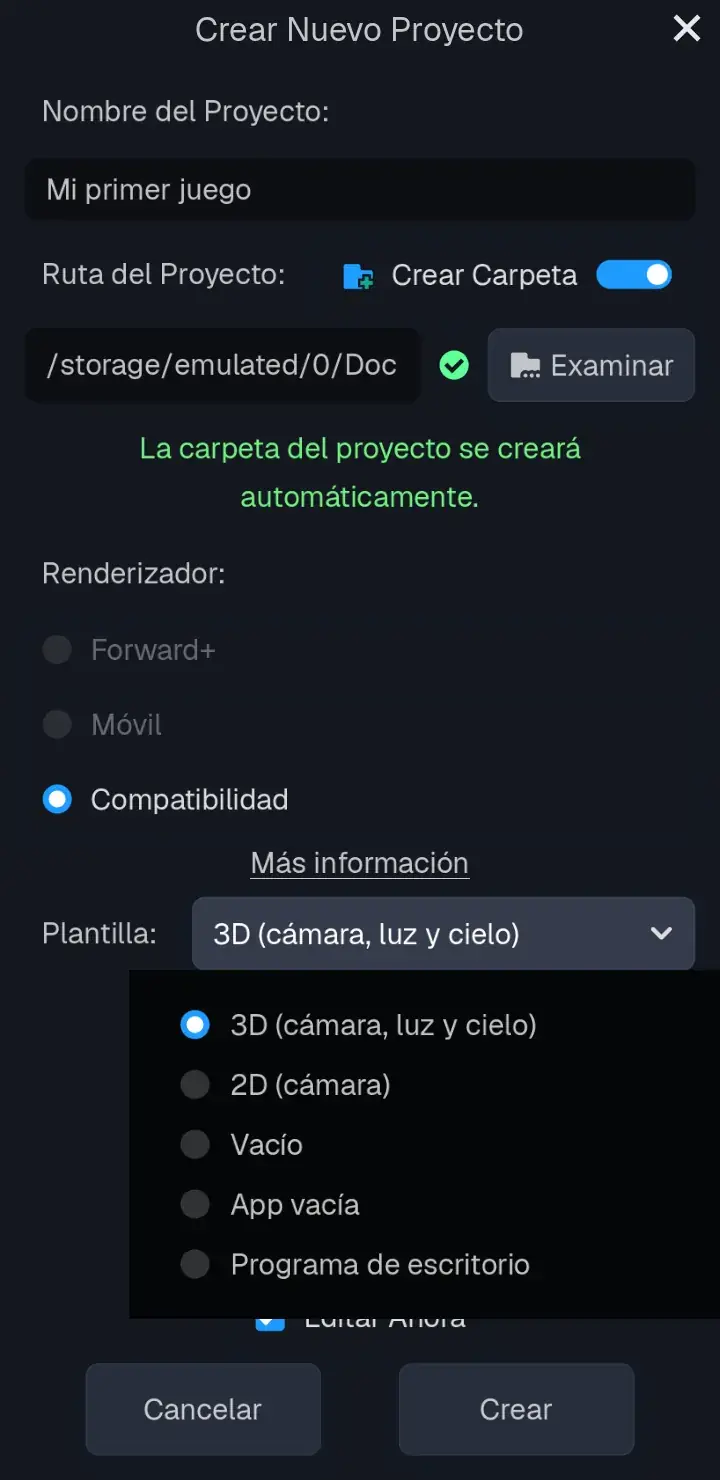
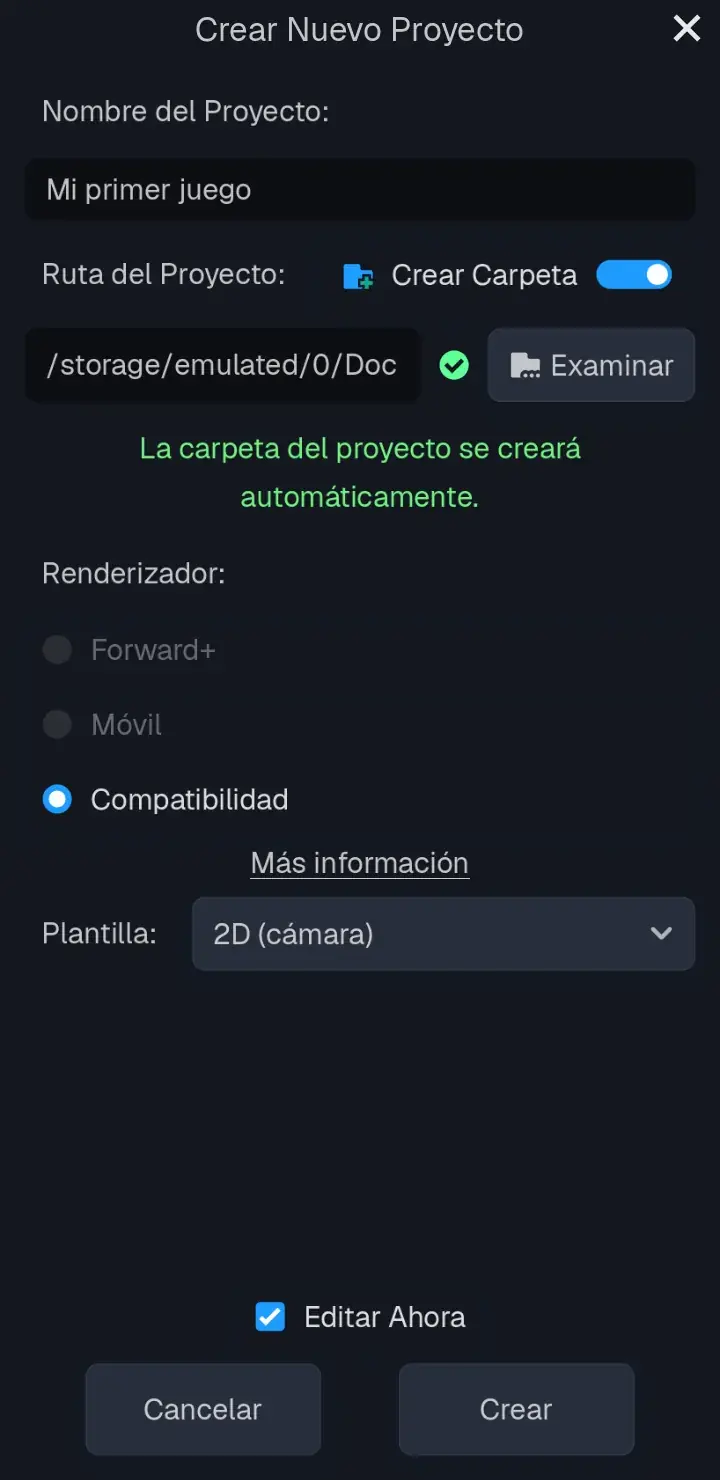
In Project Name write My quick game, and in Template choose 2D (camera). Below, a sentence tells you what each template brings.
3
Tap Create. The editor opens with the scene main: in the Scene tab (at the bottom) there are Main, the root of the scene, and Main Camera, the camera.
Choose the template "2D (camera)" and tap Create.
Chapter 32. The camera and the floor
1
In the Scene tab, tap Main Camera. Go to the Inspector tab: at the very top, in Favorites, set Zoom to 3 (in x and y). The objects are small, and this way they look right.
2
Go back to Scene, tap Main, then + and, in 2D Game, choose Platform.
3
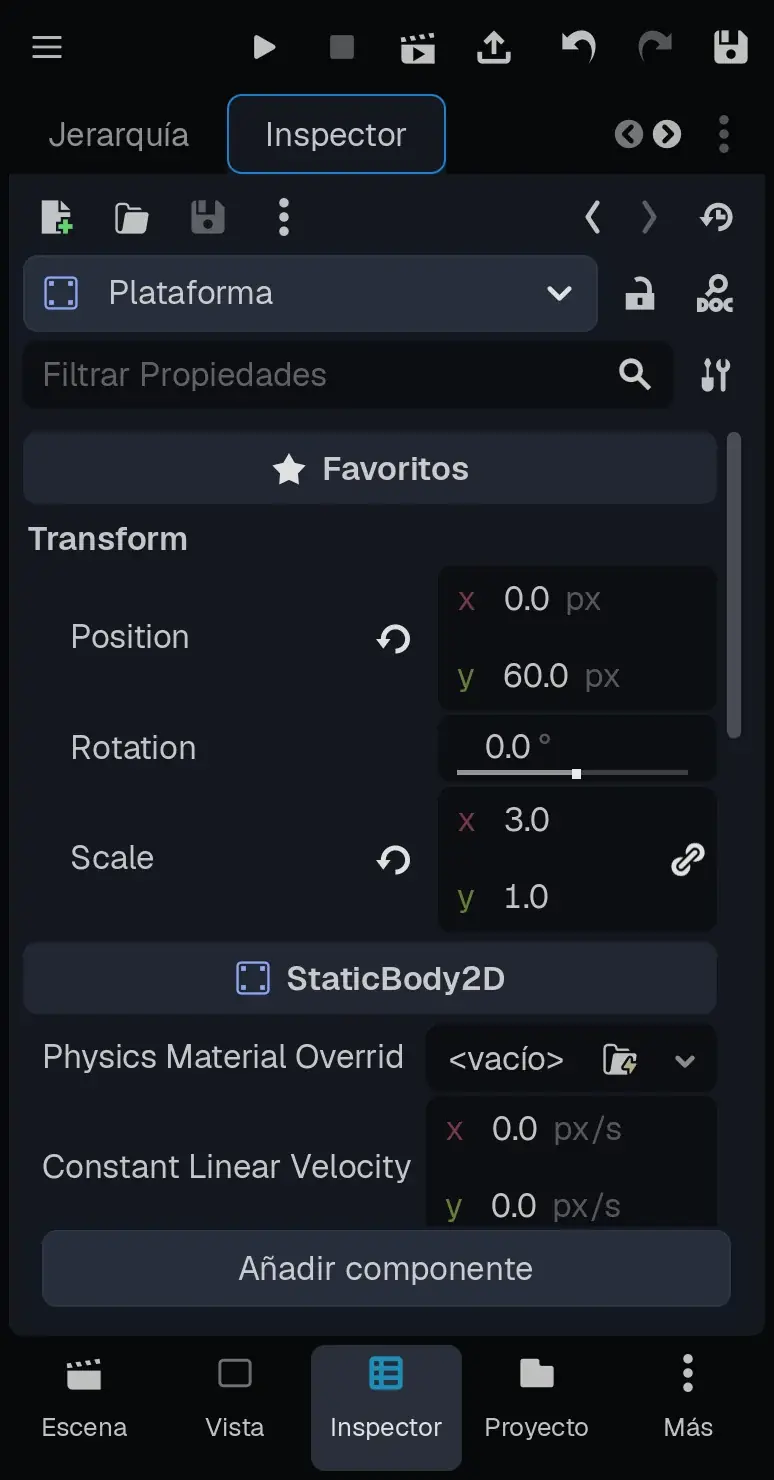
In the Inspector, in Favorites, set Position to (0, 60) and Scale to (3, 1): a wide floor, at the bottom.
The floor, in Favorites: Position and Scale.
Chapter 43. The player and a coin
1
In Scene, tap Main, + and choose Player (Platformer). In the Inspector, set its Position to (-80, 30): a blue square above the floor.
2
Once more: Main, + and Pickup (Coin, Star...), at (60, 40): a yellow circle.
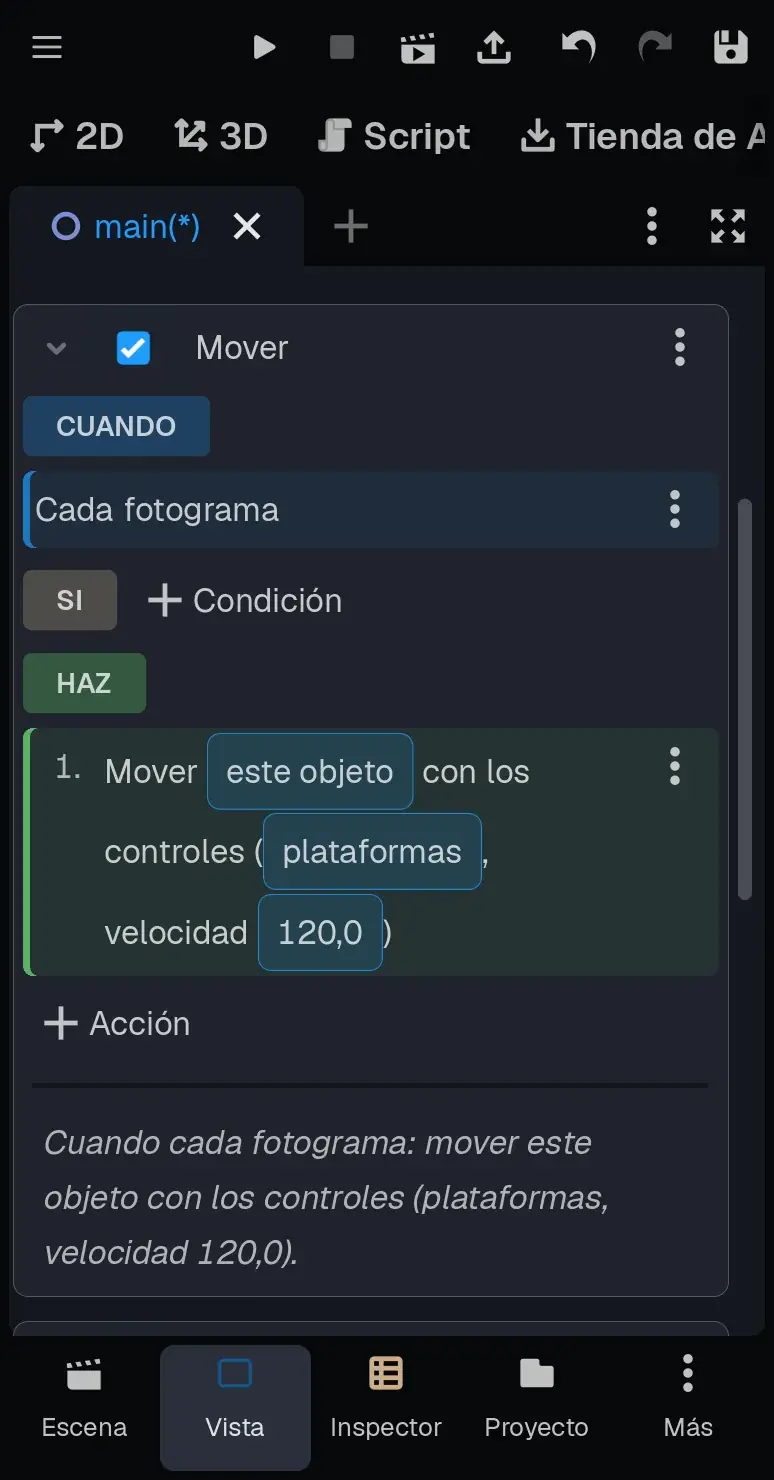
The ready-made objects of the + already know what to do: each one comes with its BreynFlow, its rules. Tap the Player in the Scene tab, go to View and tap BreynFlow in the workspace bar (slide it with your finger if you don't see it): you'll see Move (with the controls) and Jump (if it's on the floor). The coin comes with Pick Up: when the player touches it, it adds 1 to coins and disappears.
The rules the player comes with.
Chapter 54. The phone's controls
A phone has no keyboard: the player needs a joystick and a button to jump. There's a recipe (rules ready to use) that puts them there:
1
With the Player selected, in the BreynFlow view, tap Add Recipe... (below the rules, next to New Rule).
2
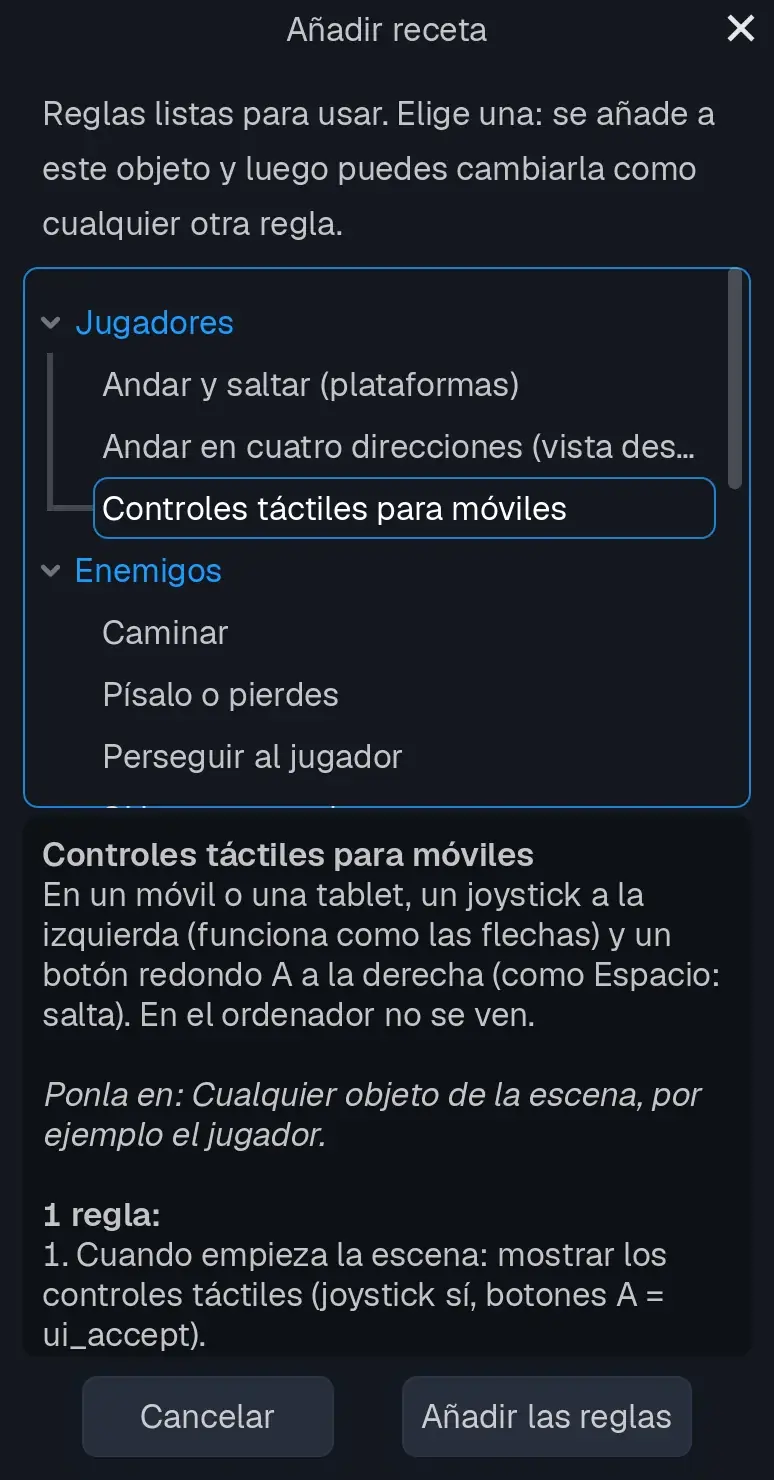
Choose Players > Touch Controls for Phones and tap Add the Rules.
The recipes: rules ready to use.
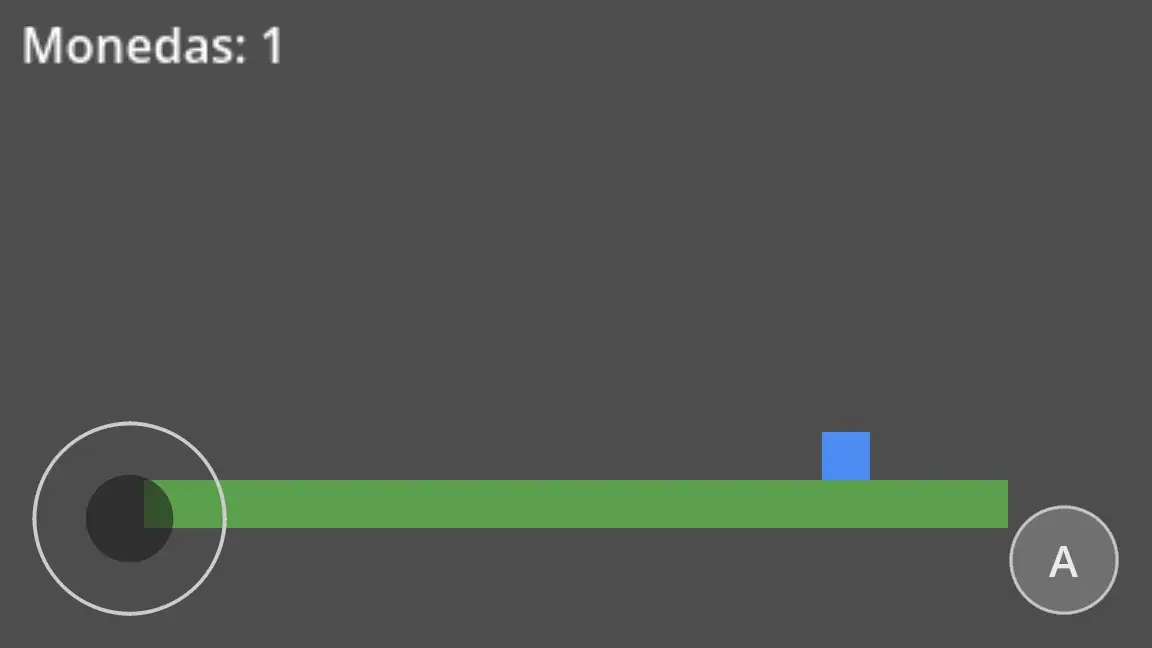
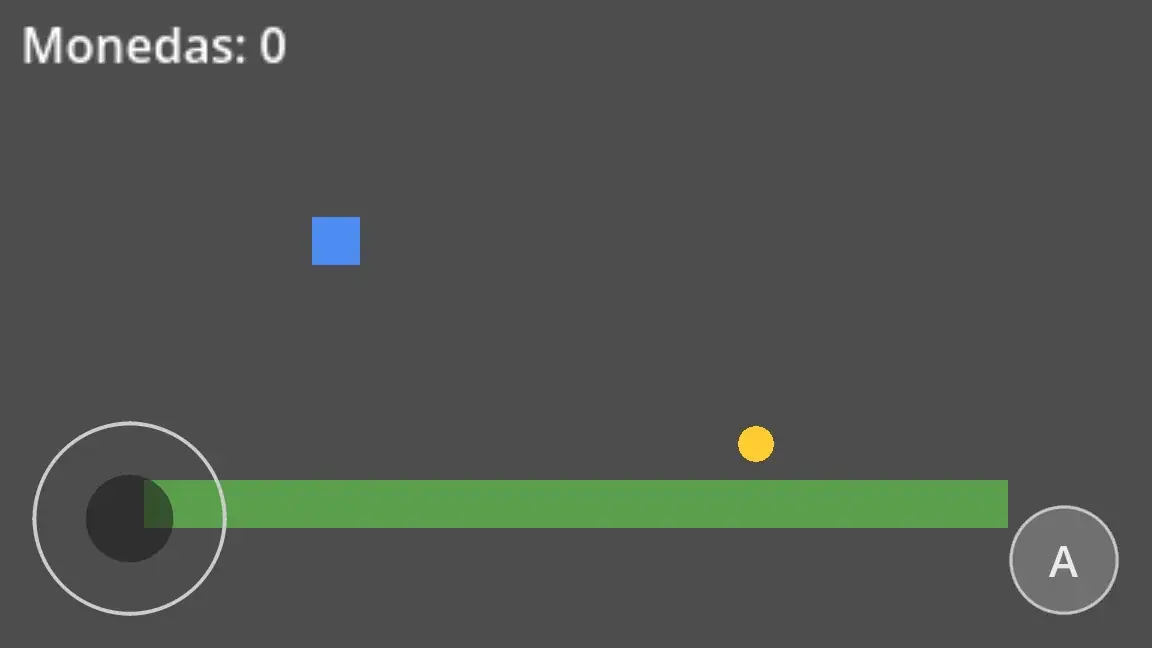
Now, let's play: save (💾) and tap ▶, at the top. The joystick shows up where you put your thumb, on the left, and the A button, bottom right, jumps. Touch the coin: it disappears. To stop, close the game or tap ■.
It moves and jumps!
Chapter 65. A score
The coin adds up, but you can't see it. Another recipe shows it:
1
In Scene, tap Main, + and choose UI > Text. In the Inspector, set its Position to (-185, -105): the top left of the screen.
2
With the text selected, go to the BreynFlow view and tap Add BreynFlow to the Selected Object.
3
Tap Add Recipe..., choose Score and Winning > Score on Screen and tap Add the Rules.
Save and tap ▶: the text says Coins: 0 and, when you take the coin, Coins: 1.
Tip: duplicate the coin (hold your finger on it in the Scene tab > Duplicate) and spread a few. And try other recipes: Win with 5 Coins, Countdown or Background Music.
Chapter 7Done!
You made a game in five minutes, on your phone. To go on:
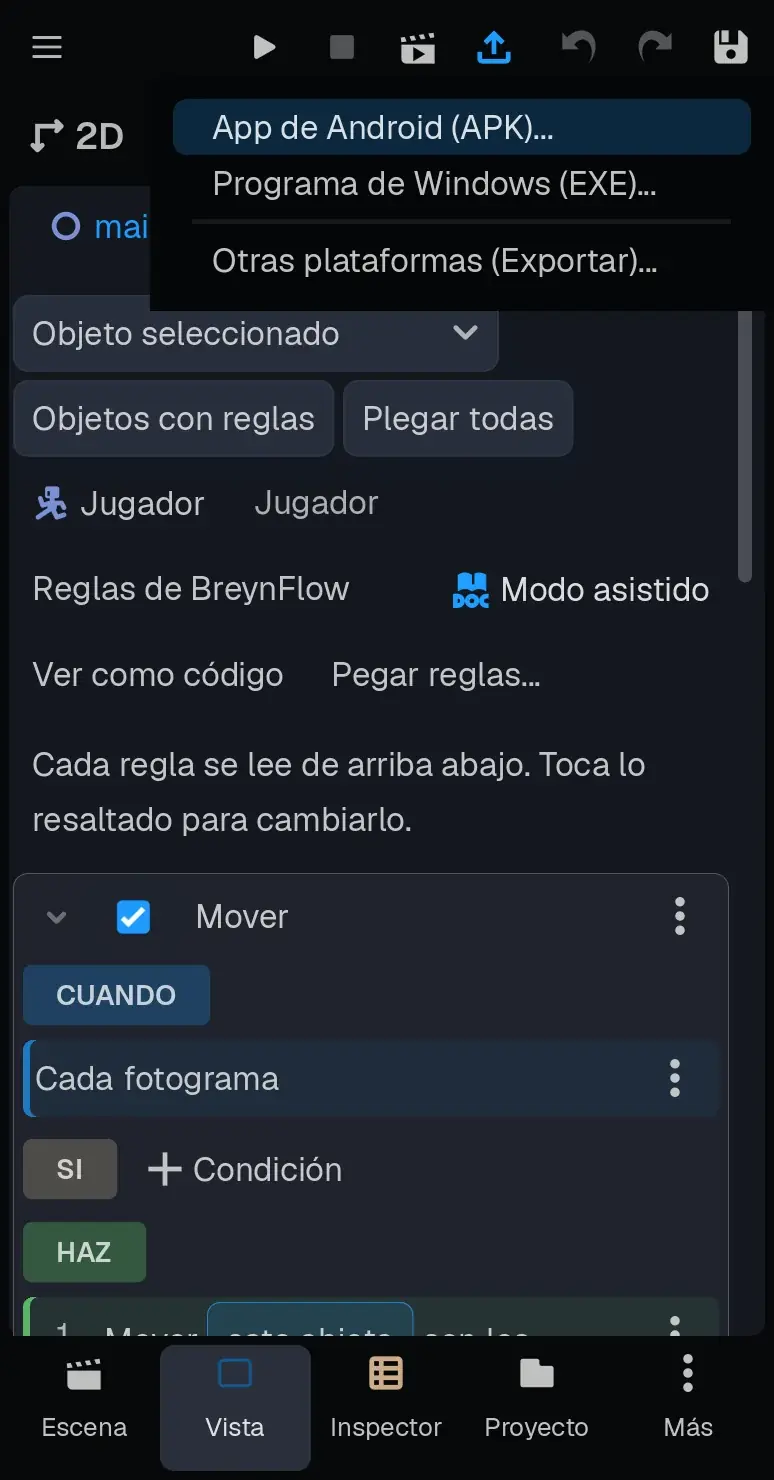
Install it as an app: tap the Publish button at the top (the arrow coming out of a tray, next to ▶) and choose Android App (APK)....
Add an Enemy with the +: it already walks by itself. The recipe Enemies > Stomp It or Lose lets you stomp on it.
Make the complete game, with your drawings and sounds, in My first game.
The Publish button, next to ▶.
Tip: if a rule has a problem while you play, BreynGINE tells you and puts it in red under that rule, in the BreynFlow view.