Making it on a phone or a tablet? This is the version for computers: go to the version for phones, with the touch interface and pictures of the phone.
You're reading the tutorial on the web. In the editor on a computer it's in Help > Tutorials, next to your project. The links that copy drawings and sounds into your project in the editor download them as a ZIP here; on a phone, BreynGINE offers to copy them when you open the tutorial.
Chapter 1In five minutes
The shortest tutorial: in five steps you'll have a character that walks, jumps and picks up coins, with a score. Without writing code and without drawing anything: the objects come with a provisional drawing and their rules.
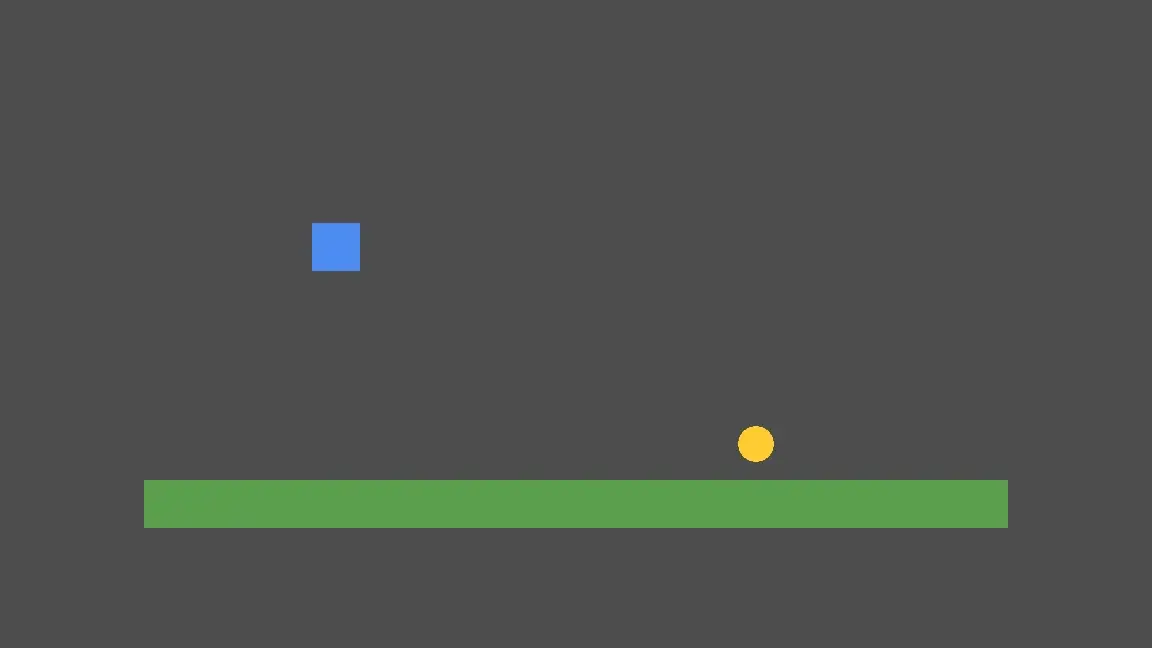
What you're going to make: a player, a floor, a coin and the score.
When you finish, in My first game you'll make a complete one, with your drawings, your sounds and an enemy.
Tip: if you make a mistake, Ctrl+Z undoes almost everything, and Ctrl+S saves the scene.
Chapter 21. A 2D project
1
In the Project Manager, press Create (if you're inside another project, first go to Project > Quit to Project List).
2
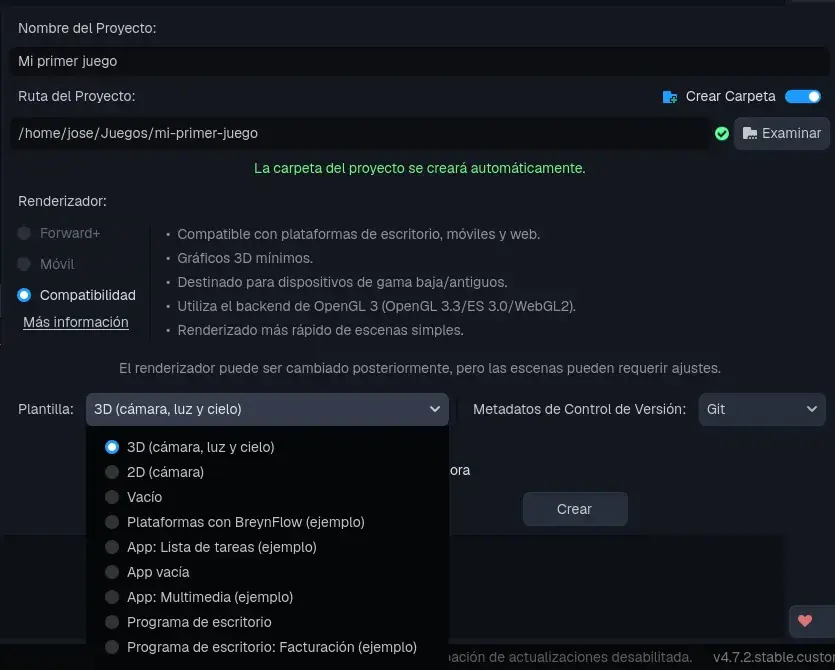
Write the name, My quick game, and in Template choose 2D (camera). Below, a sentence tells you what each template brings.
3
Press Create. The editor opens with the scene main: in the Hierarchy (top left) there are Main, the root of the scene, and Main Camera, the camera.
Choose the template "2D (camera)".
Chapter 32. The camera and the floor
1
In the Hierarchy, click Main Camera. In the Inspector (on the right), at the very top, in Favorites, set Zoom to 3 (in x and y): the objects are small, and this way they look right.
2
Click Main, press the + of the Hierarchy and, in 2D Game, choose Platform.
3
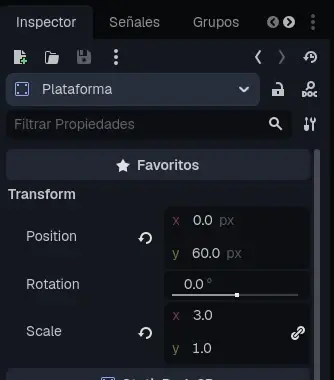
In the Inspector, in Favorites, set Position to (0, 60) and Scale to (3, 1): a wide floor, at the bottom.
The floor, in Favorites: Position and Scale.
Chapter 43. The player and a coin
1
Click Main, press + and choose Player (Platformer). Set its Position to (-80, 30): a blue square above the floor.
2
Once more: Main, + and Pickup (Coin, Star...), at (60, 40): a yellow circle.
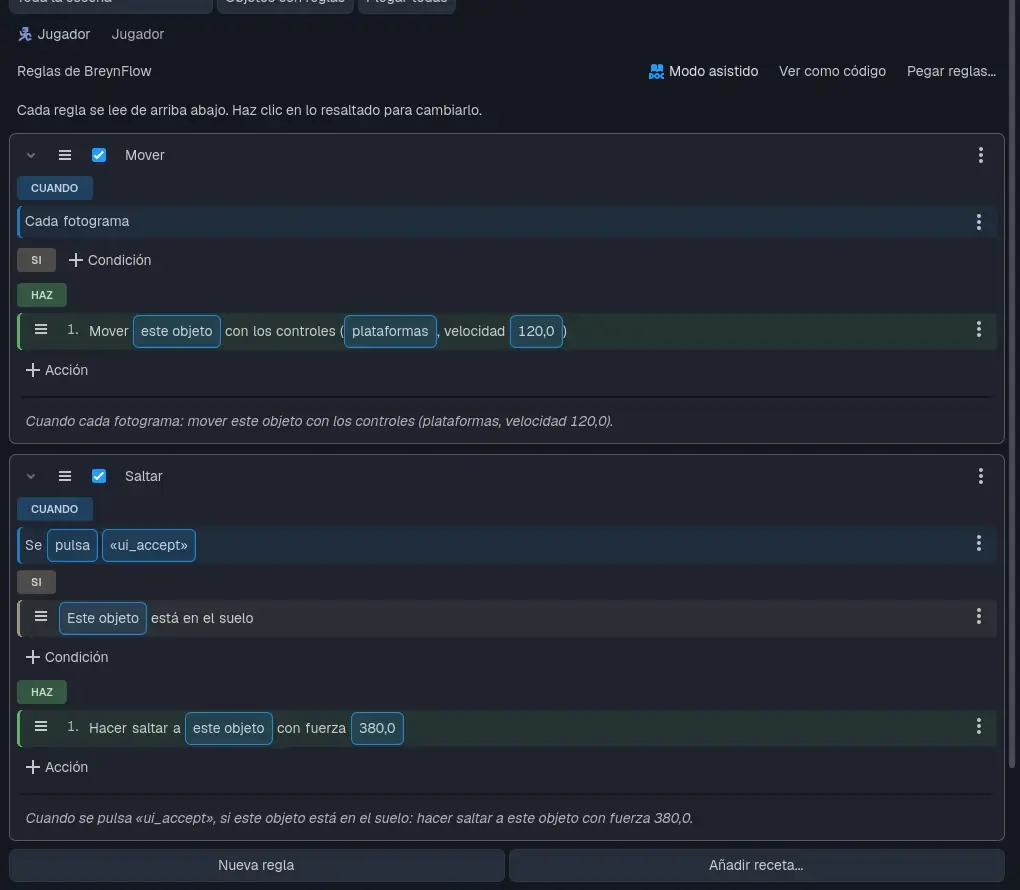
The ready-made objects of the + already know what to do: each one comes with its BreynFlow, its rules. Select the Player and press the BreynFlow tab (at the top, next to 2D and 3D): you'll see Move (the arrow keys move it) and Jump (Space, if it's on the floor). The coin comes with Pick Up: when the player touches it, it adds 1 to coins and disappears.
The rules the player comes with.
Tip: the highlighted words in rules are changed with a click. Try raising the jump force or the speed.
Chapter 54. Let's play!
Save the scene (Ctrl+S) and press ▶, at the top. Your game appears in the Game panel.
Move with the arrow keys and jump with Space. Touch the coin: it disappears. To stop, press ■.
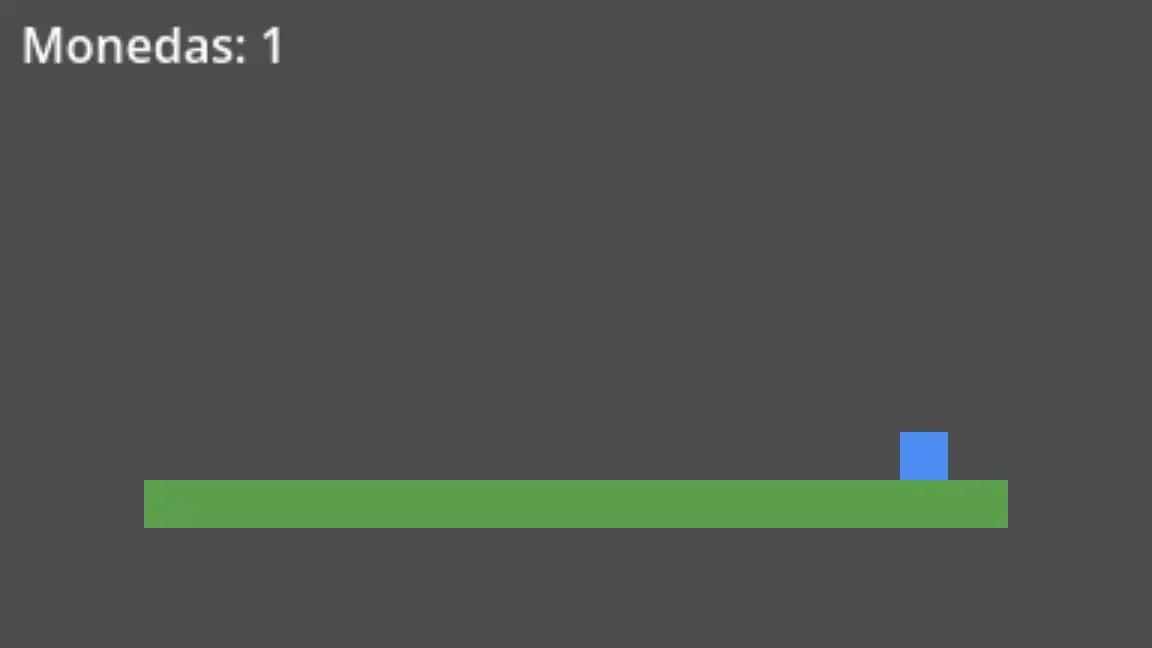
It moves and jumps!
Chapter 65. A score, with a recipe
The coin adds up, but you can't see it. To show it there's a recipe: rules ready to use.
1
Click Main, press + and choose UI > Text. Set its Position to (-185, -105): the top left of the screen.
2
With the text selected, go to the BreynFlow tab and press Add BreynFlow to the Selected Object.
3
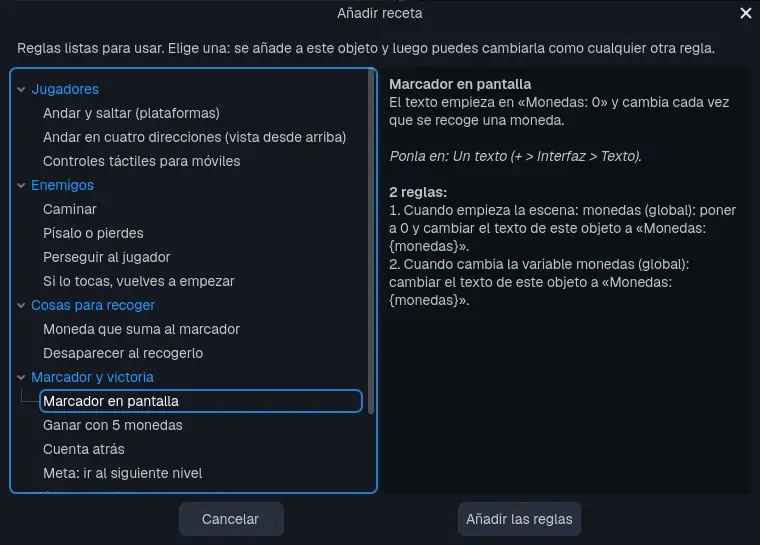
Press Add Recipe... (next to New Rule), choose Score and Winning > Score on Screen and press Add the Rules.
The recipes: rules ready to use.
Save and press ▶: the text says Coins: 0 and, when you take the coin, Coins: 1.
Tip: duplicate the coin with Ctrl+D and spread a few. And try other recipes: Win with 5 Coins, Countdown or Background Music.
Chapter 7Done!
You made a game in five minutes. To go on:
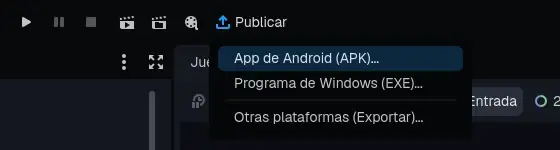
Put it on your phone: press Publish (at the top, next to ▶) and choose Android App (APK).... Or Windows Program (EXE)... for the computer.
Add an Enemy with the +: it already walks by itself. The recipe Enemies > Stomp It or Lose lets you stomp on it.
Make the complete game, with your drawings and sounds, in My first game.
The Publish button, next to ▶.
Tip: if a rule has a problem while you play, BreynGINE tells you and puts it in red under that rule, in the BreynFlow tab.